Custom notification emails
Patcher for Jira · write your own notification emails per project: your subject, your text, any field, your design.
What it adds
Patcher lets you replace Jira's notification emails in a project with mails you write yourself. For each Jira event (created, updated, assigned, commented, resolved, work logged and the rest) you choose who sends the email: Jira, as today, or Patcher. When you choose Patcher, Patcher switches Jira's own email for that event off and sends your mails instead, so nobody ever gets two.
- Your words and your fields. Subject and body are written in an editor like Jira's comment box. Type
${to pick any field, custom fields included, and it becomes a chip that is filled in when the mail goes out. - Your design. Every mail is placed in an email template: a header band with your logo, colours, a View issue button, a footer. Two templates are ready when you enable the fix, and five sample designs get you started.
- The right people. Each mail has its own recipients (reporter, assignee, watchers, voters, project or component lead, people, groups, project roles, people in a user field, the parent issue's people), people it never emails, people whose changes never send it, and an optional JQL condition.
- Events Jira cannot mail. Issue linked and Issue unlinked get mails too.
- Per project. Each project has its own mails, templates and sent log. Projects where the fix is off keep Jira's standard emails.
Mails go out through Jira's own mailer, from your site's usual Jira address, only to people who can see the issue. Jira frames every mail an app sends: a line "Patcher for Jira has a message for you about a work item" above your mail, and the issue's link and Add Comment below it. Nothing leaves your Atlassian site.
Before you start
- Rights: a Jira administrator installs the fix; a project administrator (or a Jira administrator) enables and sets it up in a project.
- Company-managed projects only. Jira gives apps no way to switch its emails off in team-managed projects, so the fix does not send there and says so on the settings page.
- Your notification scheme stays as it is. The first time you move an event to Patcher, the project gets its own copy of its notification scheme, named "<project> notifications (Patcher)", and Patcher changes only that copy. Other projects that share the scheme keep their emails. When every event is back on Jira, or the fix is turned off, the project goes back to its original scheme.
- Decide what each mail shows. Everyone a mail names receives the same text, whatever fields they can see in Jira. Keep internal fields out of mails to reporters.
- Nothing changes when you install or enable the fix: every event stays with Jira until you move it.
Enable it, step by step
- Open Jira settings → Apps → Patcher. On the Fixes tab, find JRACLOUD-7266 · Provide ability to customise email templates… under Available and choose Install. It moves to Installed; the Audit tab records it.
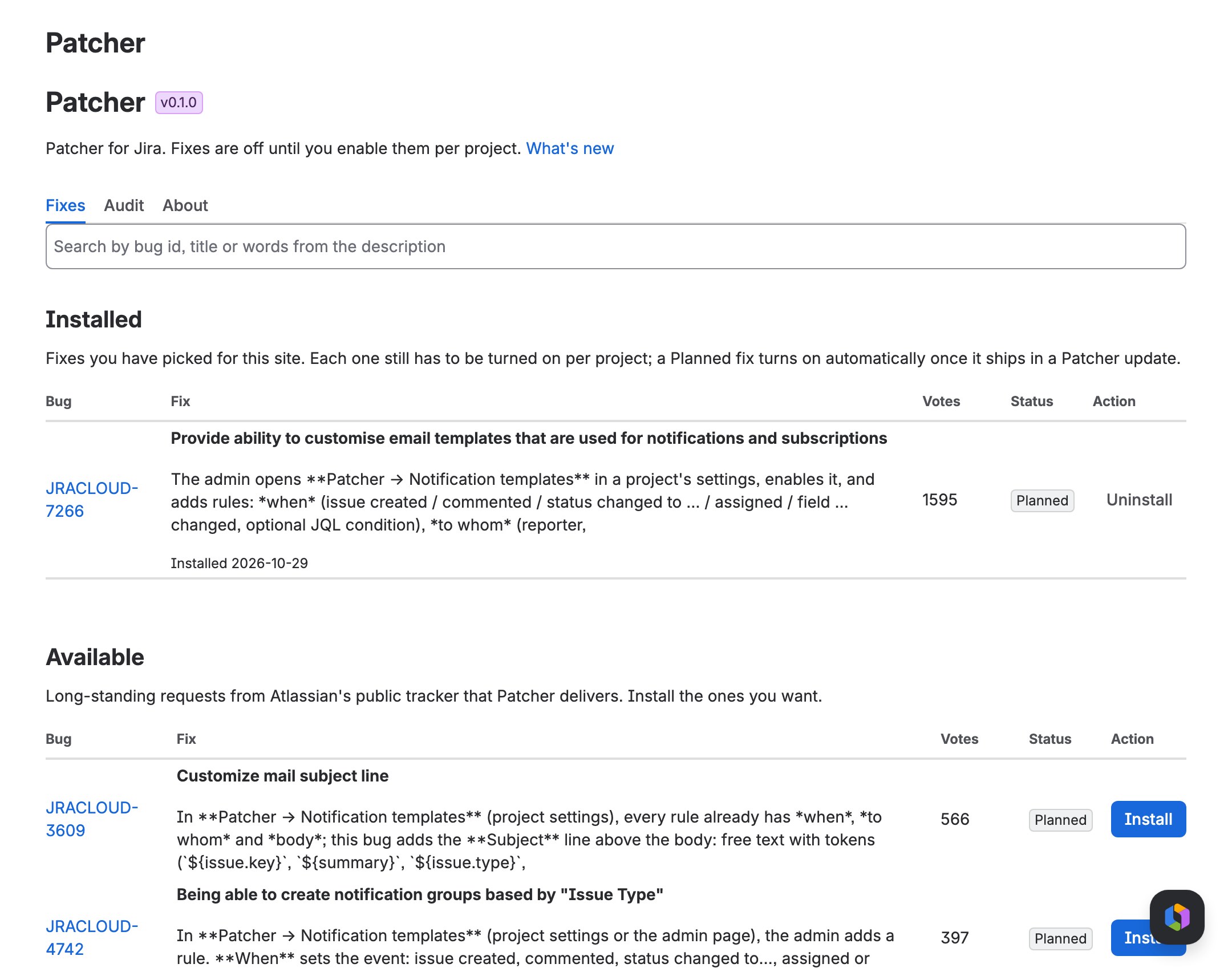
The Patcher admin page with Custom notification emails installed - In the project, open Project settings → Apps → Patcher and switch on Enabled in <project key> under Custom notification emails. The settings appear below the switch: Notifications, Email templates and Sent log.
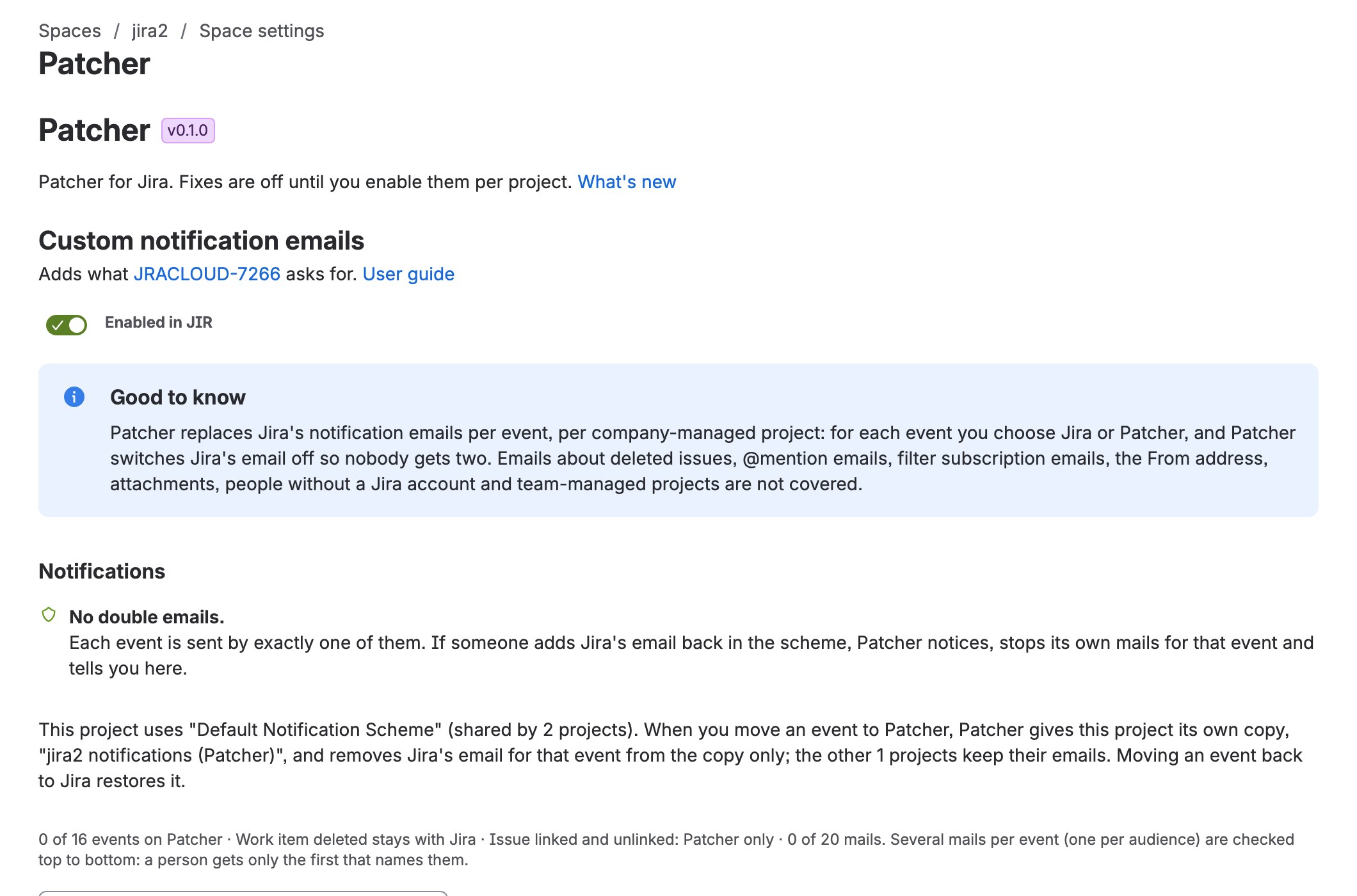
The fix enabled in the project settings - Look at Notifications: one row per Jira event, all Sent by: Jira. Hover Jira on a row to see whom Jira emails for that event today.
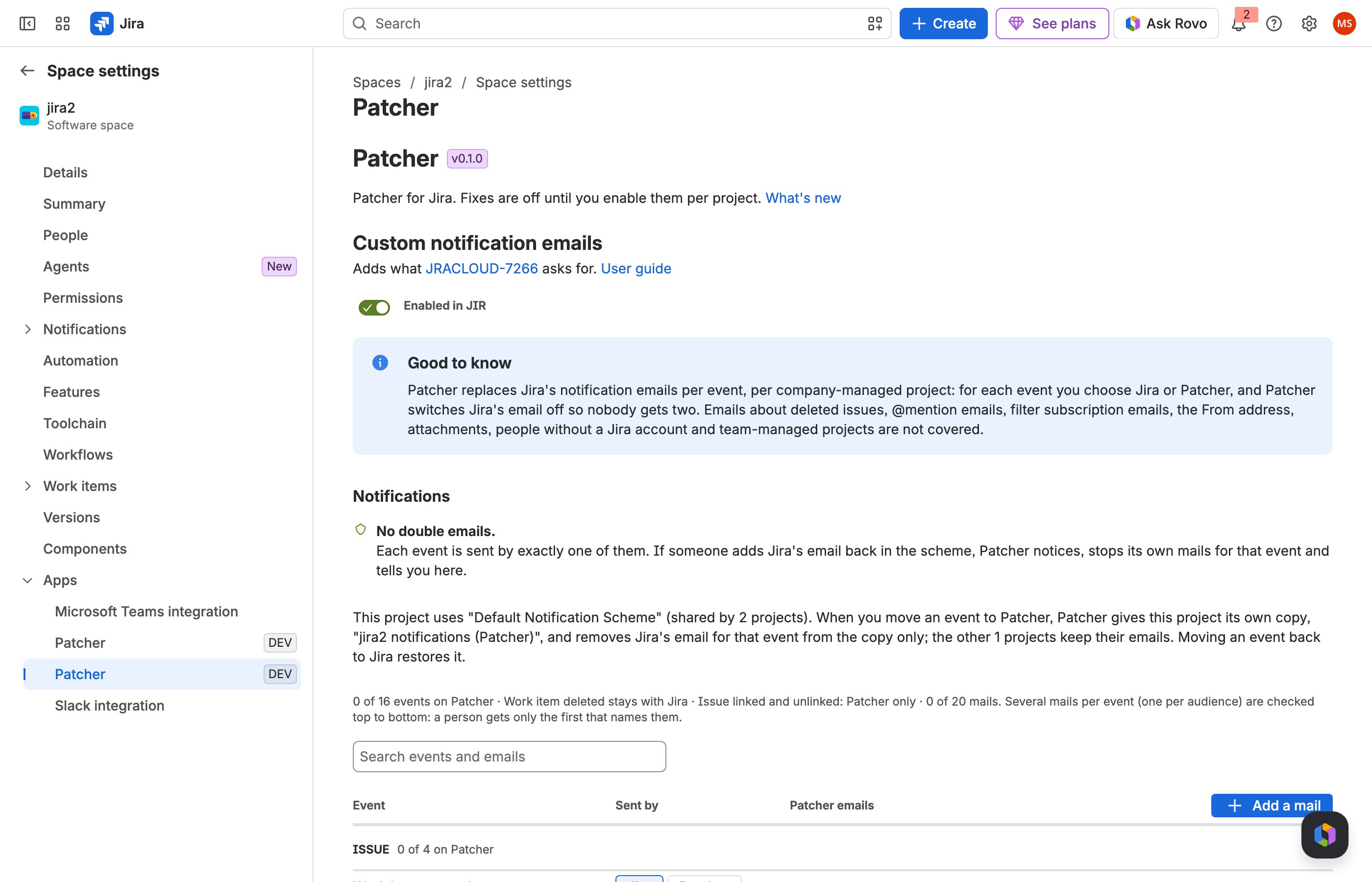
Notifications: every event with its Sent by switch - Choose Add a mail, pick the event (for example Work item commented), and keep Move this event to Patcher when I save ticked. The mail starts with the same recipients Jira used and a ready-made subject and body.
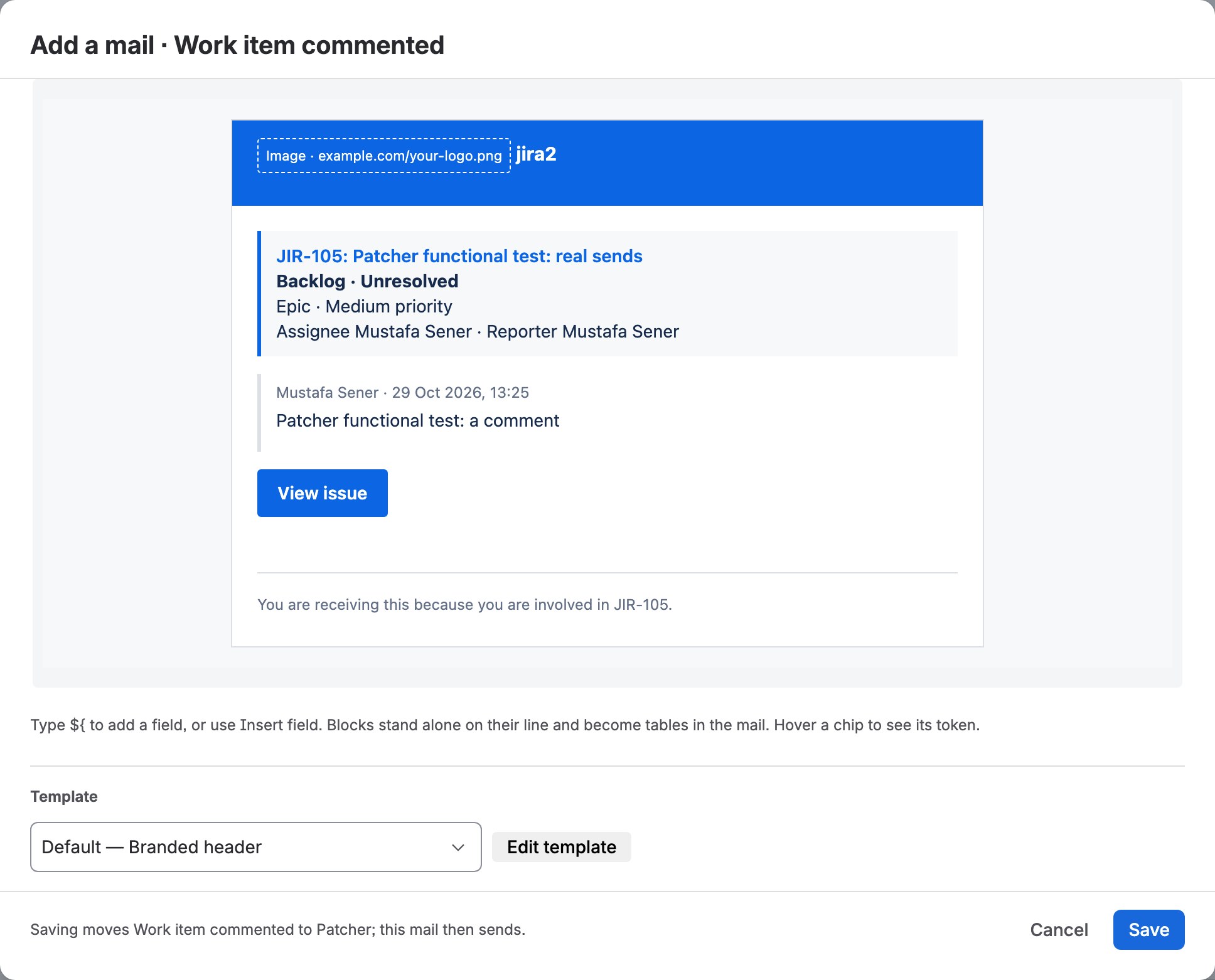
- Under Preview, pick an issue of the project and choose Preview: you see the subject, who would get the mail, and the mail itself in its template. Send test to me mails it to you.
- Choose Save. The event is now Sent by: Patcher; Jira's email for it is switched off in the project's copy of the scheme. The next comment in the project sends your mail, and the Sent log shows who got it.
- Move other events the same way, one by one, when you are ready.
See it in action

Set it up
Notifications
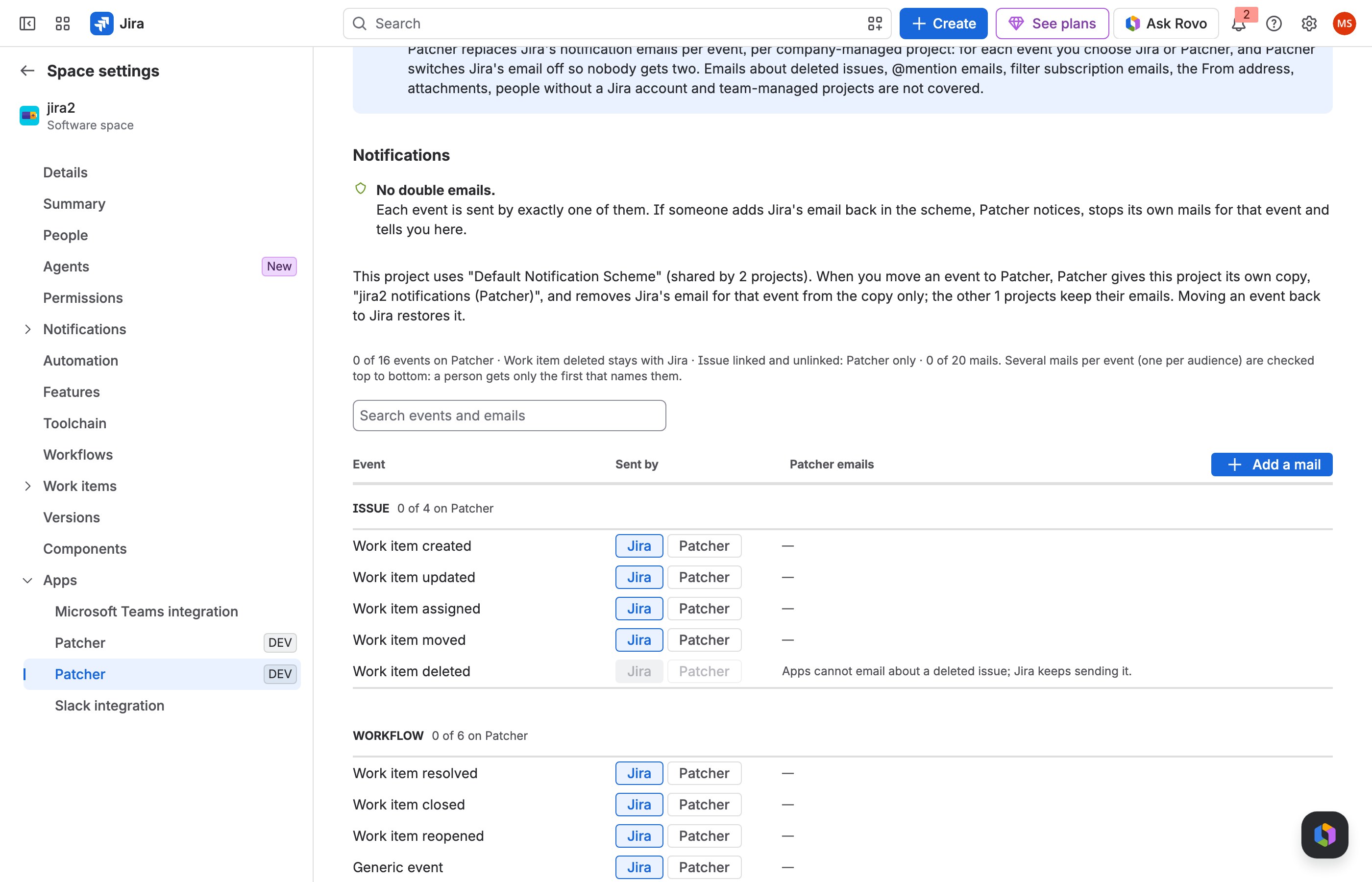
- Groups: Issue (created, updated, assigned, moved, deleted), Workflow (resolved, closed, reopened, generic event, work started, work stopped), Comments (commented, comment edited), Work log (logged, updated, deleted), Custom events (the custom events of your scheme, when it has any) and Links (issue linked, unlinked).
- Sent by: Jira | Patcher. Each event is sent by exactly one of them. Choosing Patcher on a row asks for confirmation and starts a mail with Jira's recipients for it; choosing Jira gives the event back to Jira and keeps your mails, marked kept, not sending, for later.
- Work item deleted stays with Jira: apps cannot email about an issue that no longer exists.
- Links are Patcher only: Jira has no email for them. Add a mail and it sends.
- Patcher emails lists each event's mails: who they go to, their conditions and their template, with Edit and More (Duplicate, Delete, move up and down).
- Several mails per event are checked top to bottom, and each person gets only the first mail that names them, so you can send one text to the reporter and another to the team.
- Search events and emails filters the list by event name, recipient or condition.
- If someone adds Jira's email back in the scheme for an event on Patcher, Patcher stops its own mail for that event and shows a warning on the row with Remove Jira's email again.
- Copy from another project brings in the mails (and, if you want, the templates) of a project you administer, replacing this project's mails or adding them below.
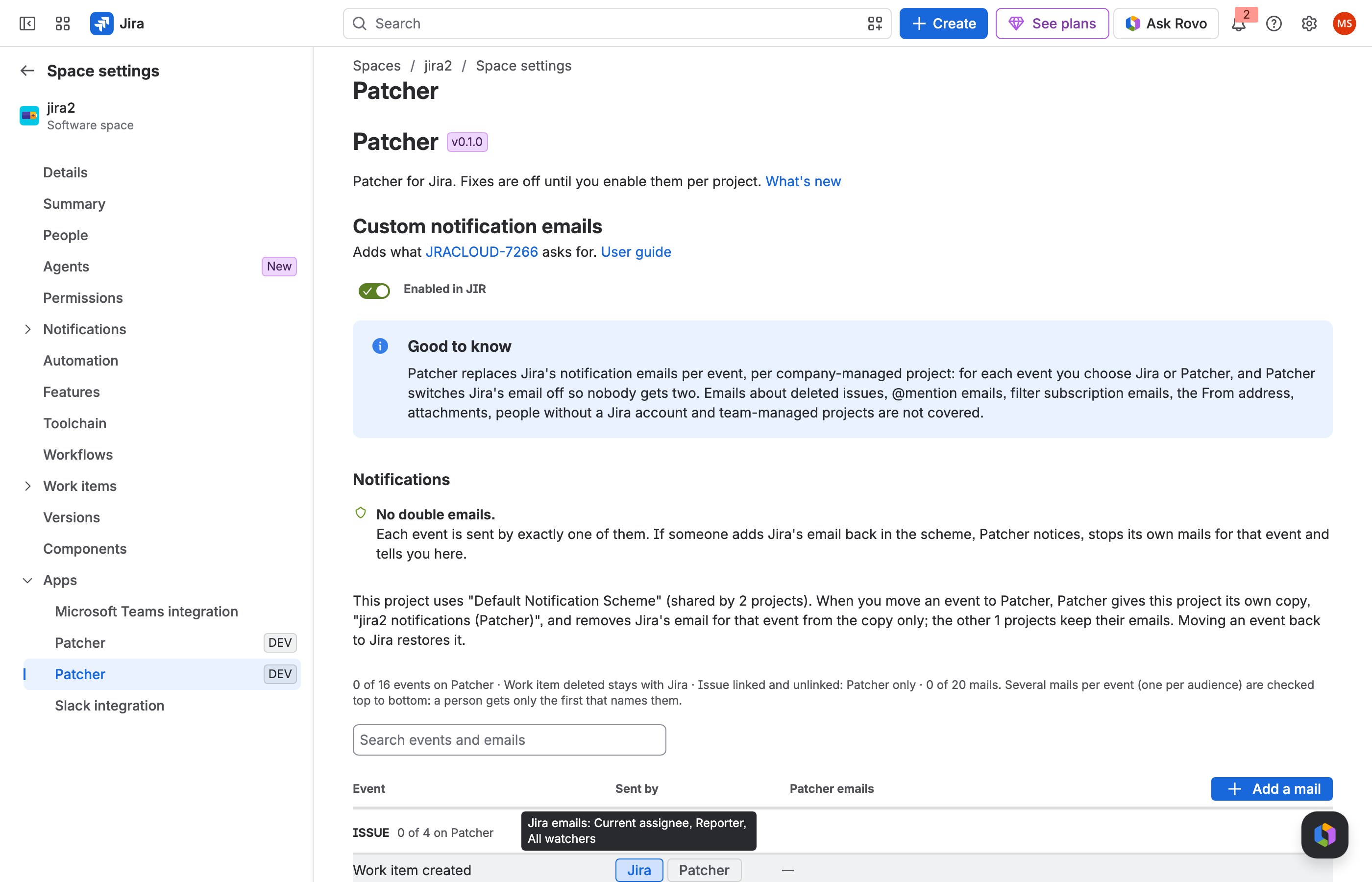
The mail editor
- When: the event. Depending on the event you can narrow it down: Work item updated has Only when these fields change / Unless only these fields change with a field list (including Attachment (any change) and Attachment (added)); workflow events have Only to these statuses / Only from these statuses (a custom event needs none: Patcher shows the transitions that fire it); links have link types.
- Skip when the change is made by: people or groups whose changes never send this mail, such as an automation or integration account.
- Only if the issue matches: an optional JQL condition, for example
priority in (High, Highest)orissuetype = "Business Feature". Check tests it; Only some issue types and All except sub-tasks fill in examples. The project is added for you.
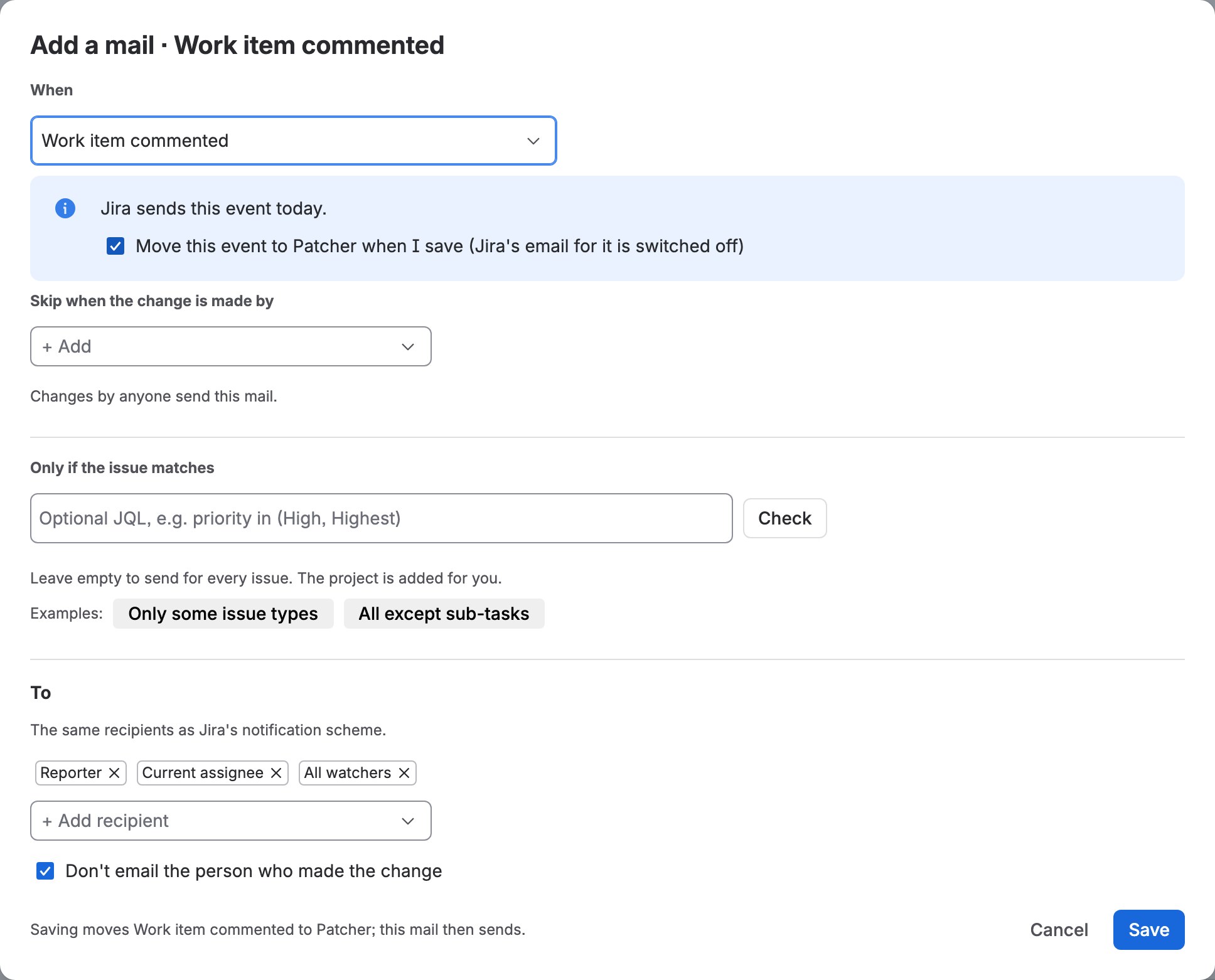
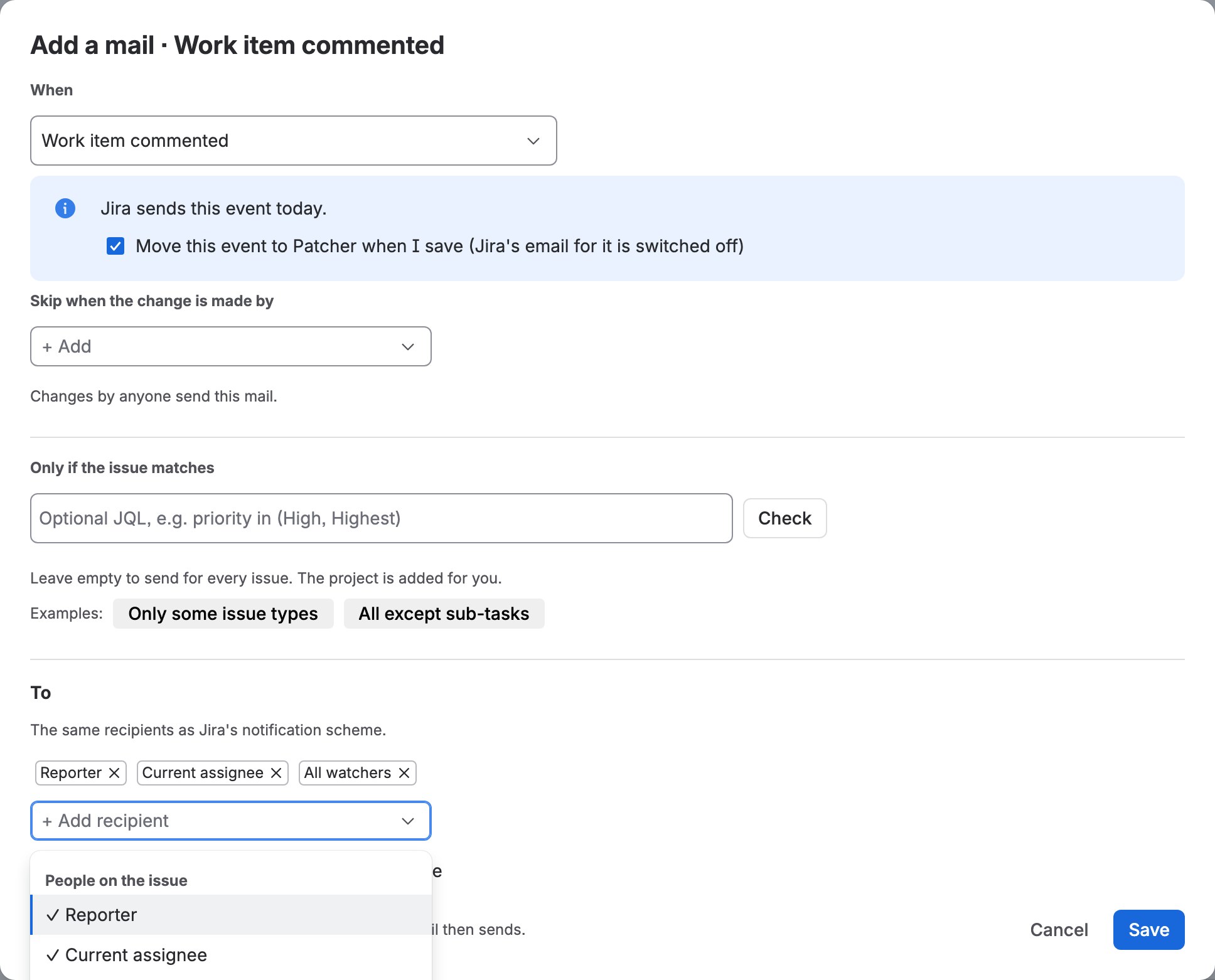
- To: chips for each recipient. + Add recipient opens one menu: People on the issue (reporter, current assignee, watchers, voters, the person who made the change), Project (project lead, component lead), Parent issue (the parent's watchers, reporter, assignee) and Pick… (users, groups, project roles, people in a user field, groups in a group field). Don't email the person who made the change is on by default.
- Never email: people or groups left out of this mail whatever else names them; the preview lists them as Excluded by this mail.
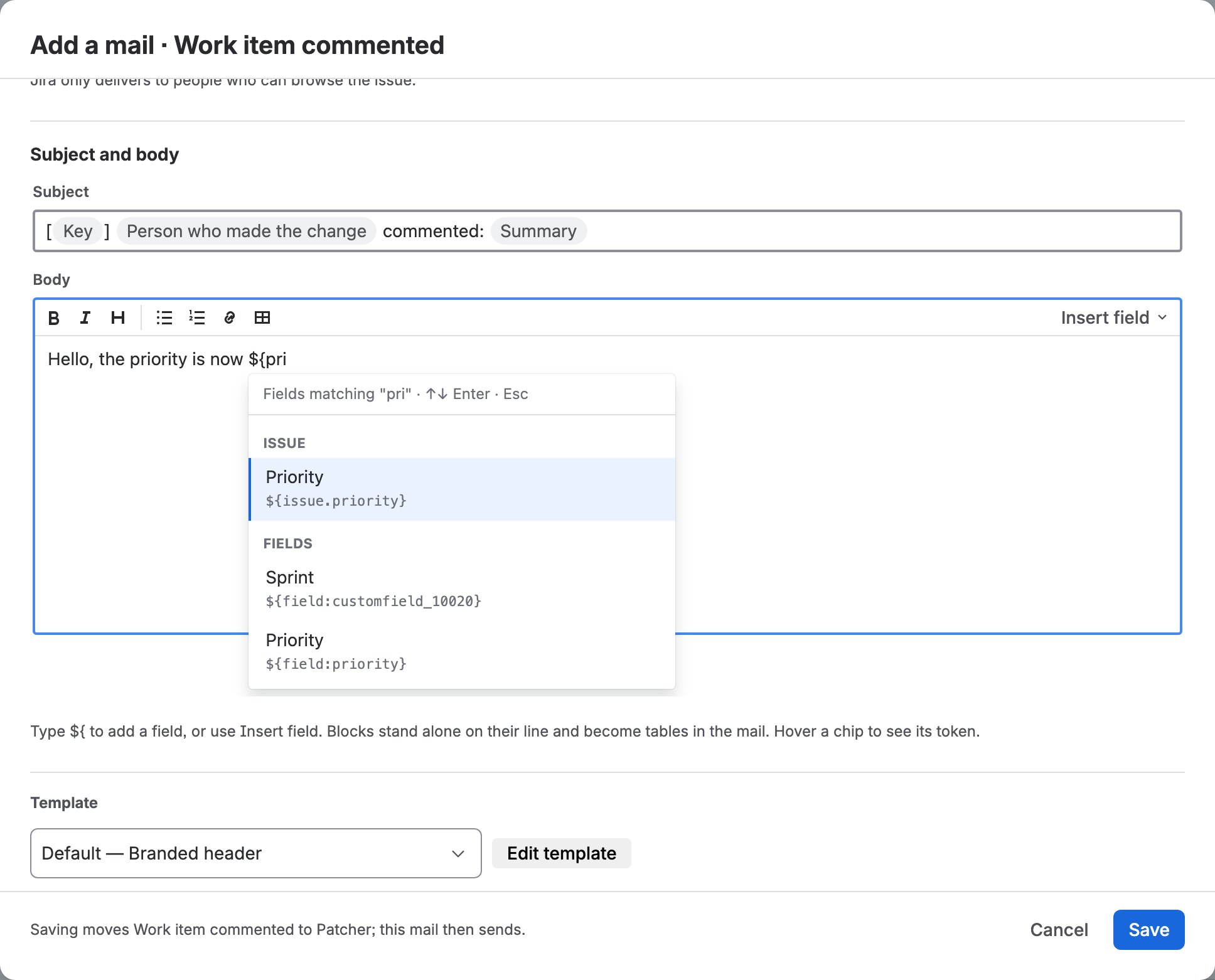
- Subject and body: type, format (bold, italic, headings, lists, links, tables) and add fields. Type
${and the start of a field's name, or use Insert field; the field becomes a chip with its name and is removed as one piece. Besides every field of your site there are the event's name (${event}), the person who made the change (${actor}), the date (${now:date}), the issue's and the parent's key, summary, status and link, the linked issue in link mails, the old and new status, and blocks: Key facts, Every field set at creation, Every field with a value, What changed, the comment, the work log, attachments. Blocks stand alone on their line. The editor warns when a block shares a line, when a field no longer exists, and when the subject has no issue key (mail programs group one issue's mails by it).
- Template: Default (the project's default template) or one you pick for this mail. Edit template opens it.
- Preview renders the mail for an issue of the project as if the event had just happened: subject, recipients, skipped people with the reason, and the mail in its template. If the issue does not match the JQL condition, the preview says this mail would not be sent. Send test to me sends the exact mail to you, once a minute.
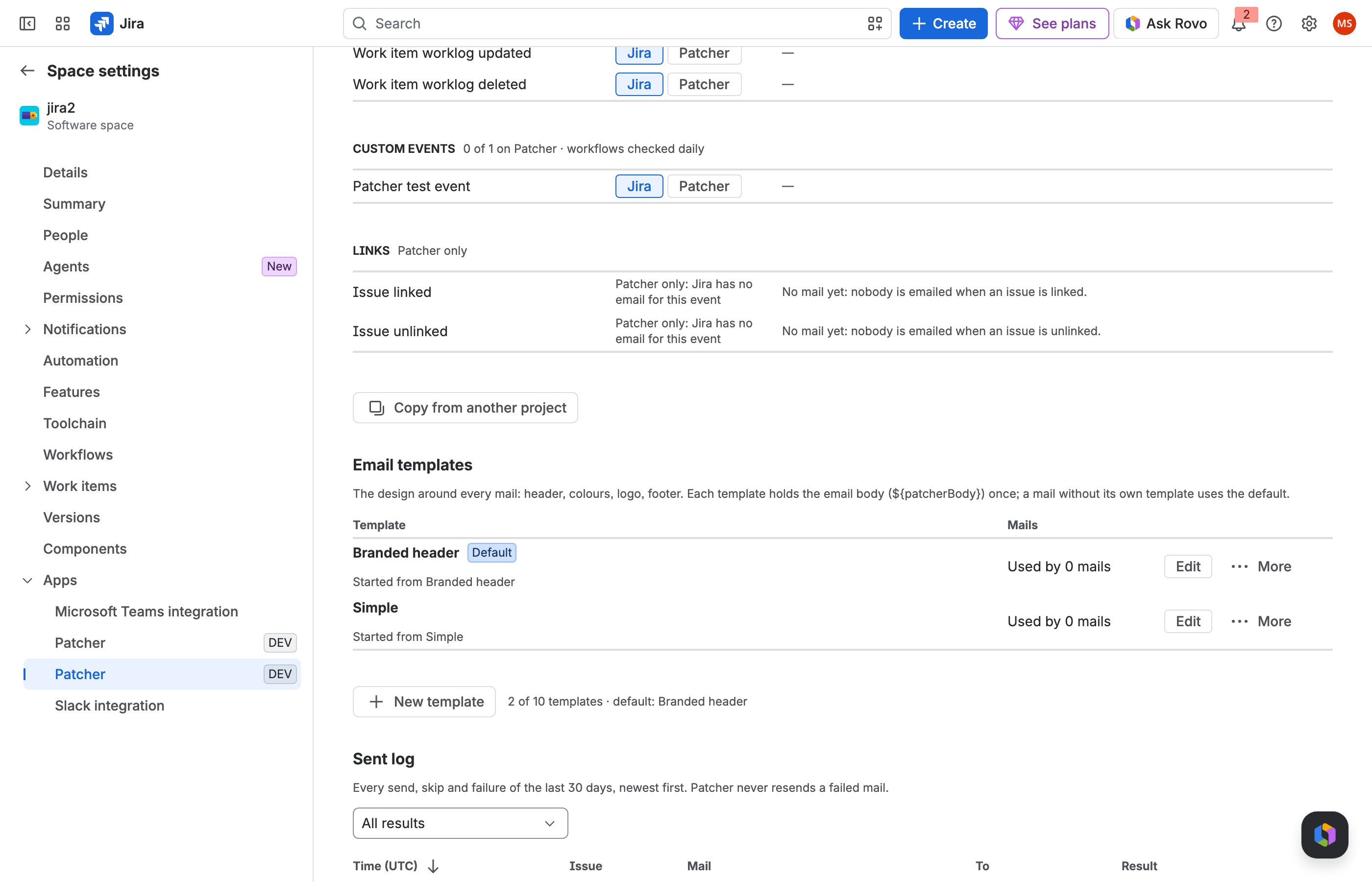
Email templates
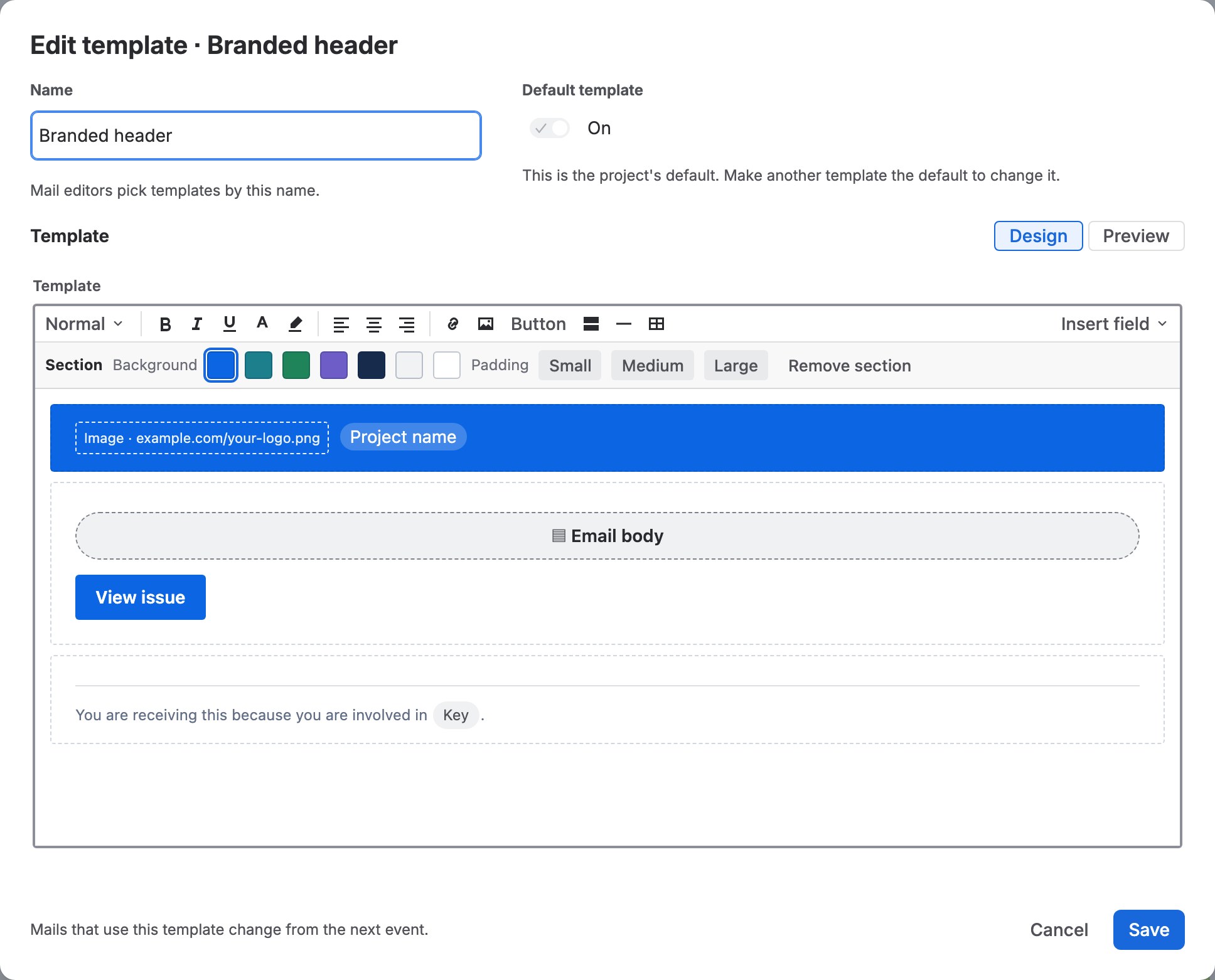
- A template is the design around the mails: header, colours, logo, buttons, footer. It holds the mail's text exactly once, where it says Email body (
${patcherBody}). - Enabling the fix adds Branded header (the default) and Simple. New template starts from one of five designs, Simple, Branded header, Card, Minimal notice or Corporate, or from a blank page. The samples carry no logo: add yours with Image (its https address, for example on your company website).
- Templates are yours to change or replace: the samples are only starting points. Spacing you set in the editor (a section's padding) is built into the mail in a way mail programs and Jira's mailer keep, for every template.
- The template editor adds design tools: text sizes and colours, highlight, alignment, coloured sections, buttons, dividers, tables, images by https address and links. Fields work here too.
- More on a template: set as default, duplicate, delete. Deleting a template that mails use moves them to the default.
Sent log
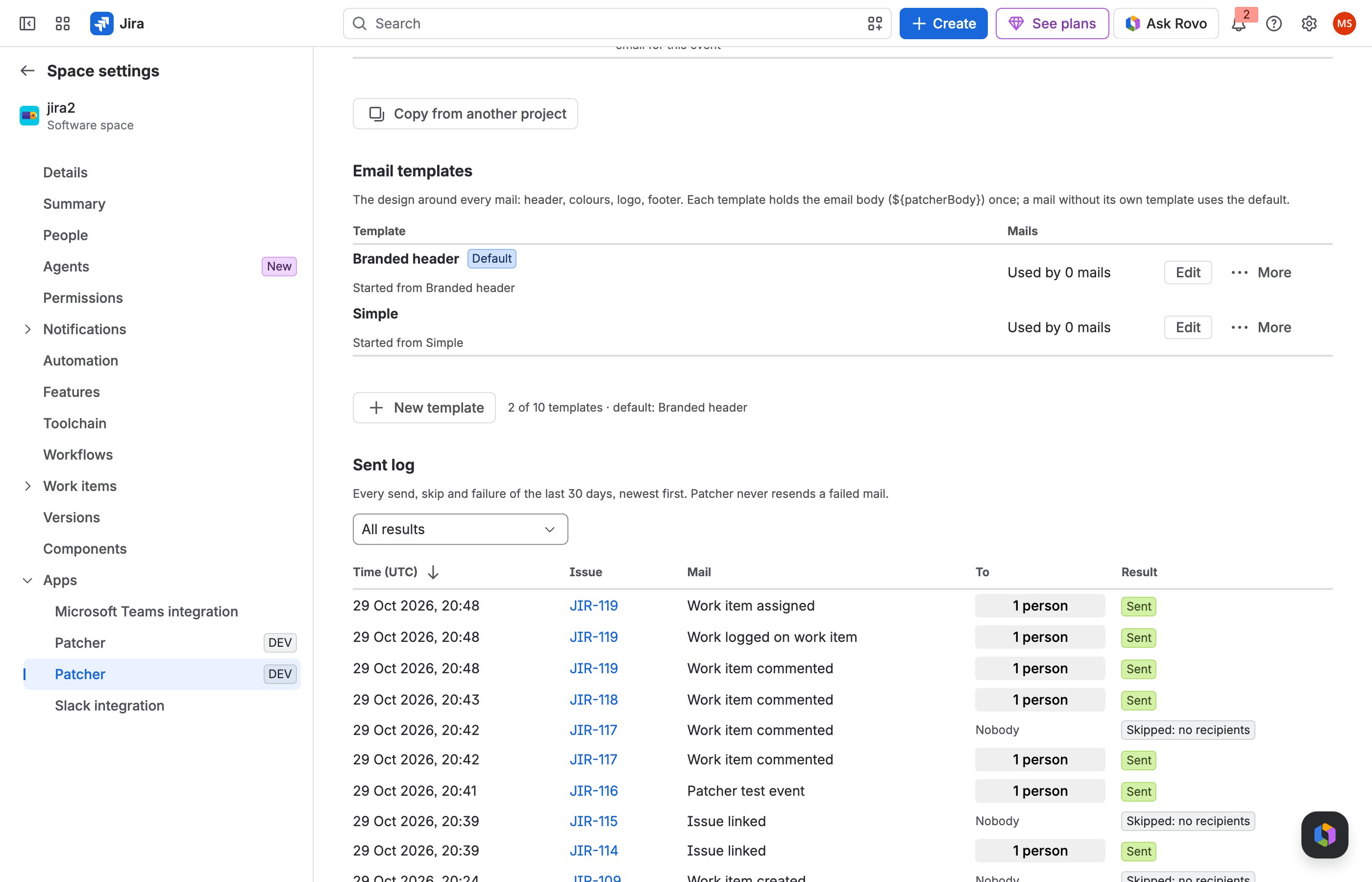
Every send, skip and failure of the last 30 days, newest first: time, issue, mail, recipients and the result (Sent, Skipped with the reason, Failed with the reason, Test). Filter by result. Patcher never resends a failed mail on its own.
Feature requests solved
Each request below says what people asked, what the fix does and where it is, then shows how to do it step by step. Walkthroughs that start in the mail editor open it with Add a mail (or Edit on a mail line) in Project settings → Apps → Patcher → Notifications; nothing changes until you choose Save.
JRACLOUD-7266 Customise the emails Jira sends
What people asked
An email template editor in Jira's web interface, several templates, and a way to assign them to notifications, since Cloud has no access to the Velocity templates Data Center admins edit.
What the fix does
Every event of the notification scheme can be sent by Patcher with mails you write in a rich editor, placed in email templates you design; each mail picks a template or uses the project's default.
Where you find it
Project settings → Apps → Patcher → Notifications and Email templates (steps 2–6 of Enable it).
How to do it
1 Choose Add a mail.
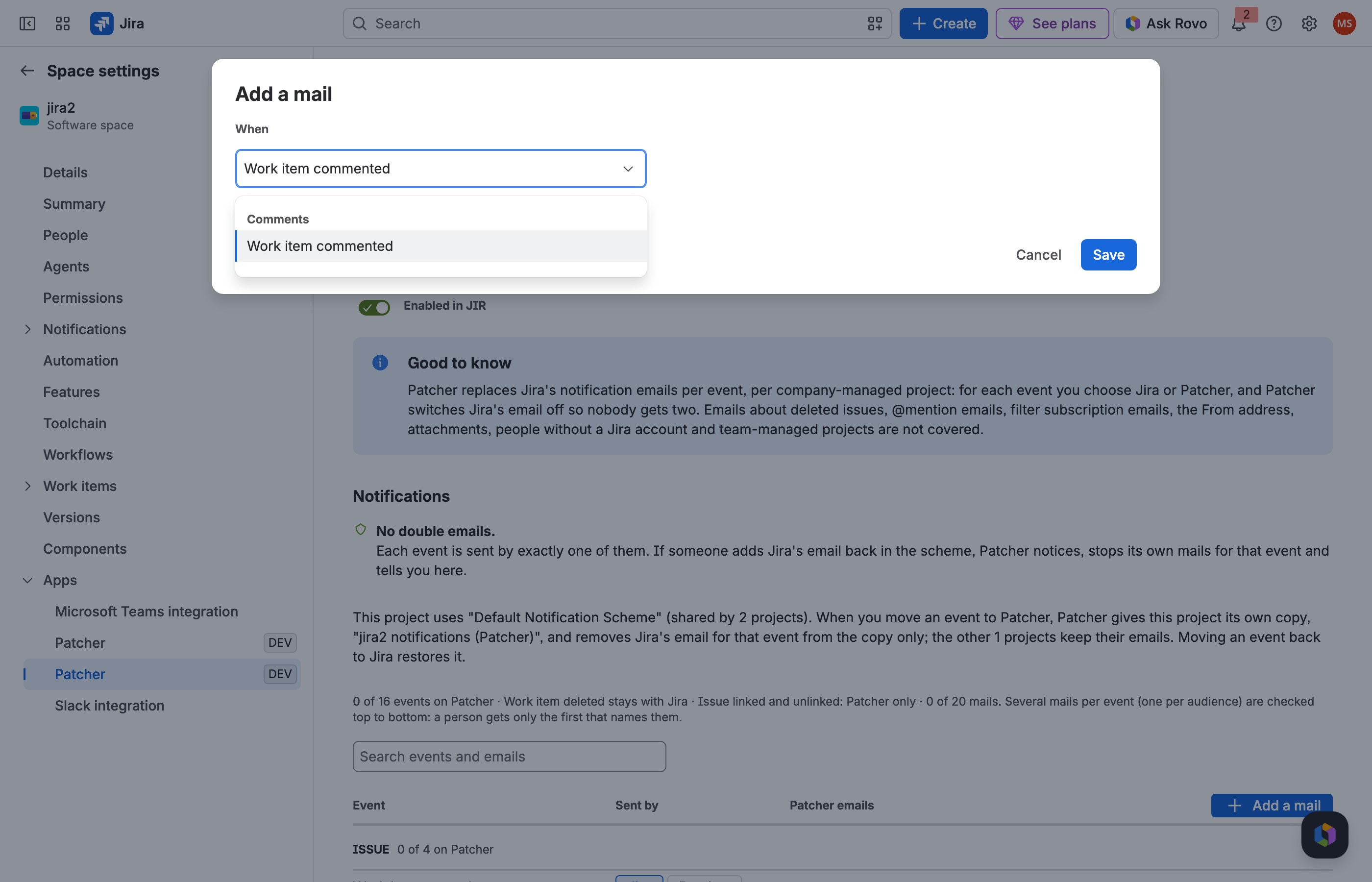
2 Pick the event the mail belongs to.
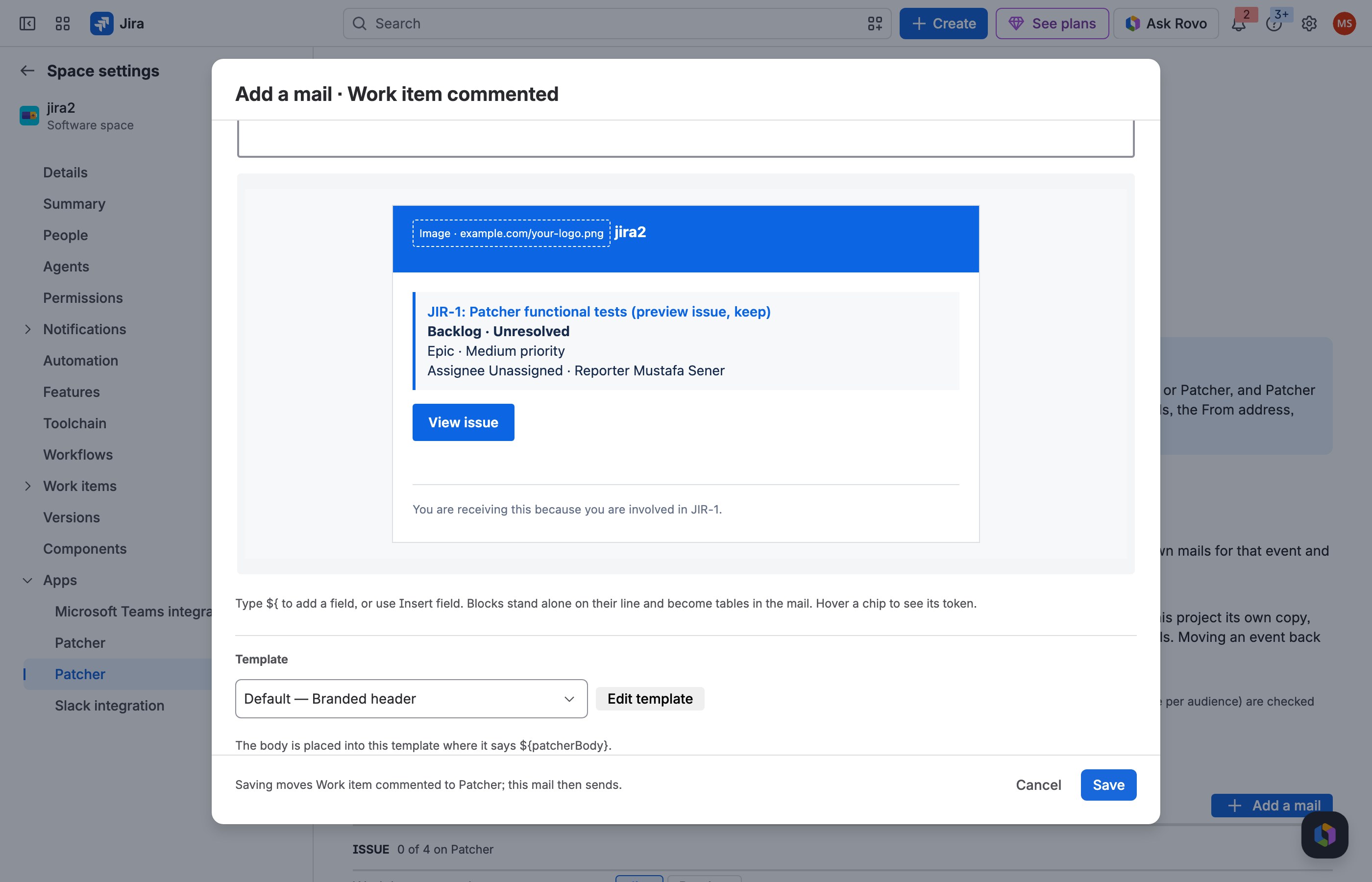
3 Preview it for an issue, then Save.
JRACLOUD-4619 Custom fields in emails
What people asked
Custom fields shown in notification emails, each displayed properly.
What the fix does
Any field, custom fields included, can go into the subject or body as a chip, and the Every field with a value block lists them all; values are shown as Jira shows them.
Where you find it
The mail editor → Subject and body → ${ or Insert field (picture Typing ${ in the body suggests fields).
How to do it
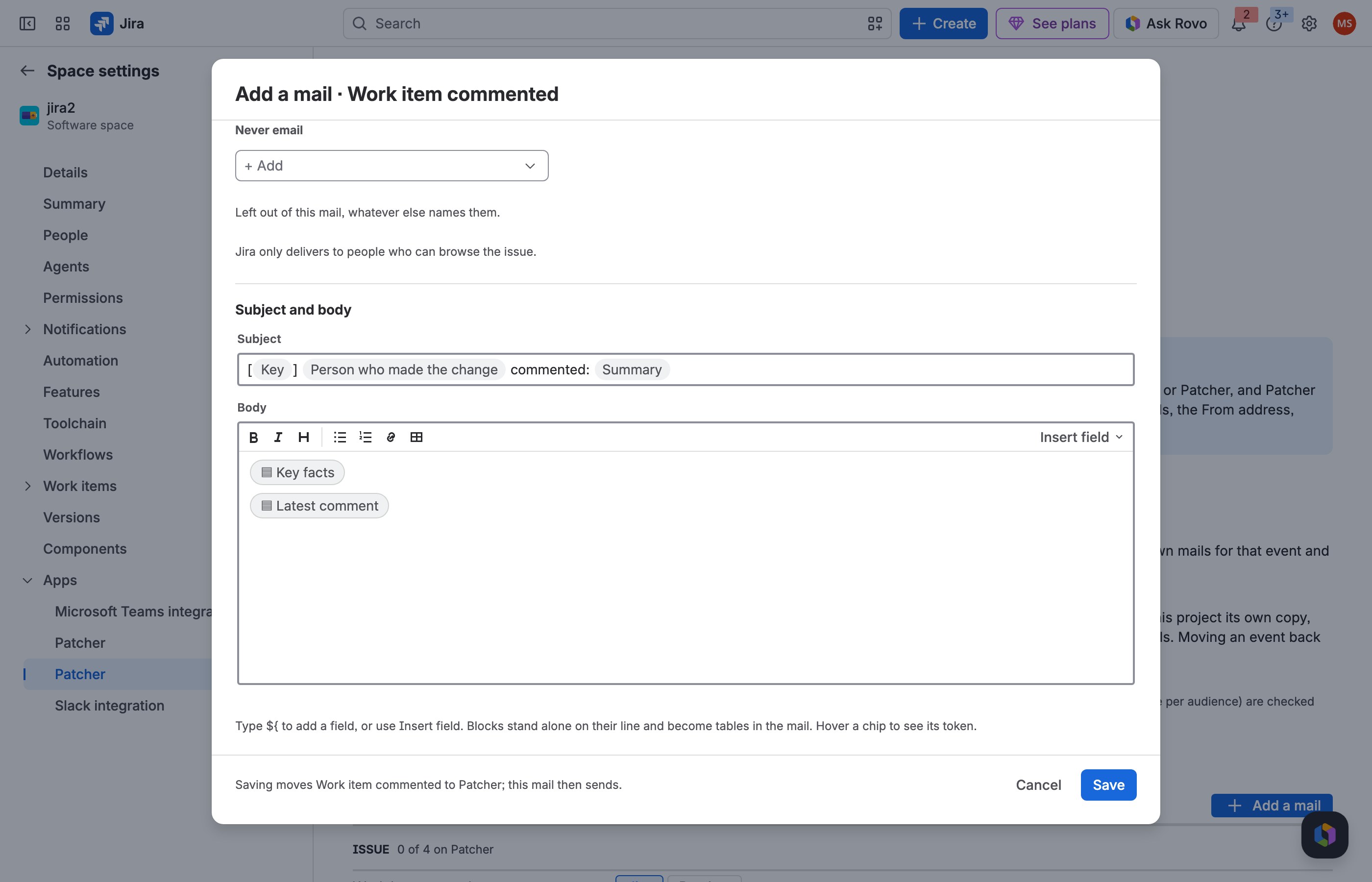
1 In the body, choose Insert field.
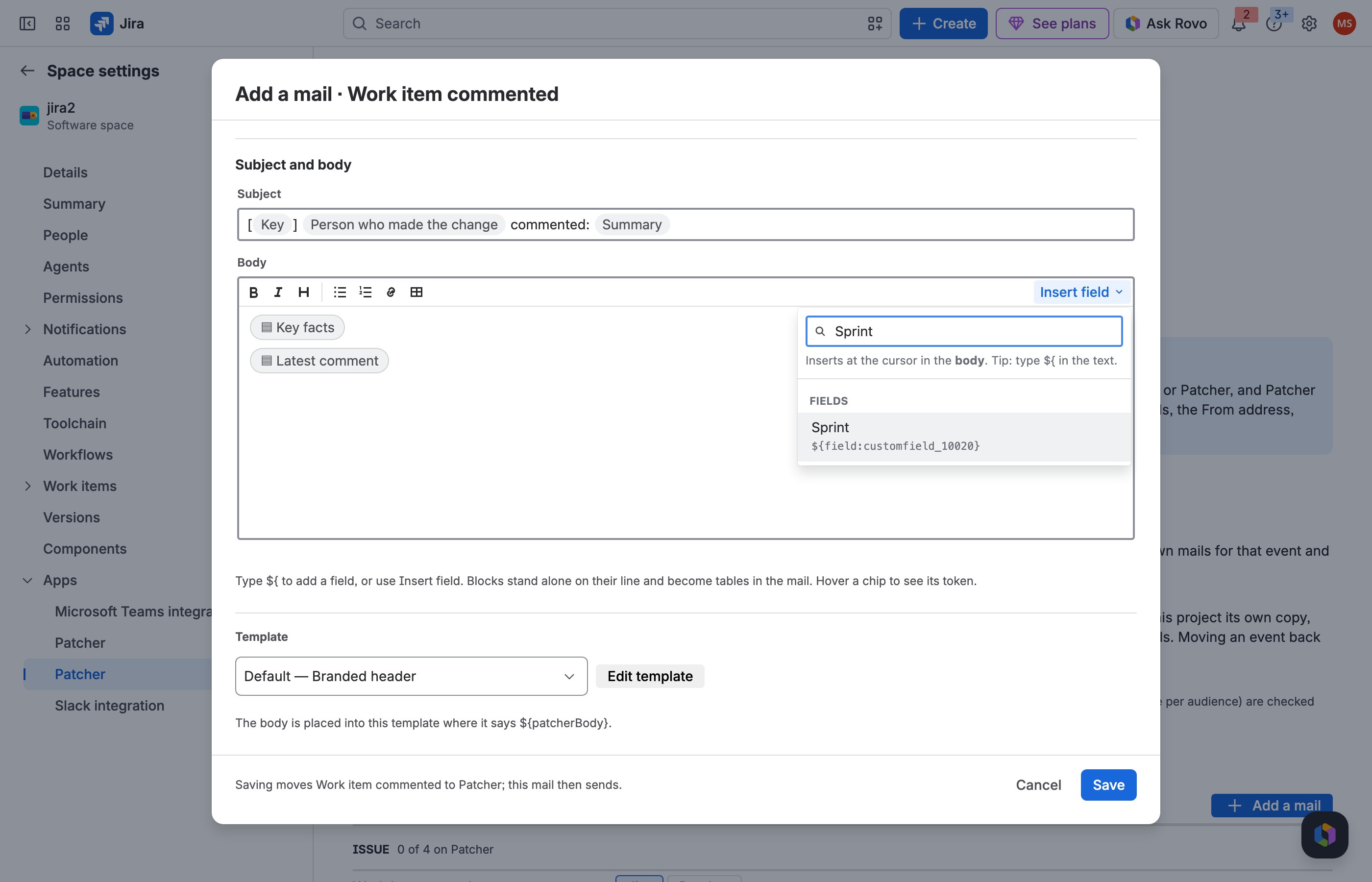
2 Search the custom field and pick it.
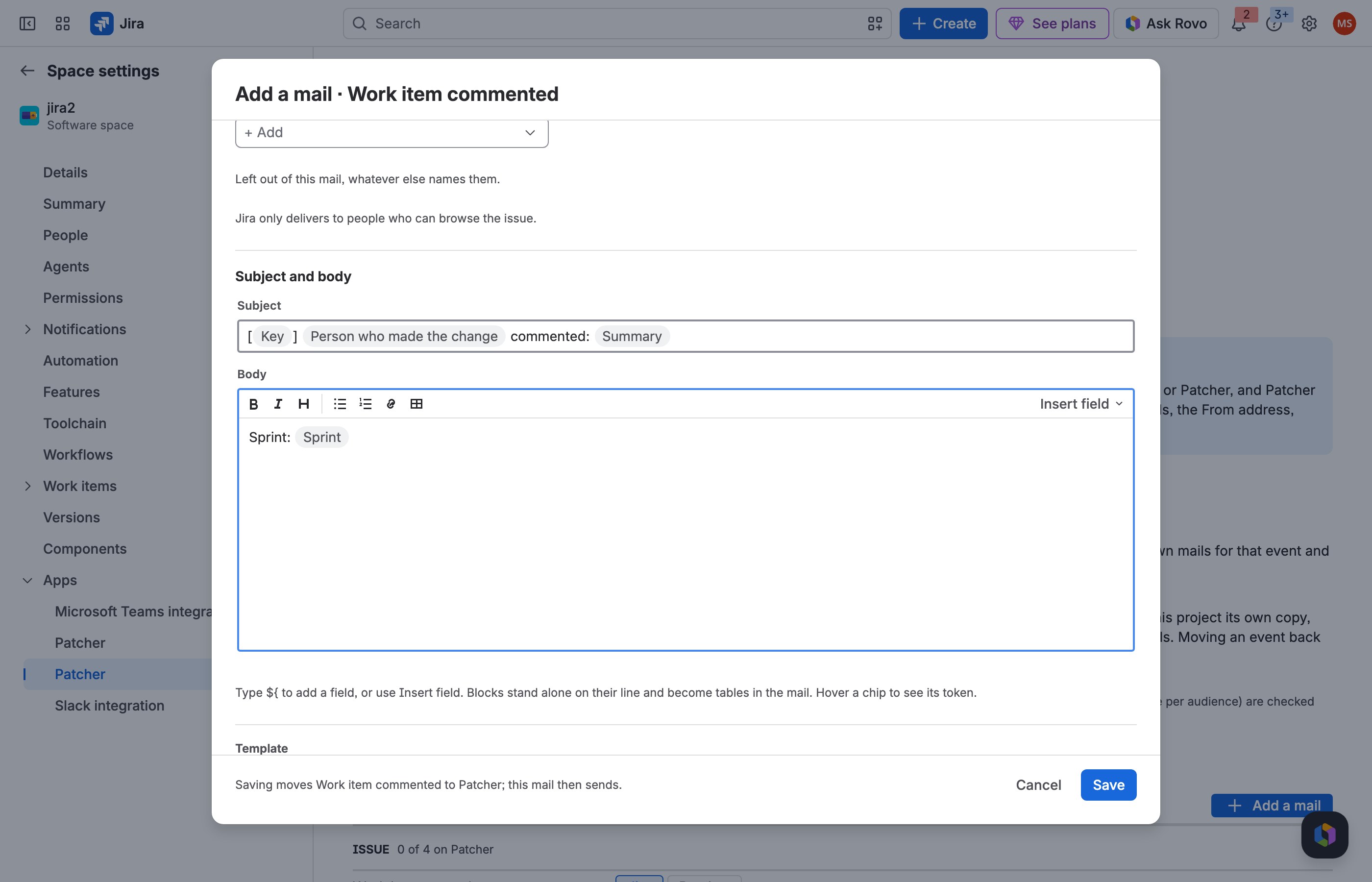
3 The field is a chip with its name; the mail shows its value.
JRACLOUD-62256 The created mail lists every field that was filled in
What people asked
The Issue created email should include all fields and values set at creation, custom fields included.
What the fix does
The ready-made Work item created mail contains Every field set at creation, a table of every field with a value in create-screen order; Exclude fields leaves internal ones out.
Where you find it
Add a mail → Work item created → Subject and body; check it with Preview.
How to do it
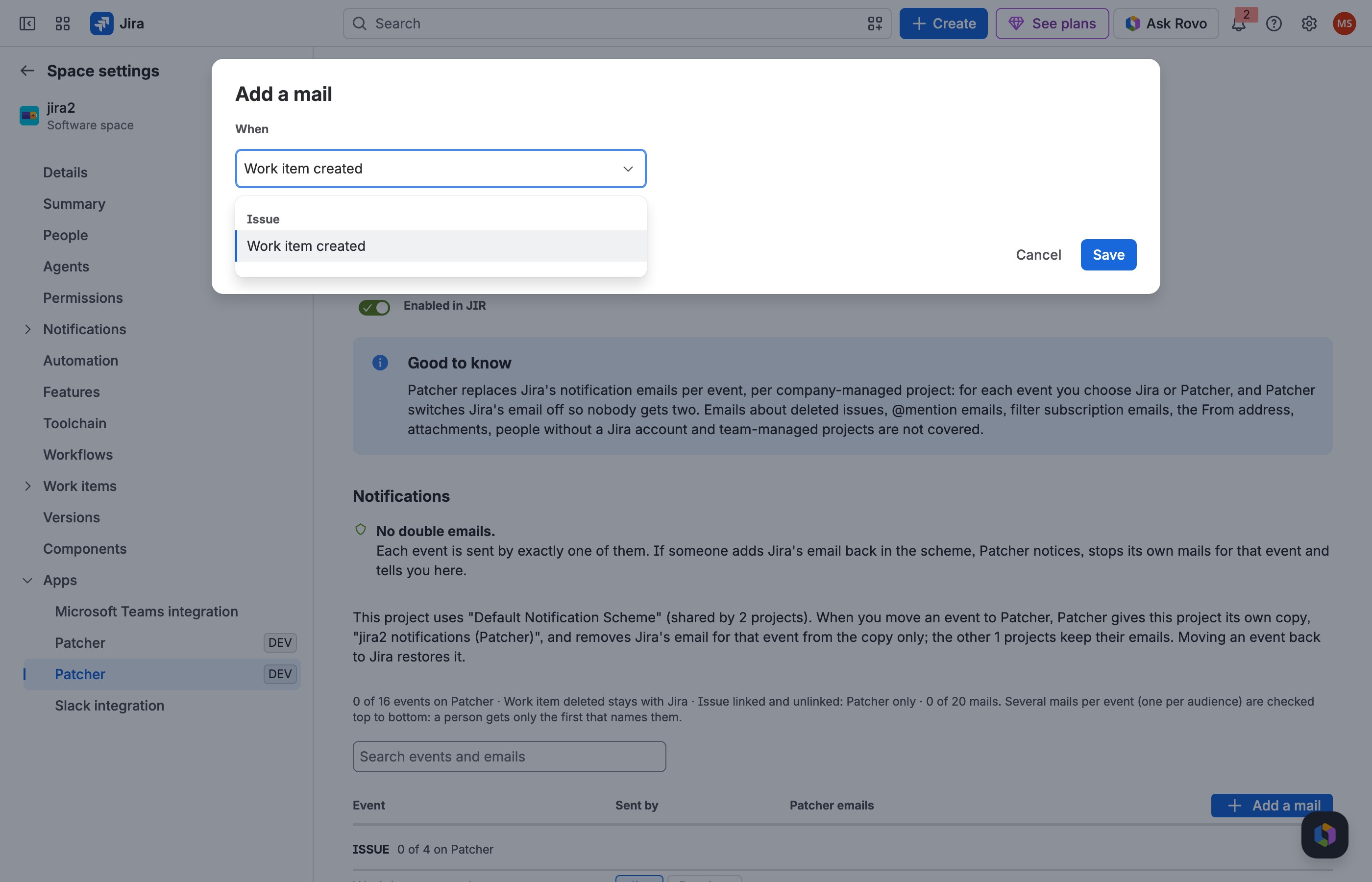
1 Add a mail and pick Work item created.
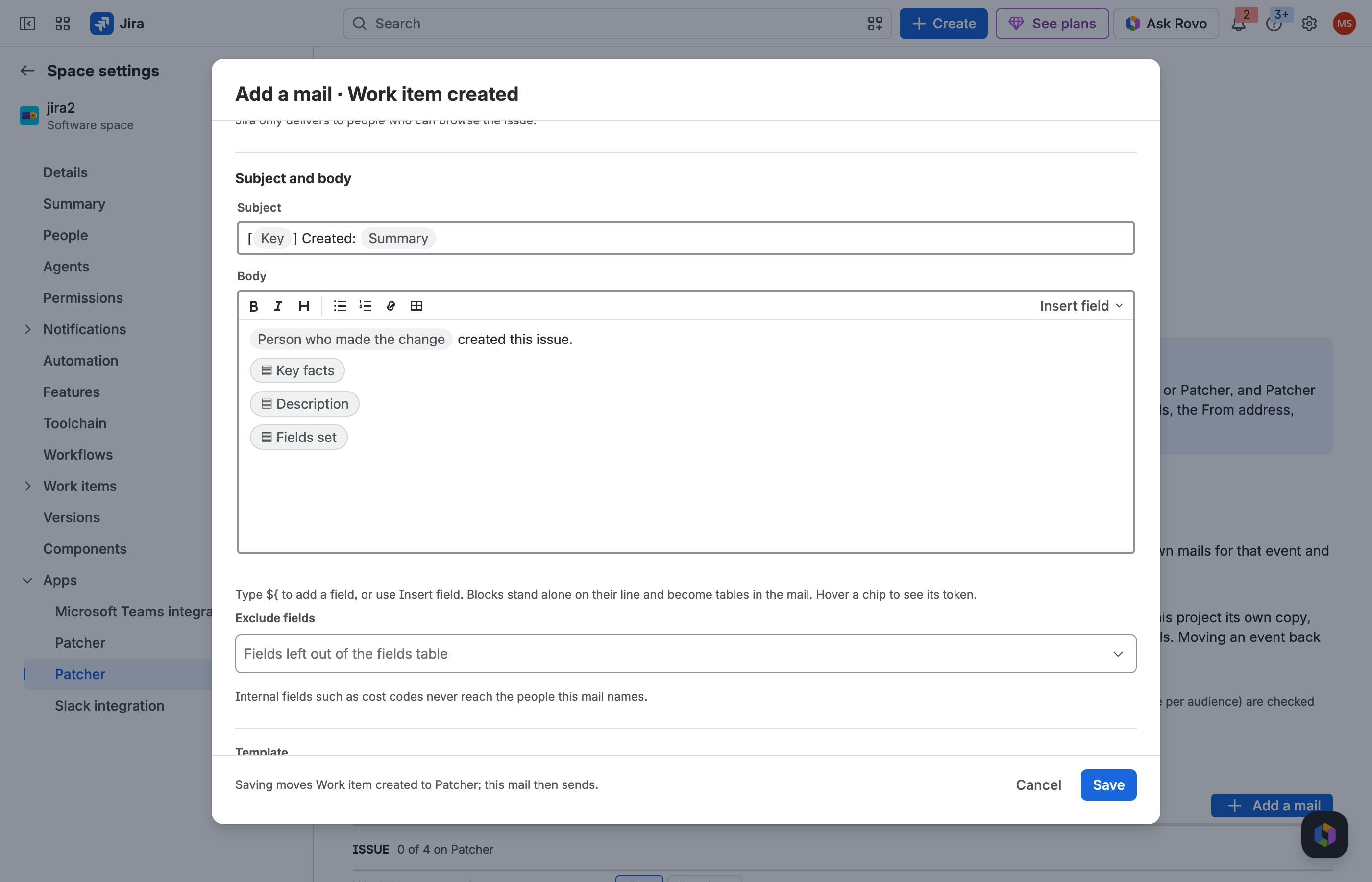
2 The starter body lists every field set at creation.
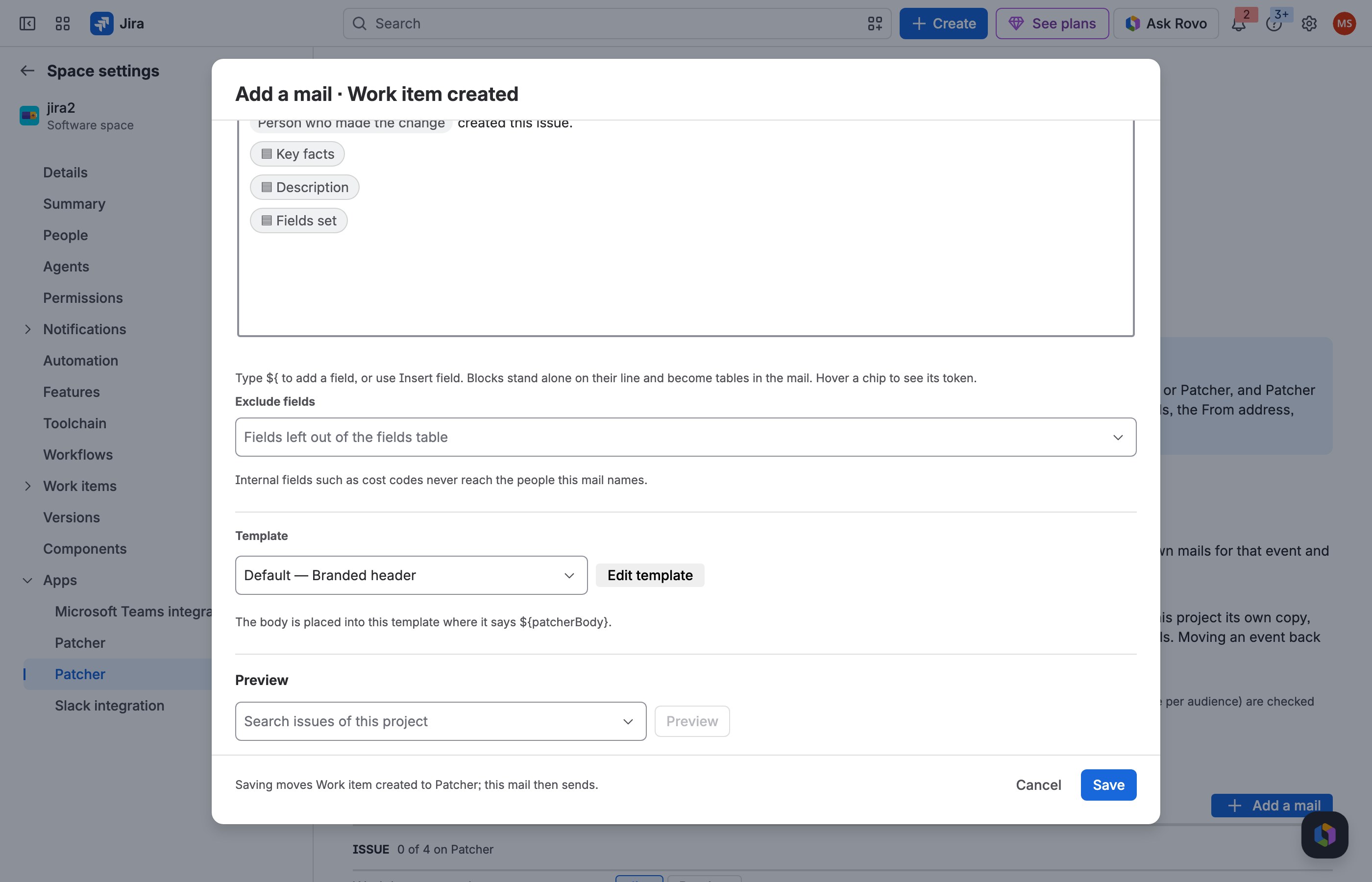
3 Leave internal fields out with Exclude fields.
JSWCLOUD-17549 More fields in Jira Software emails
What people asked
Add fields such as sprint or story points to the email, in the subject or the body, for every notification type.
What the fix does
Every mail, for every event, can show any field, Jira Software fields included, plus the Key facts block with status, type, priority and people.
Where you find it
The mail editor → Subject and body.
How to do it
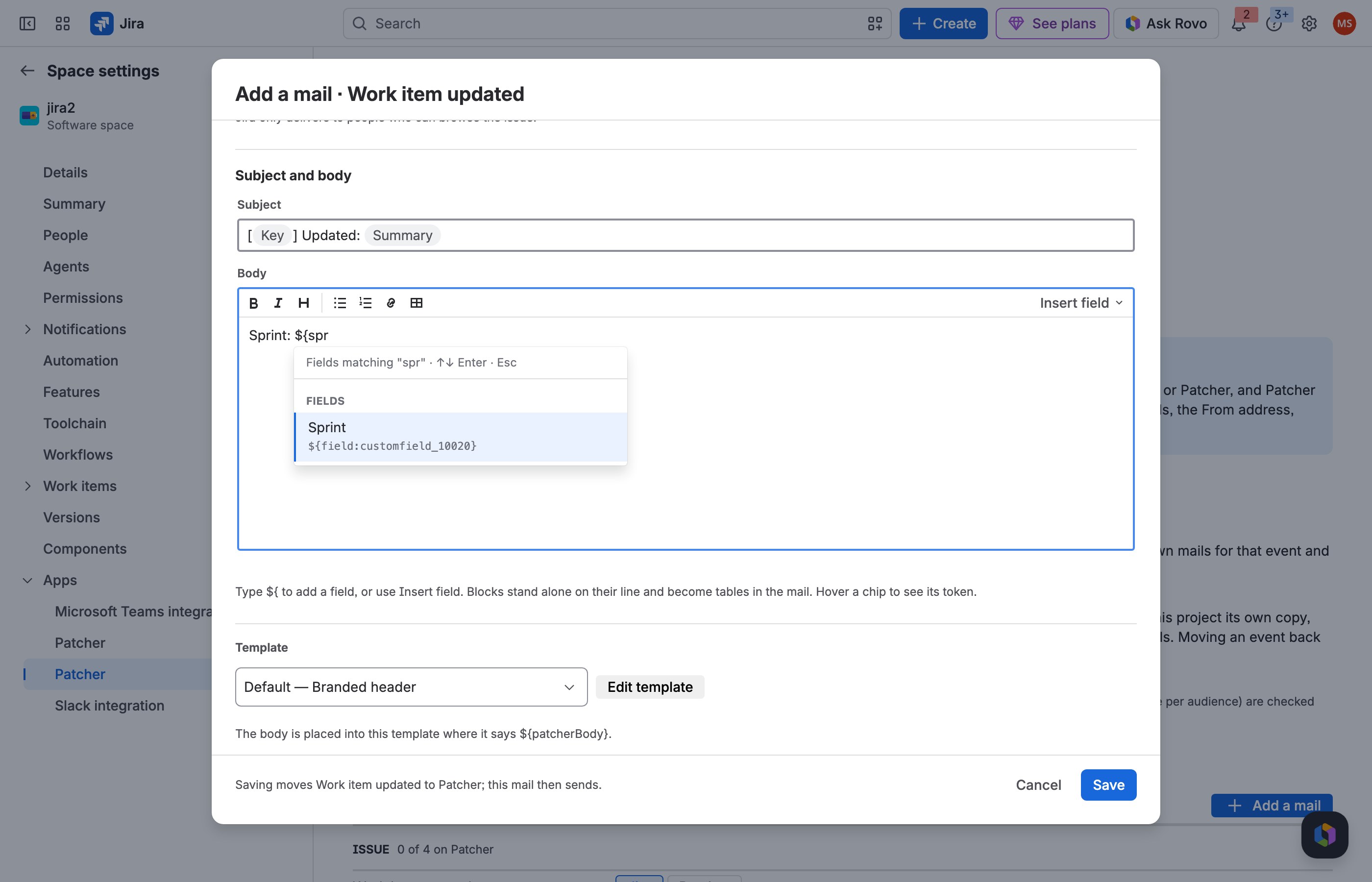
1 Type ${ and the field's name where it should go.
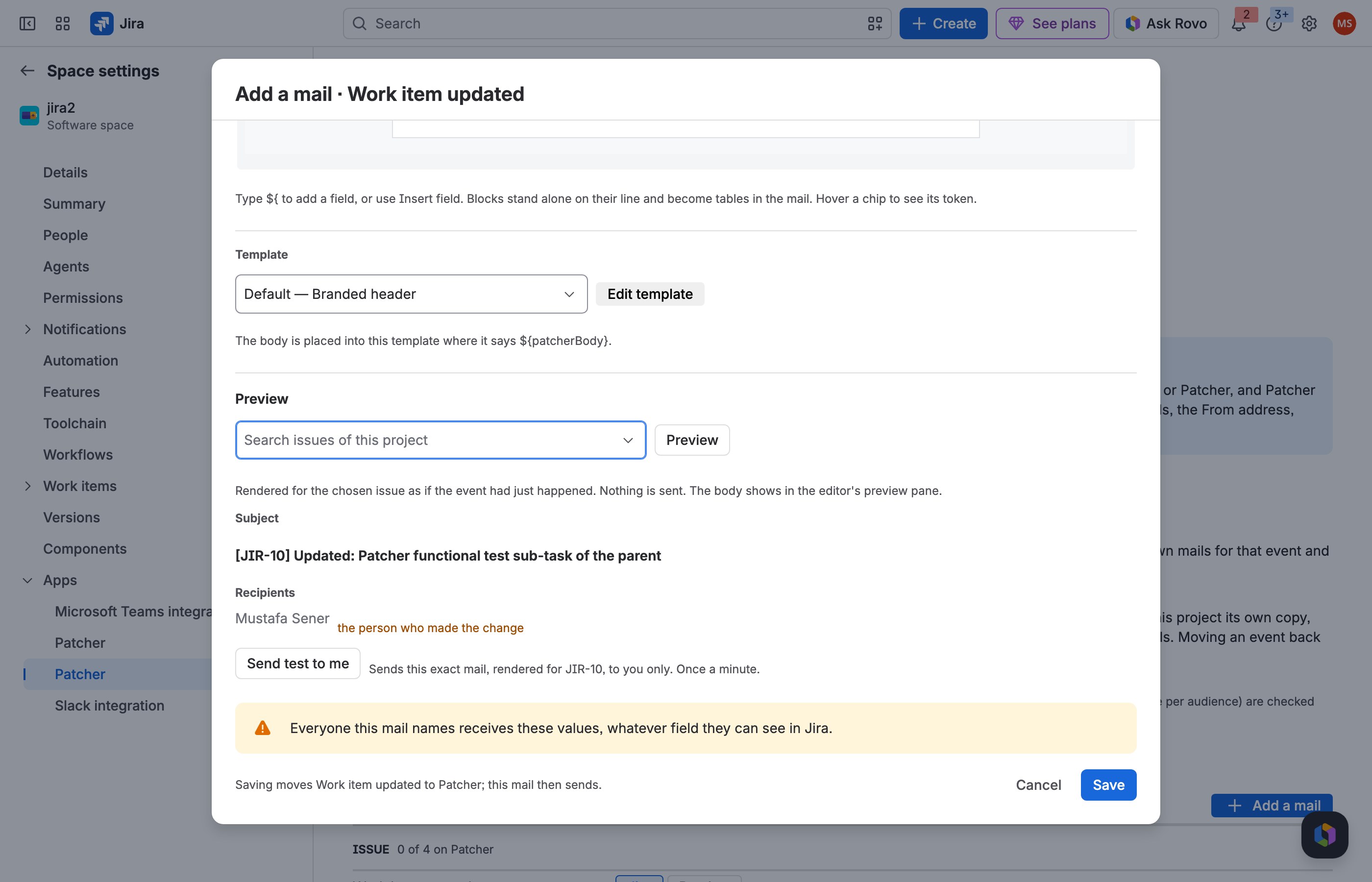
2 Pick an issue and choose Preview.
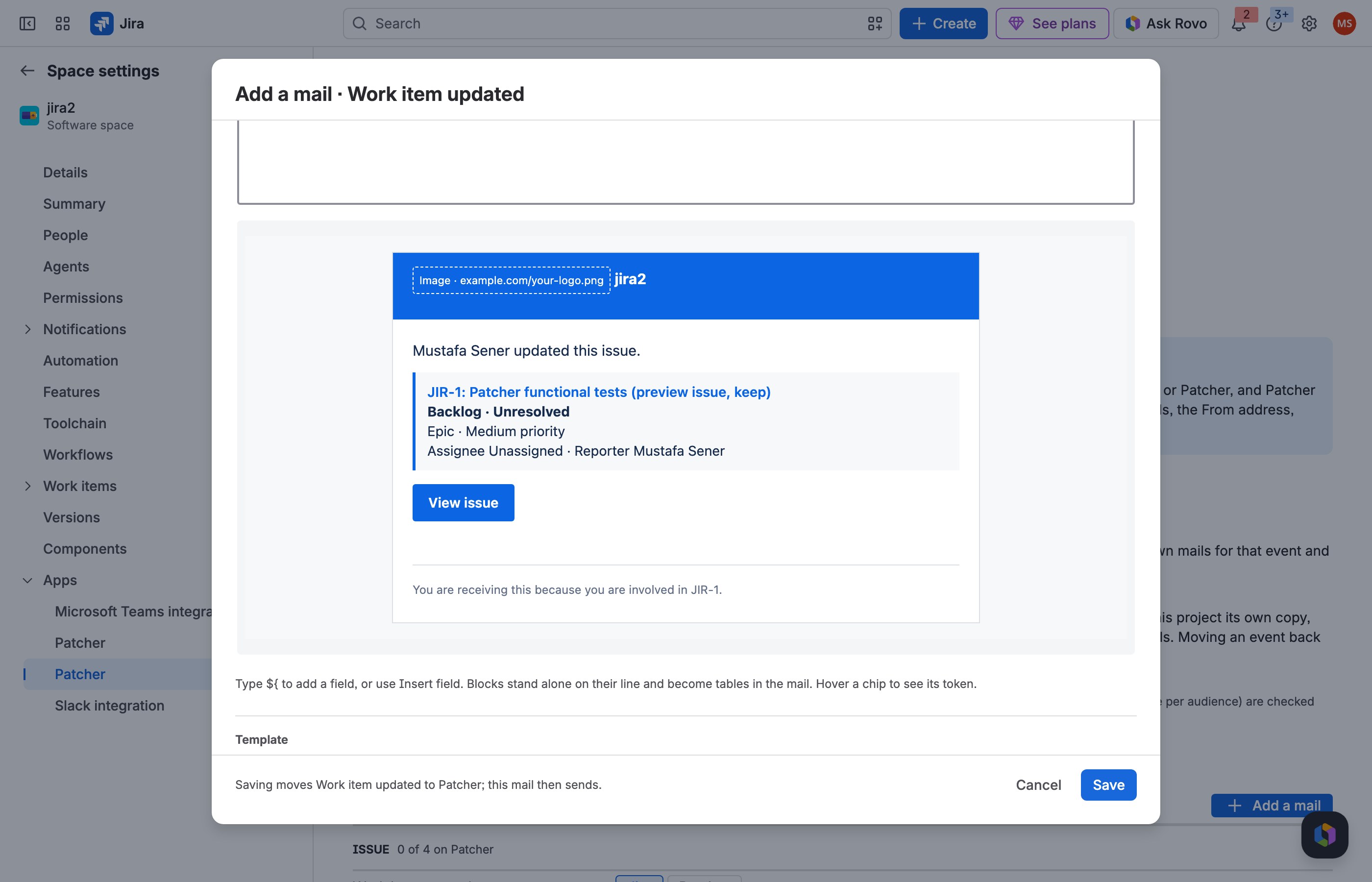
3 The mail shows the key facts and your fields.
JRACLOUD-161 Different emails per project
What people asked
Customise outgoing emails per project, for example short branded mails for a customer-facing project.
What the fix does
The fix is enabled per project, and each project has its own mails, templates and sent log; Copy from another project reuses a set.
Where you find it
Project settings → Apps → Patcher in each project; Copy from another project under the Notifications list.
How to do it
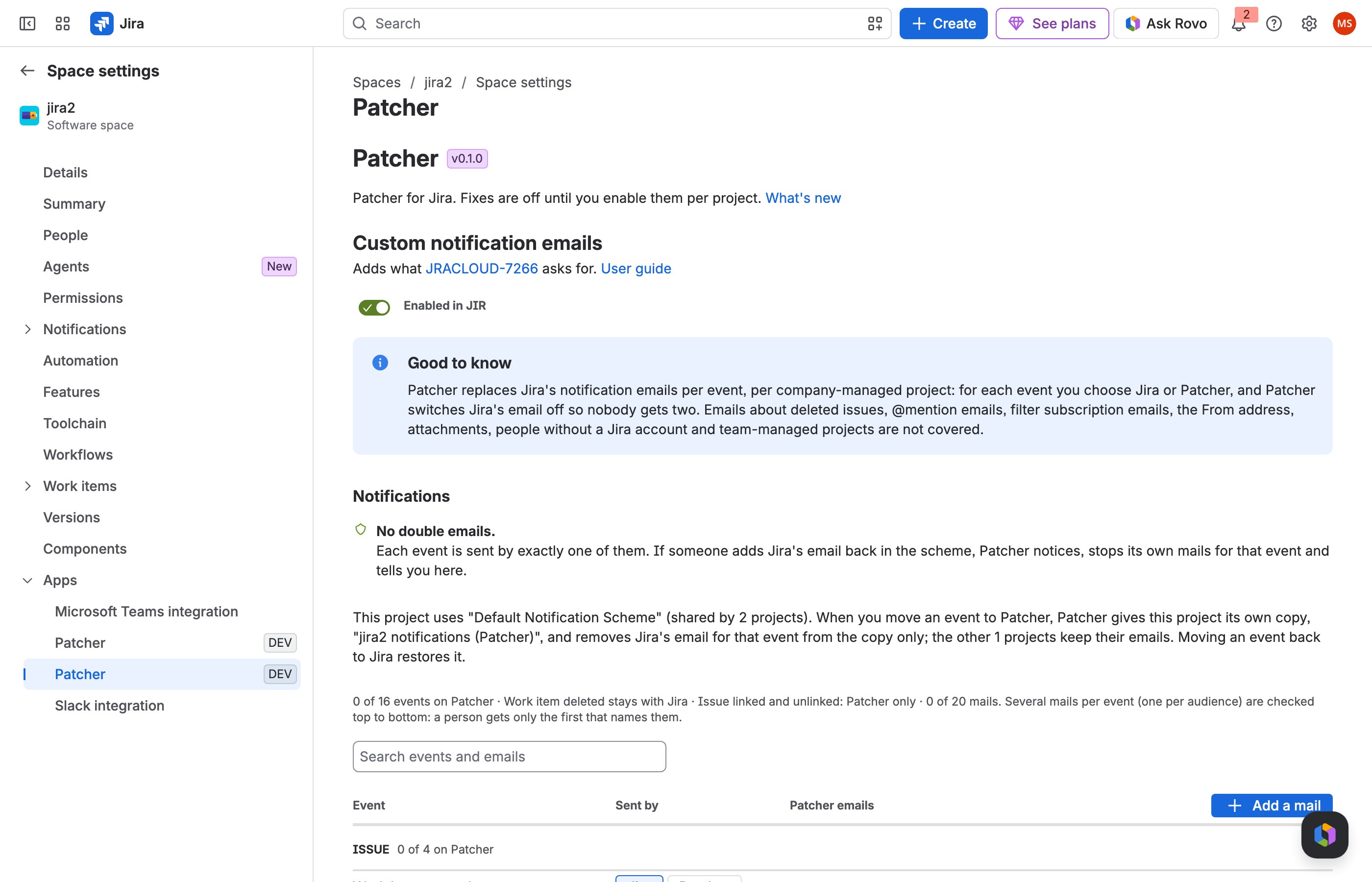
1 In each project, switch the fix on.
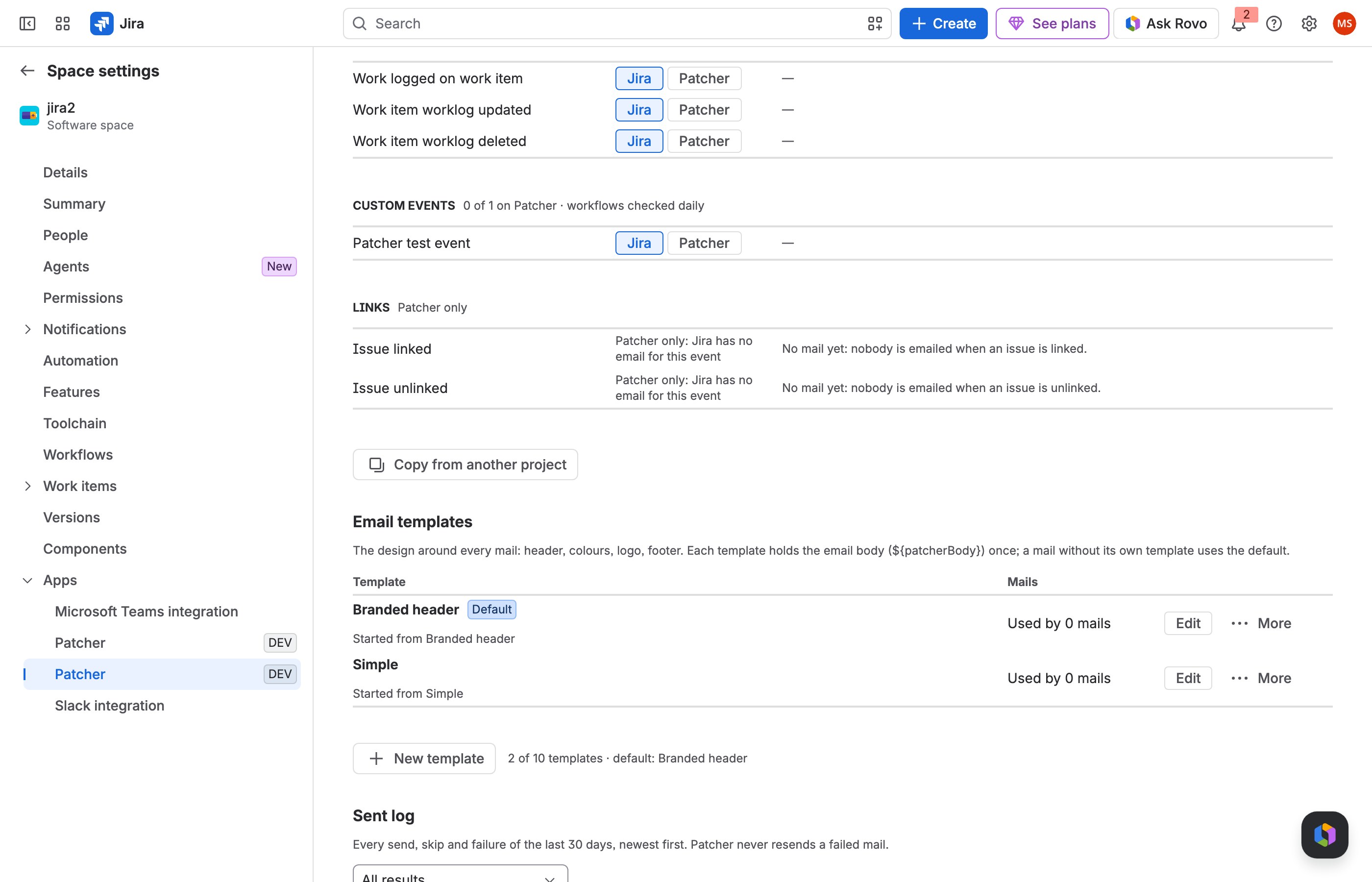
2 Reuse another project's mails with Copy from another project.
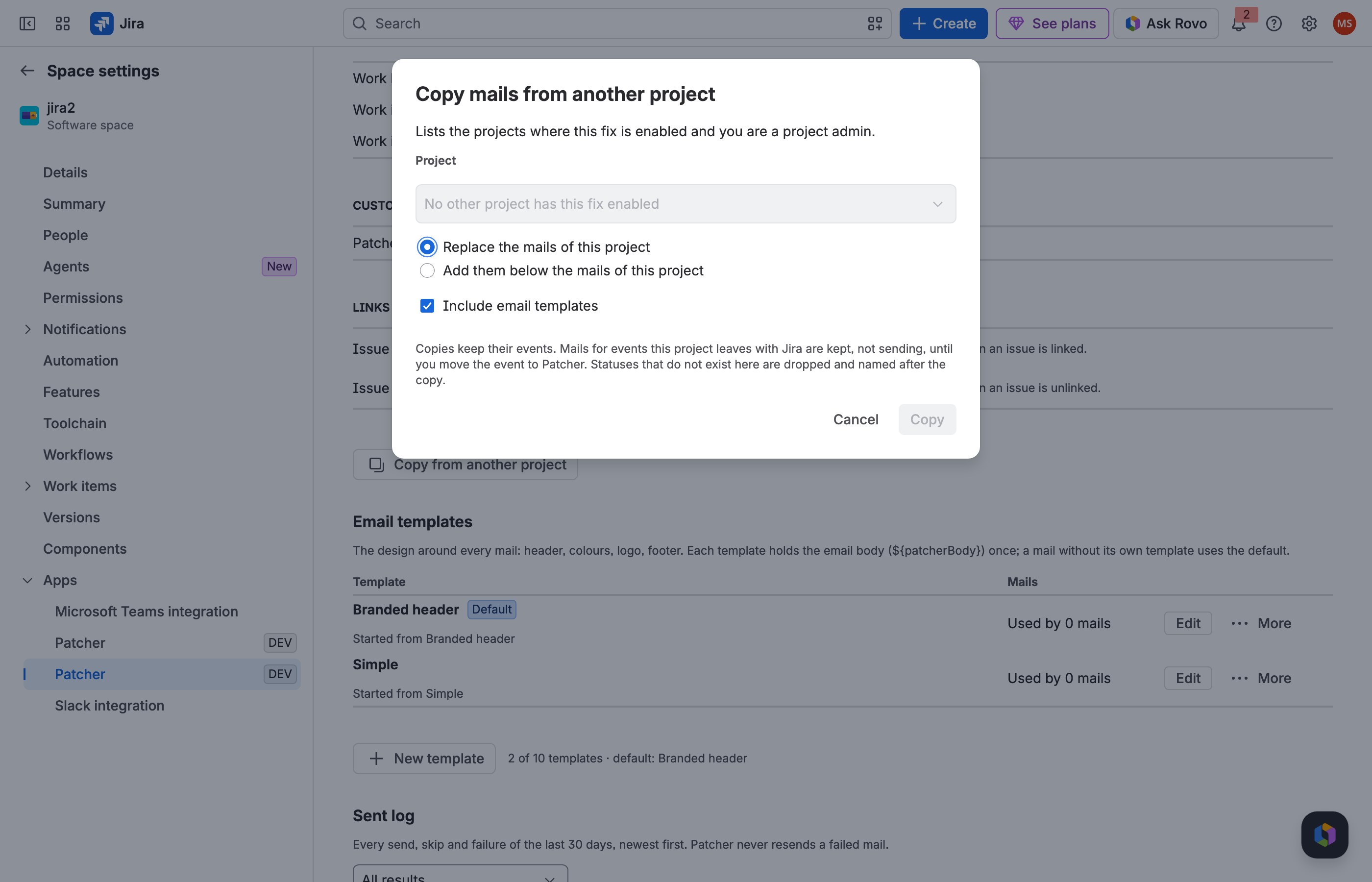
3 Pick the project and how to copy.
JRACLOUD-3609 Your own subject line
What people asked
Choose what the subject says and in which order.
What the fix does
The subject is entirely yours: text and fields in any order, for example [${issue.key}] ${event}: ${issue.summary}.
Where you find it
The mail editor → Subject and body → Subject.
How to do it
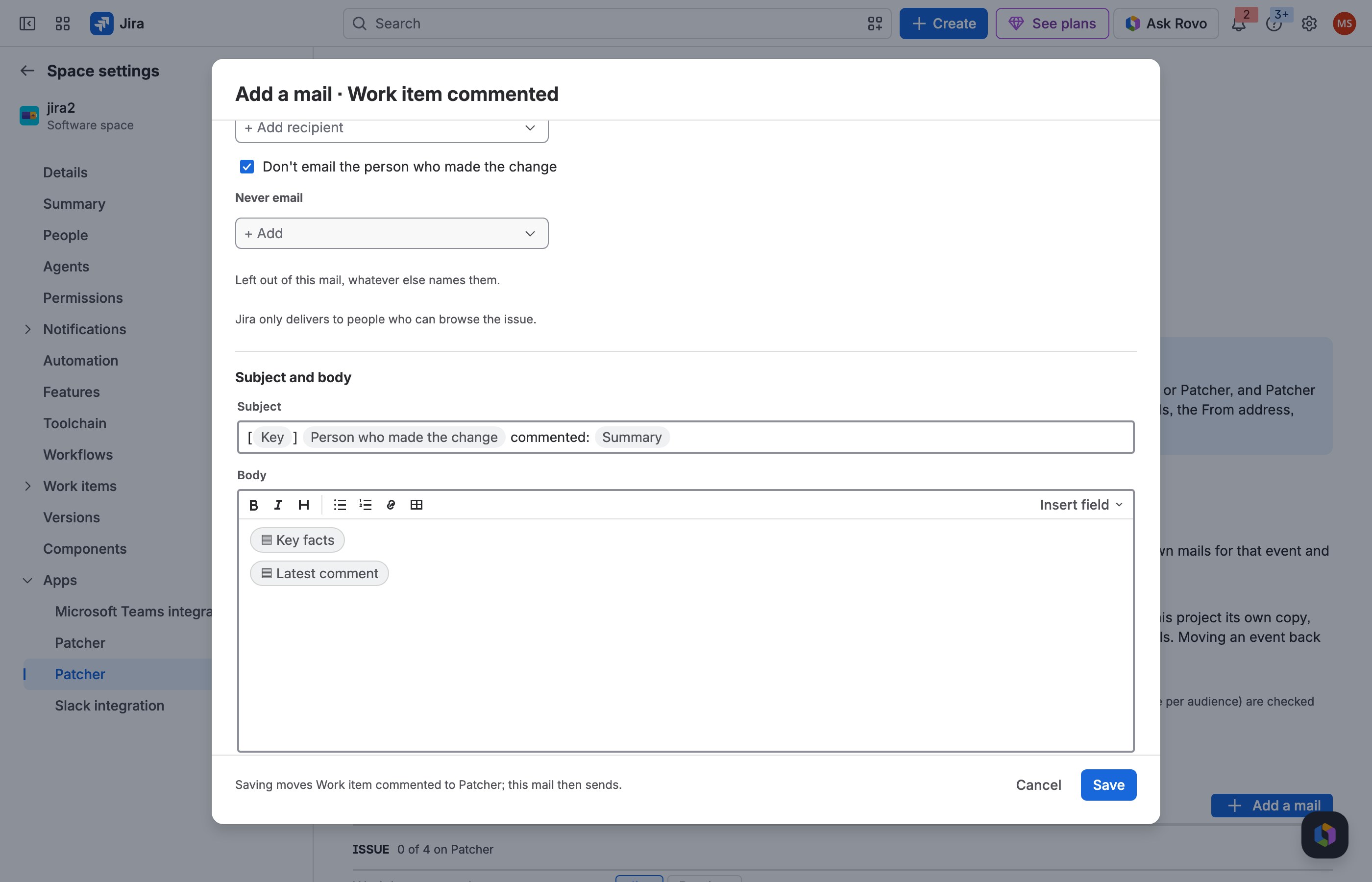
1 Click into the Subject.
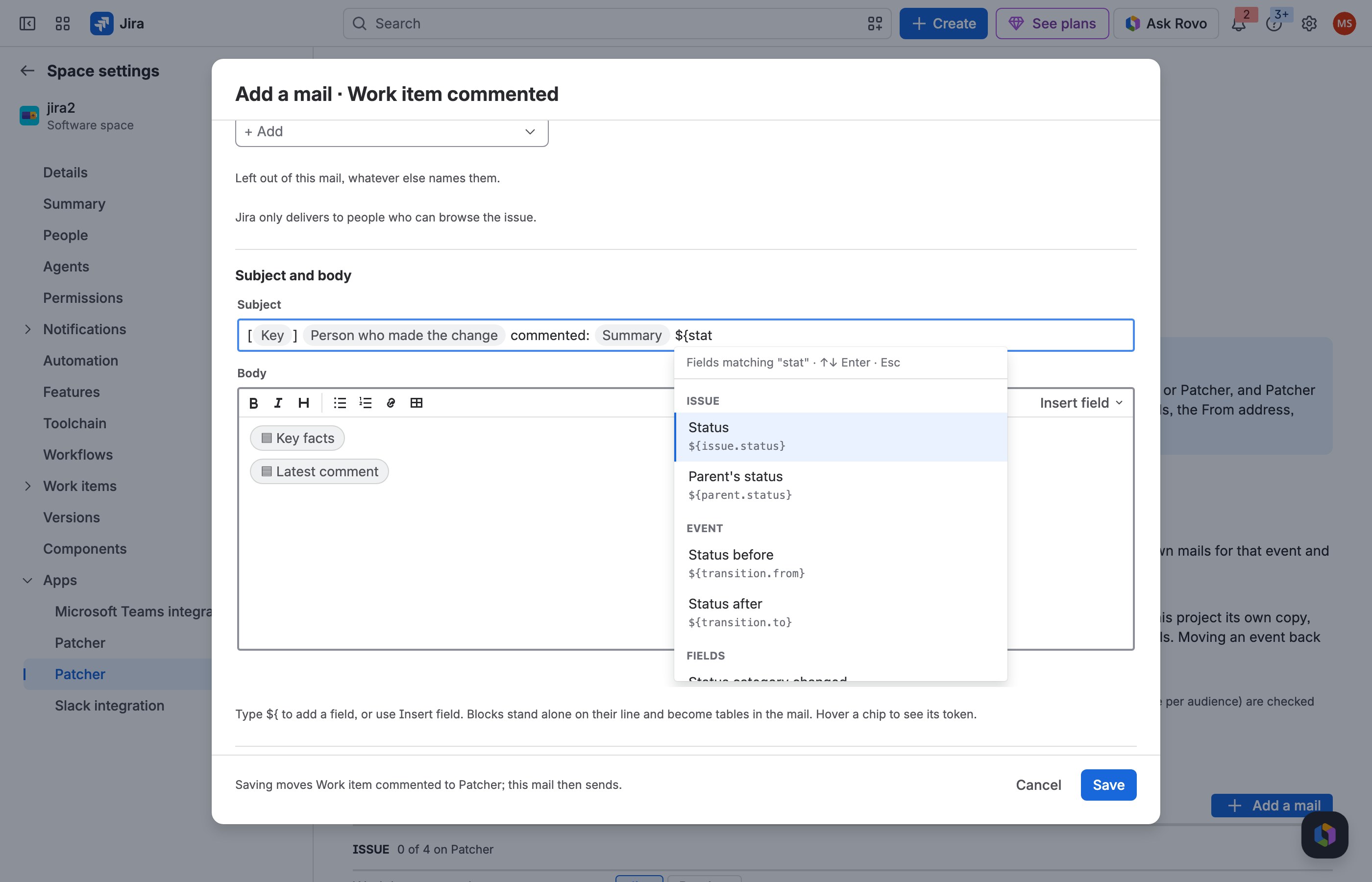
2 Type ${ and pick what goes in it.
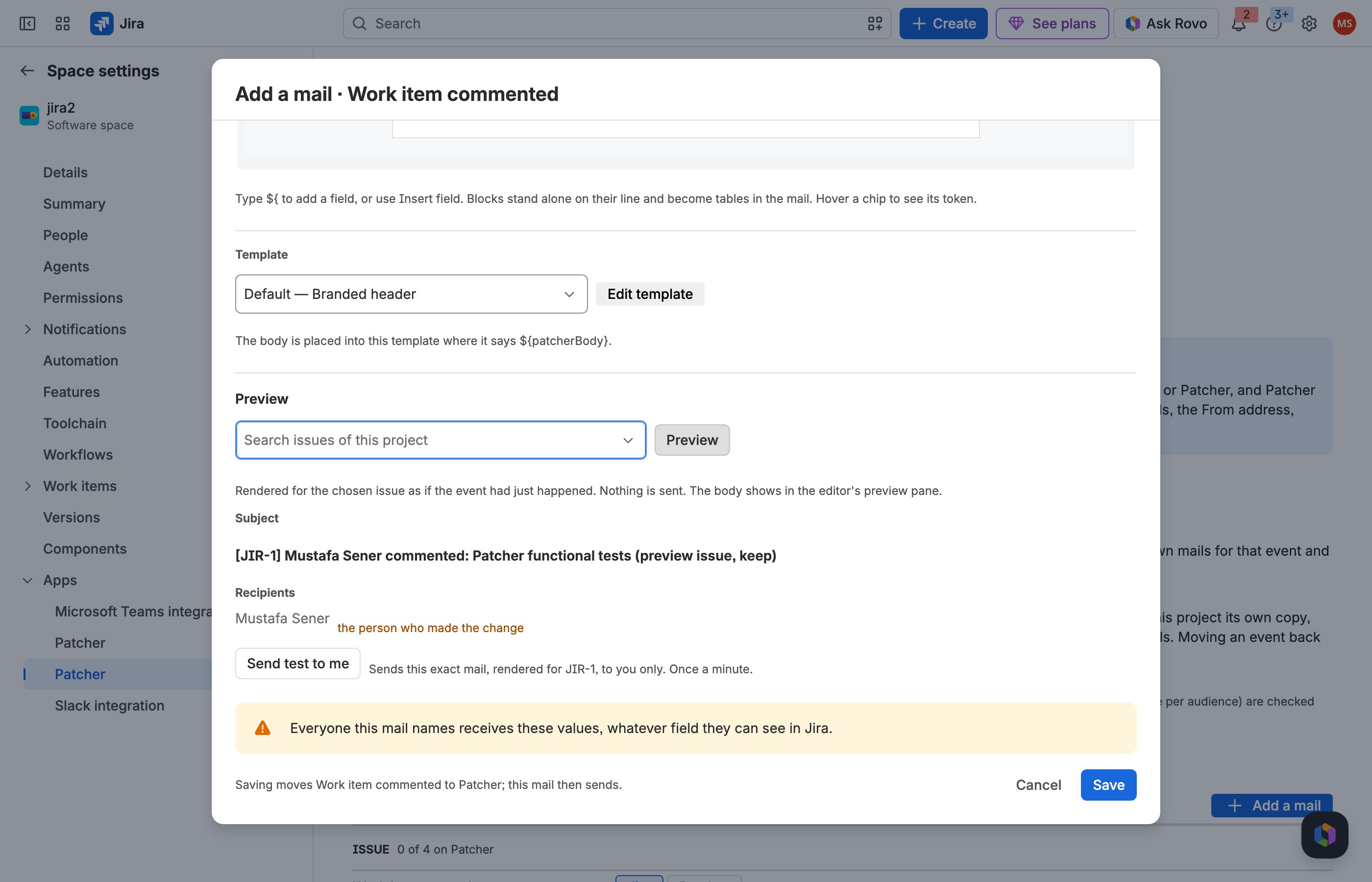
3 Preview shows the subject as people get it.
JRACLOUD-4742 Notify a group for one issue type
What people asked
Send a mail to a group whenever an issue of a certain type, such as Business Feature, is created or changed.
What the fix does
Add a mail with the condition issuetype = "Business Feature" and the group as recipient; All except sub-tasks is a ready example.
Where you find it
The mail editor → Only if the issue matches and To.
How to do it
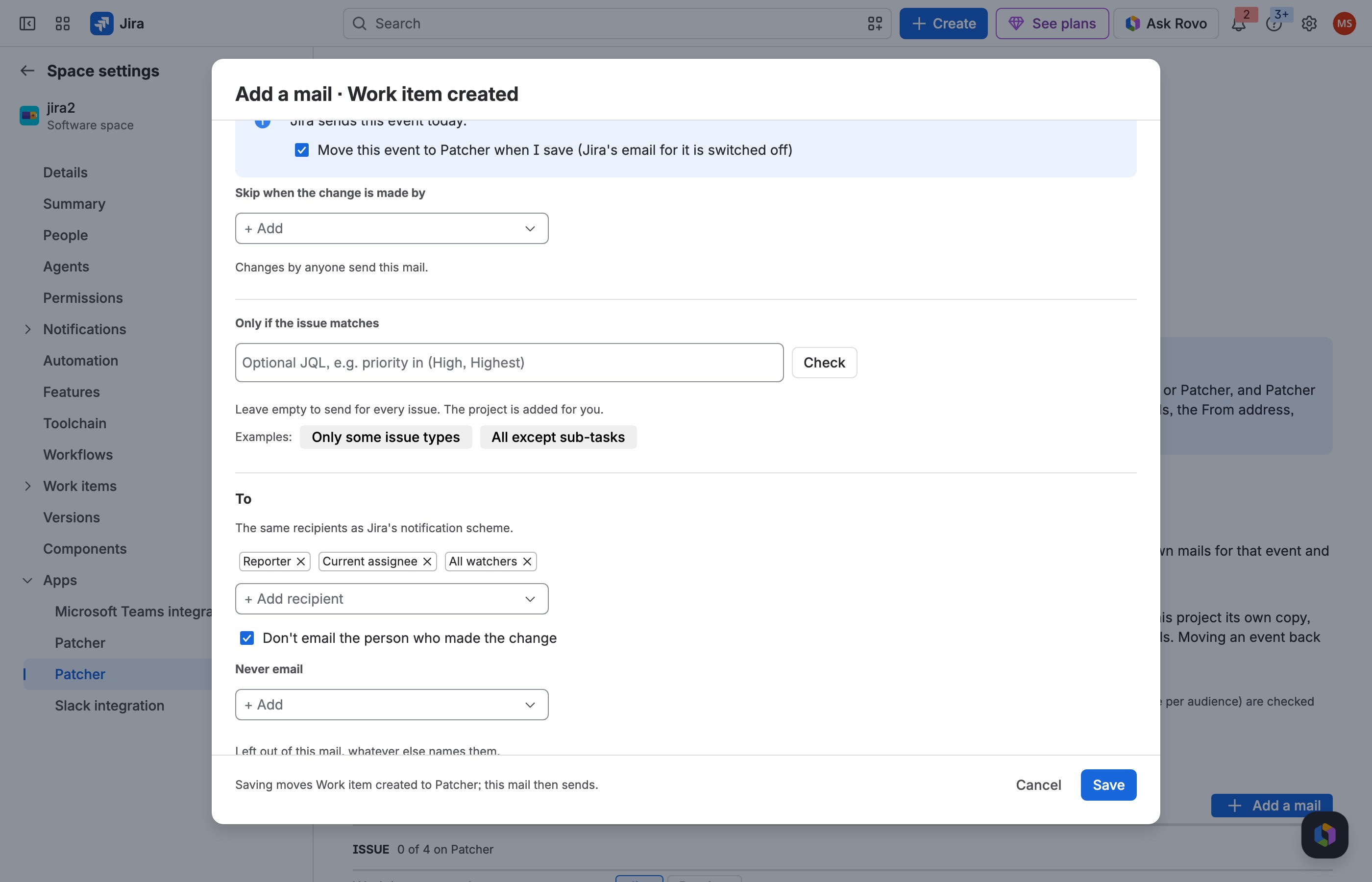
1 Under Only if the issue matches, start from Only some issue types.
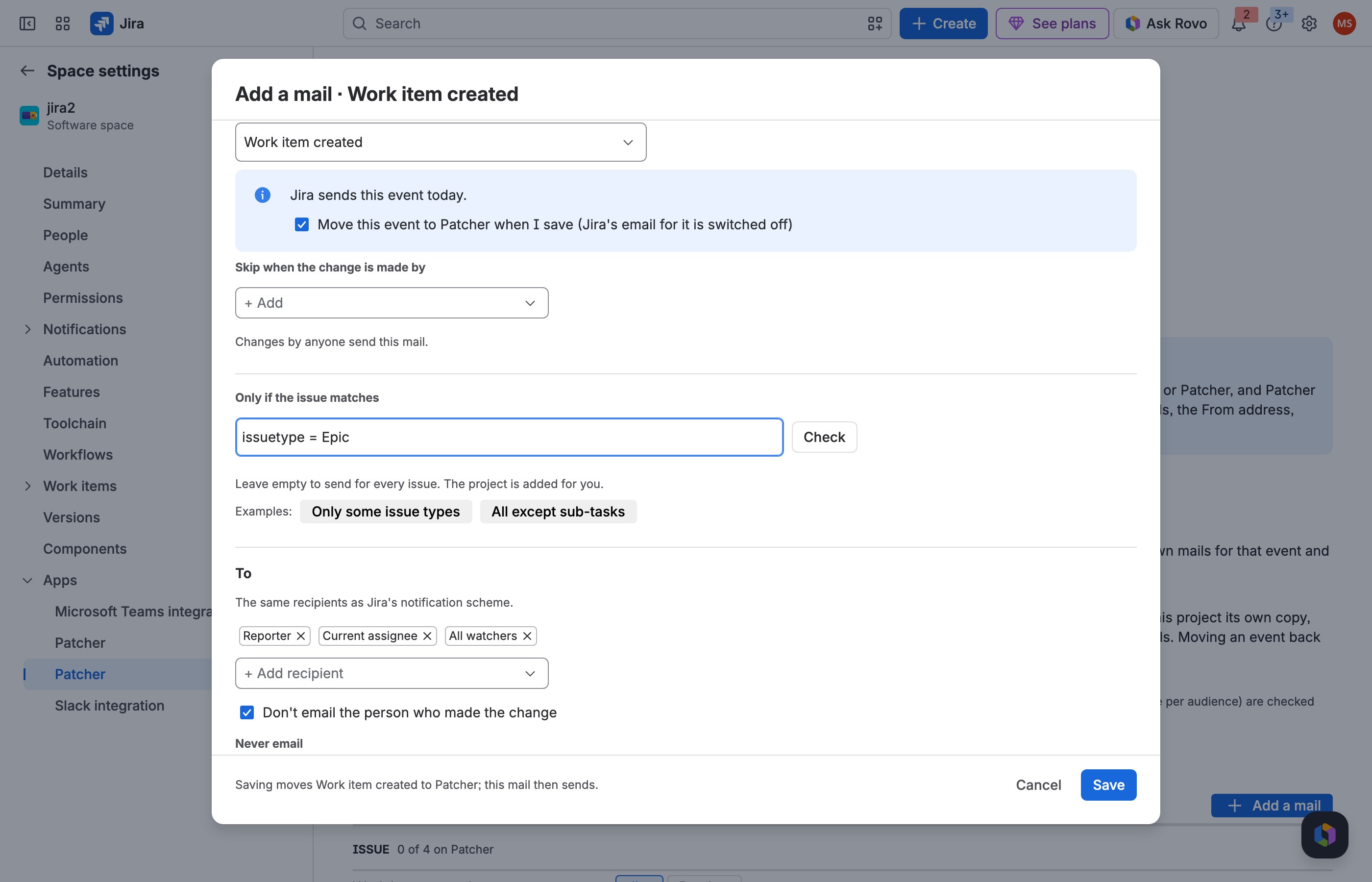
2 Name the issue type and choose Check.
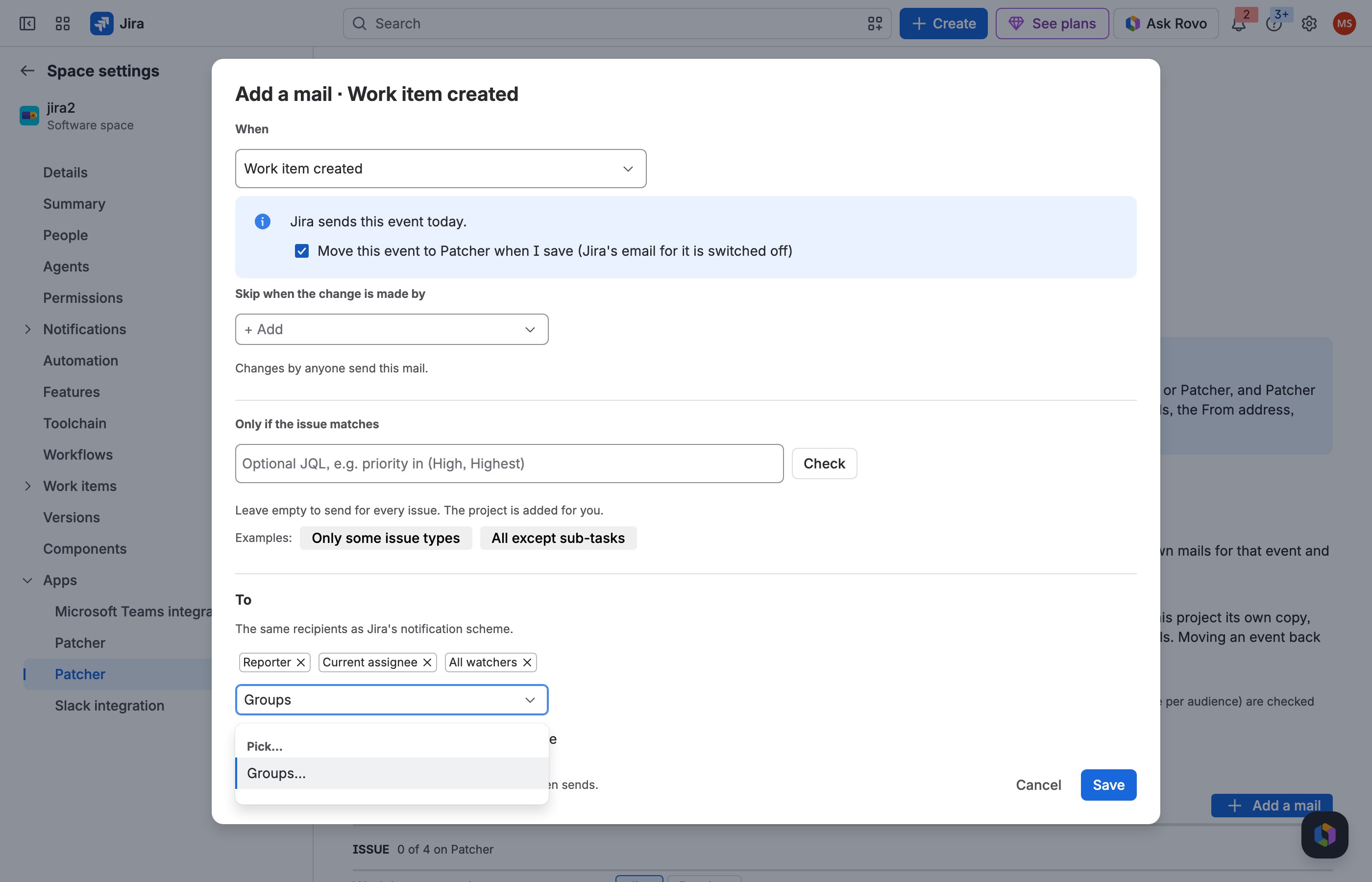
3 Under To, add the group.
JRACLOUD-68100 Leave one person out of a notification
What people asked
Remove a specific user from a notification even while they are the reporter, assignee or a watcher.
What the fix does
Never email leaves named people or groups out of a mail whatever else names them; Skip when the change is made by sends nothing for changes by an automation or integration account.
Where you find it
The mail editor → To → Never email, and Skip when the change is made by.
How to do it
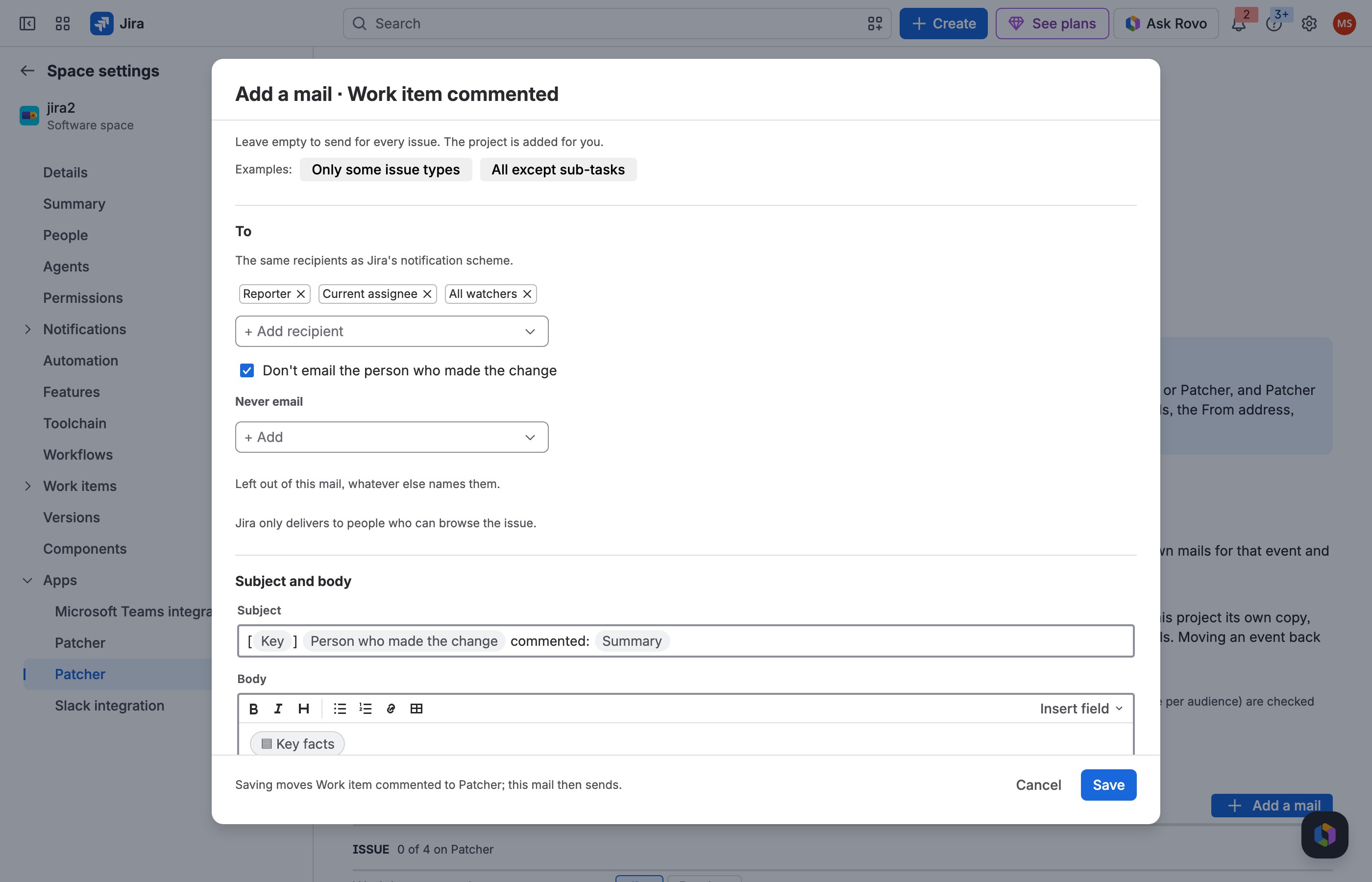
1 Under Never email, choose + Add.
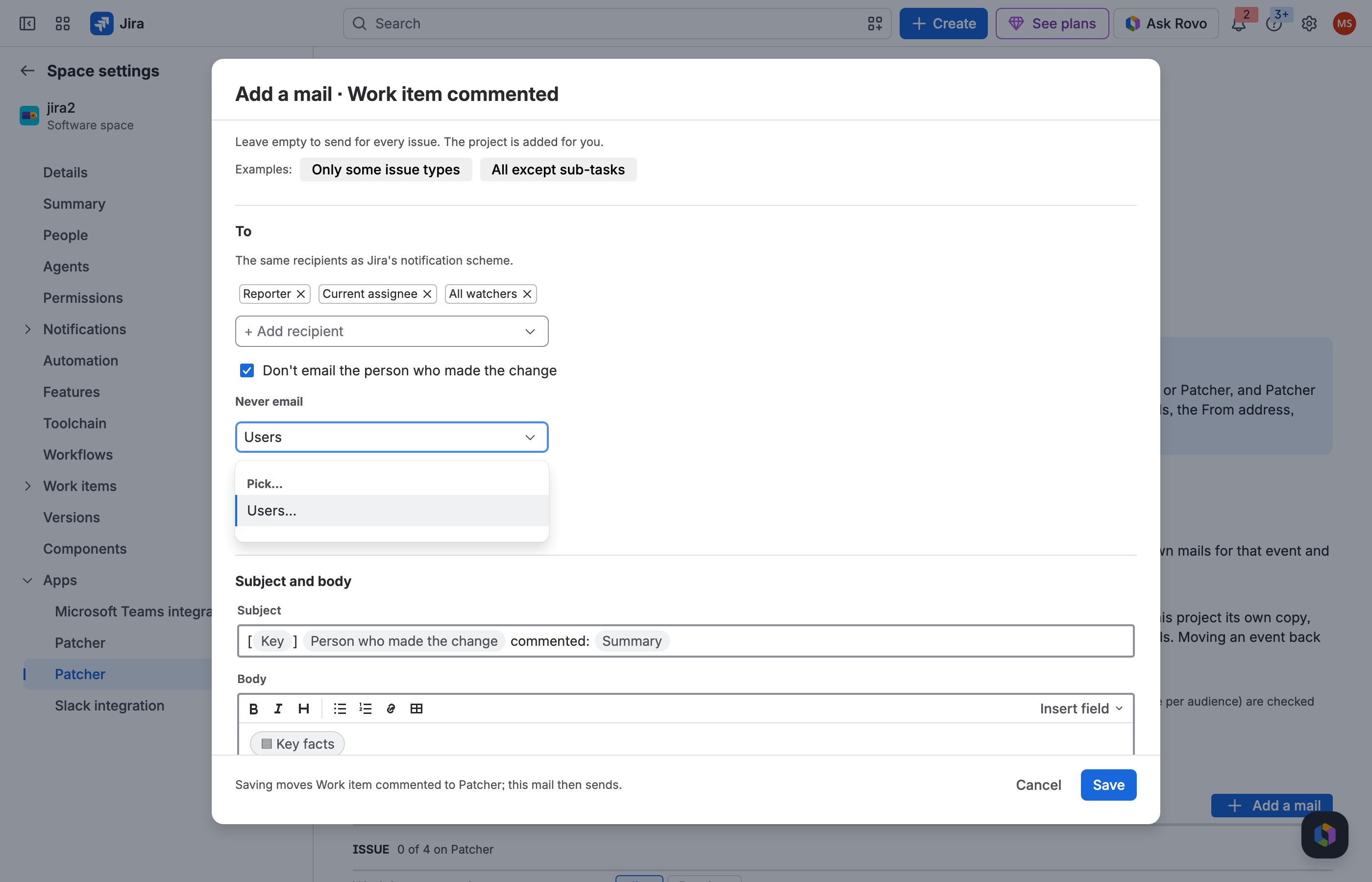
2 Pick Users… and the person.
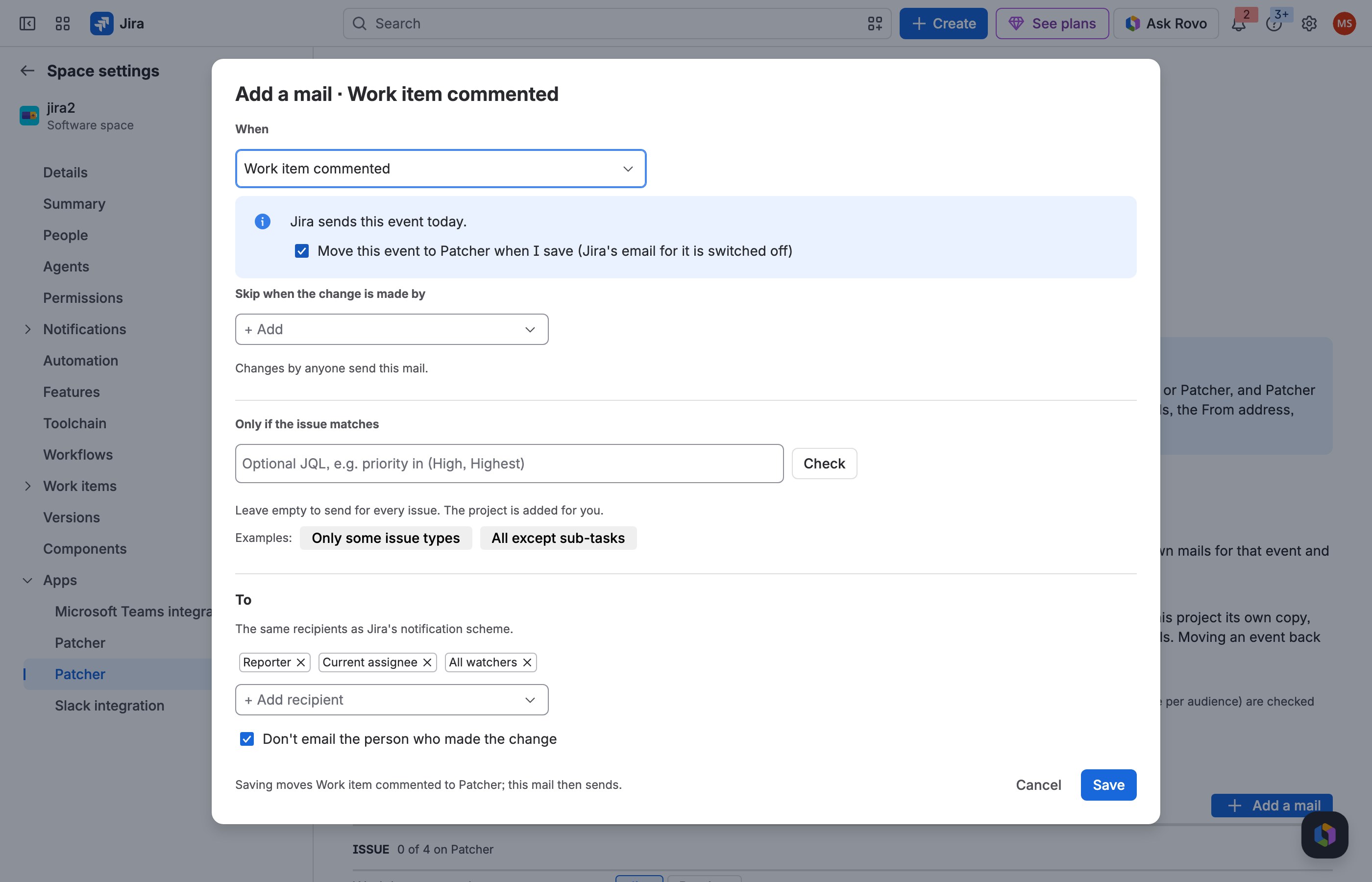
3 Skip when the change is made by: the same for automation accounts.
JRACLOUD-21888 No "[JIRA]" in front of the subject
What people asked
Remove the [JIRA] prefix from notification subjects.
What the fix does
Patcher's subjects start with whatever you write; there is no prefix unless you type one, such as ACME:.
Where you find it
The mail editor → Subject.
How to do it
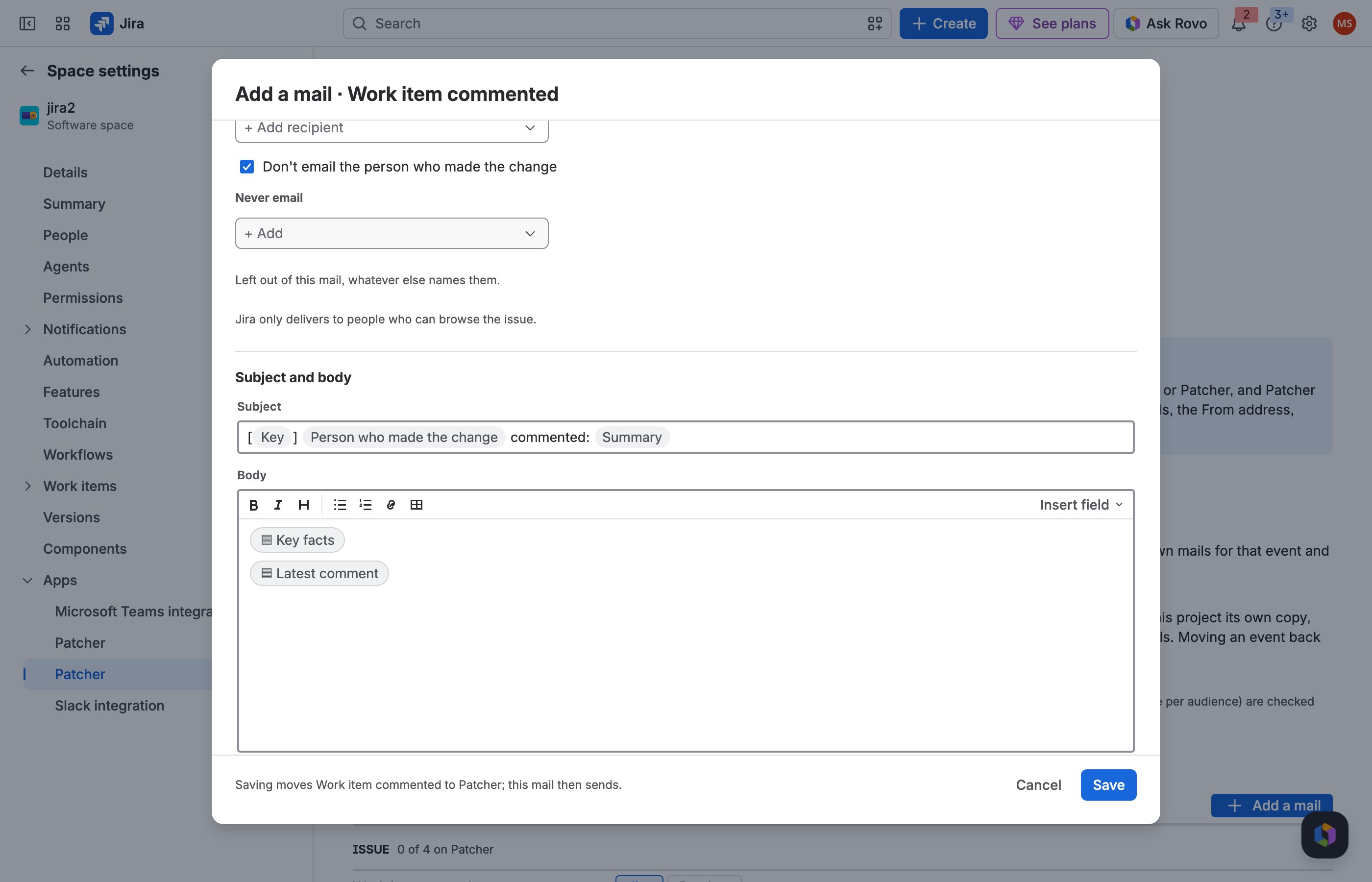
1 The subject starts with what you write: no prefix.
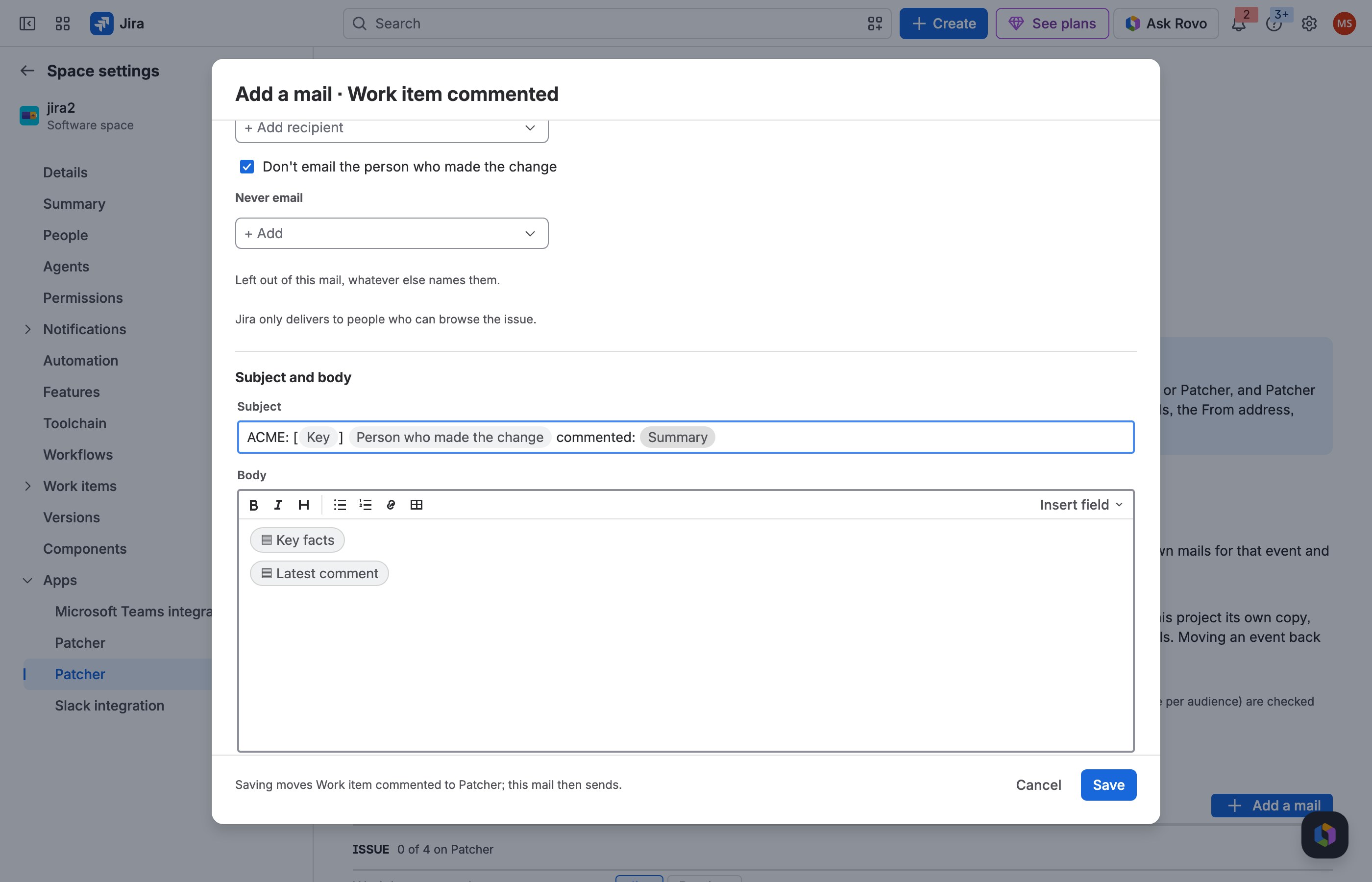
2 Want your own prefix? Type it at the start.
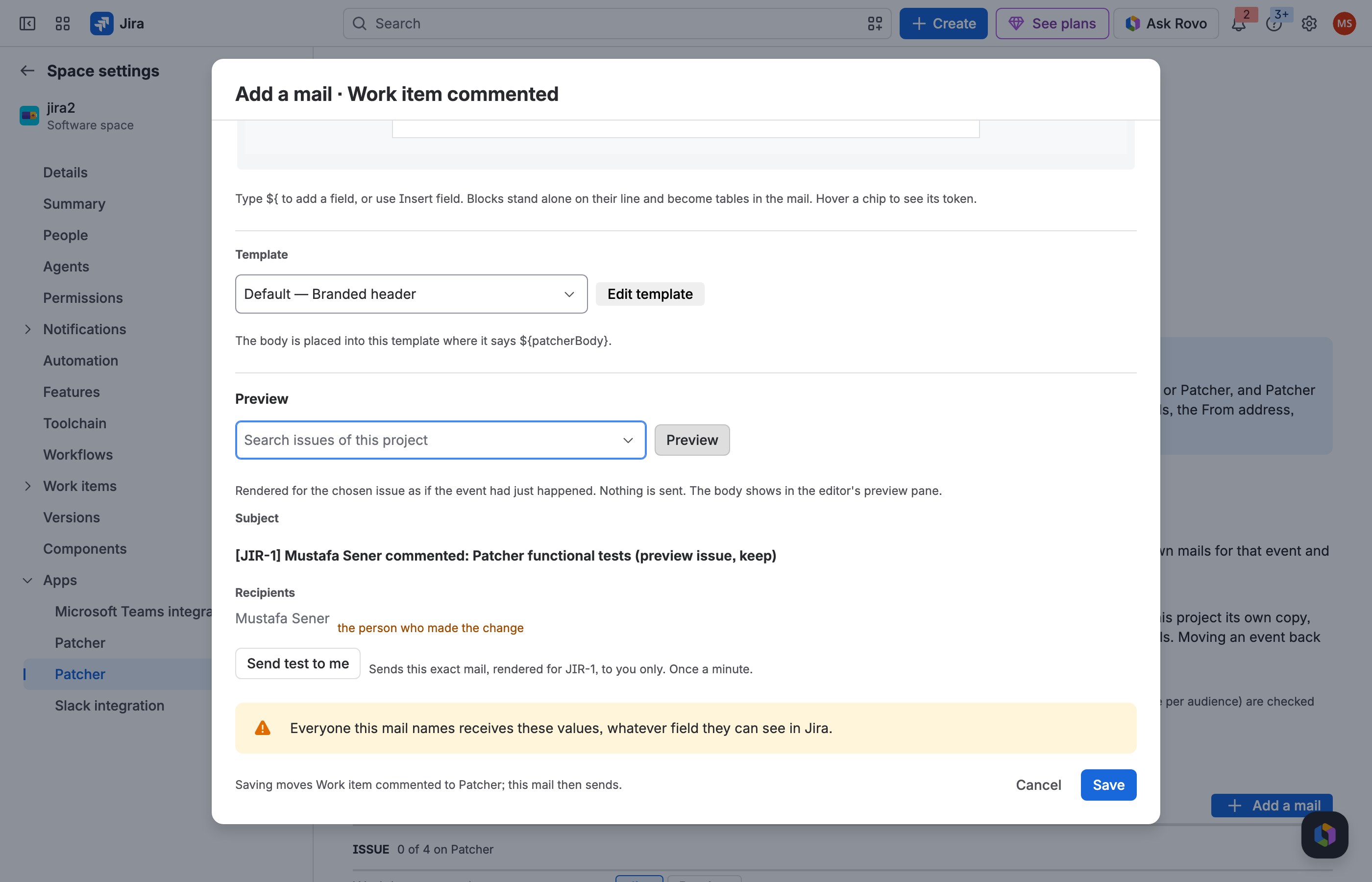
3 Preview shows the subject with no JIRA prefix.
JRACLOUD-29123 Mails for attachment changes, or none
What people asked
Separate notifications for adding and deleting attachments, without turning off all Issue updated mails.
What the fix does
On Work item updated, Only when these fields change: Attachment (added) makes an "attachment added" mail, and Unless only these fields change: Attachment (any change) stops mails for uploads and deletions alone.
Where you find it
Add a mail → Work item updated → When.
How to do it
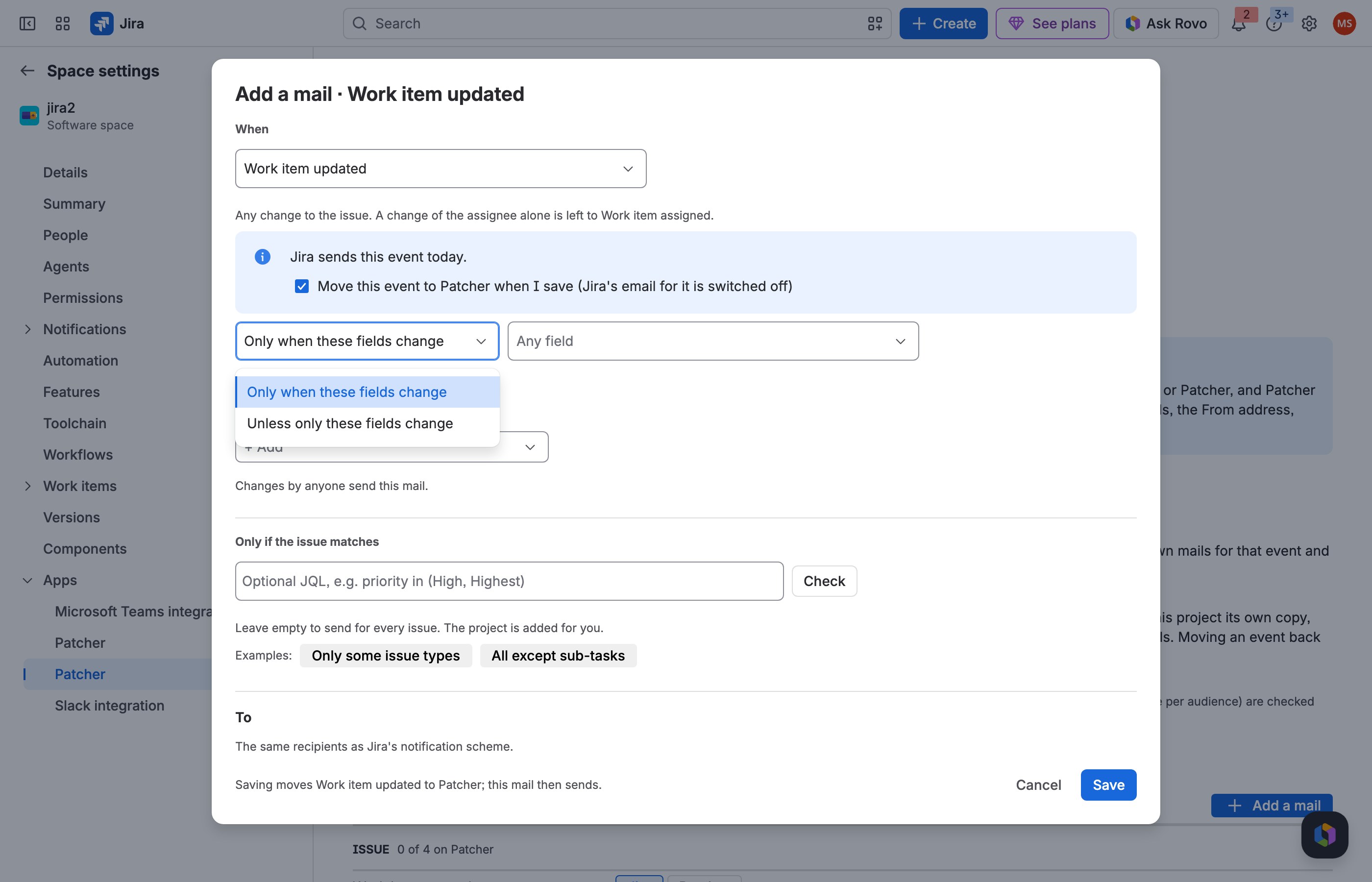
1 Add a mail on Work item updated and open the field mode.
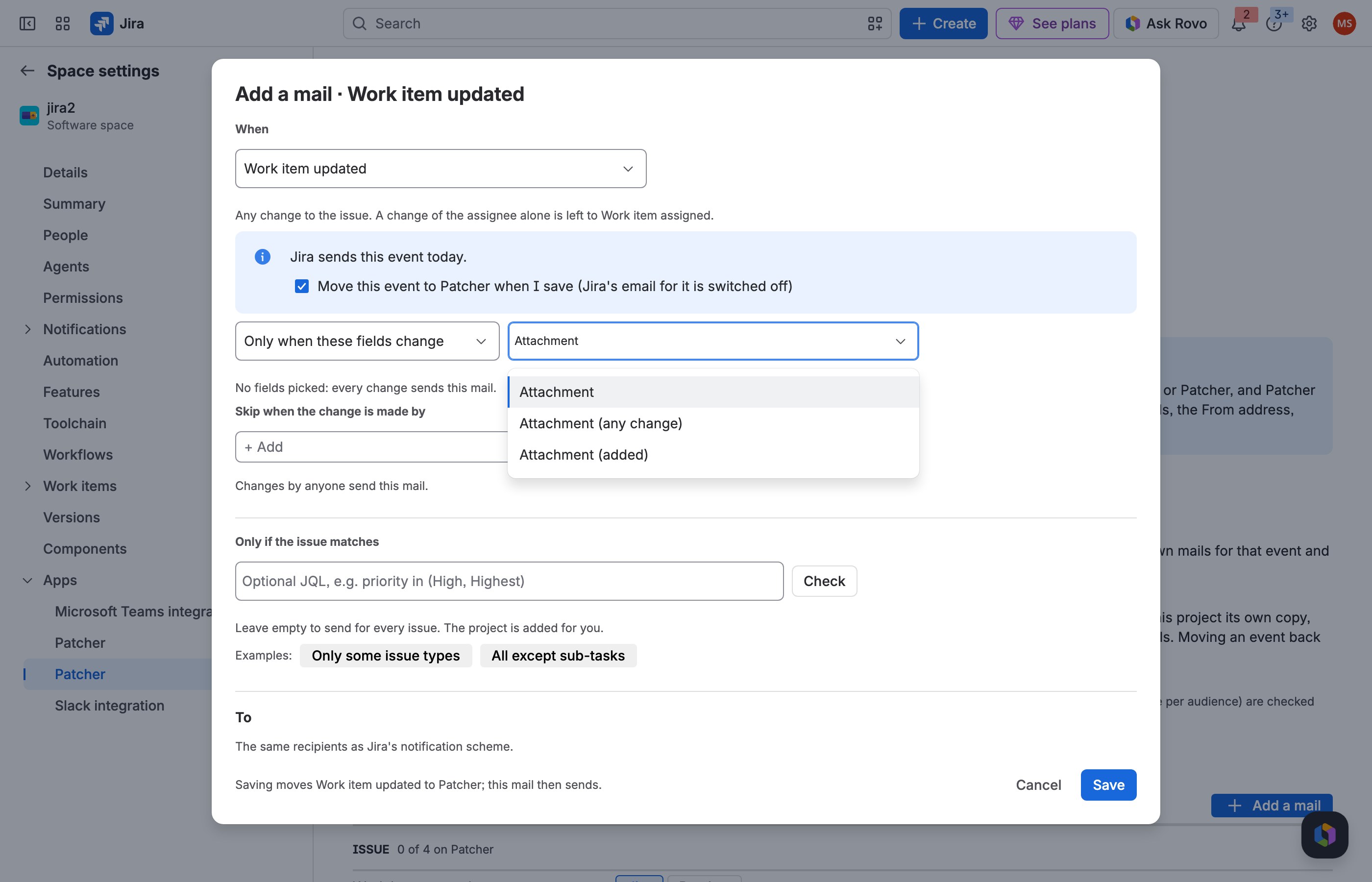
2 Pick Attachment (added) for an attachment mail, or Attachment (any change) to stay quiet.
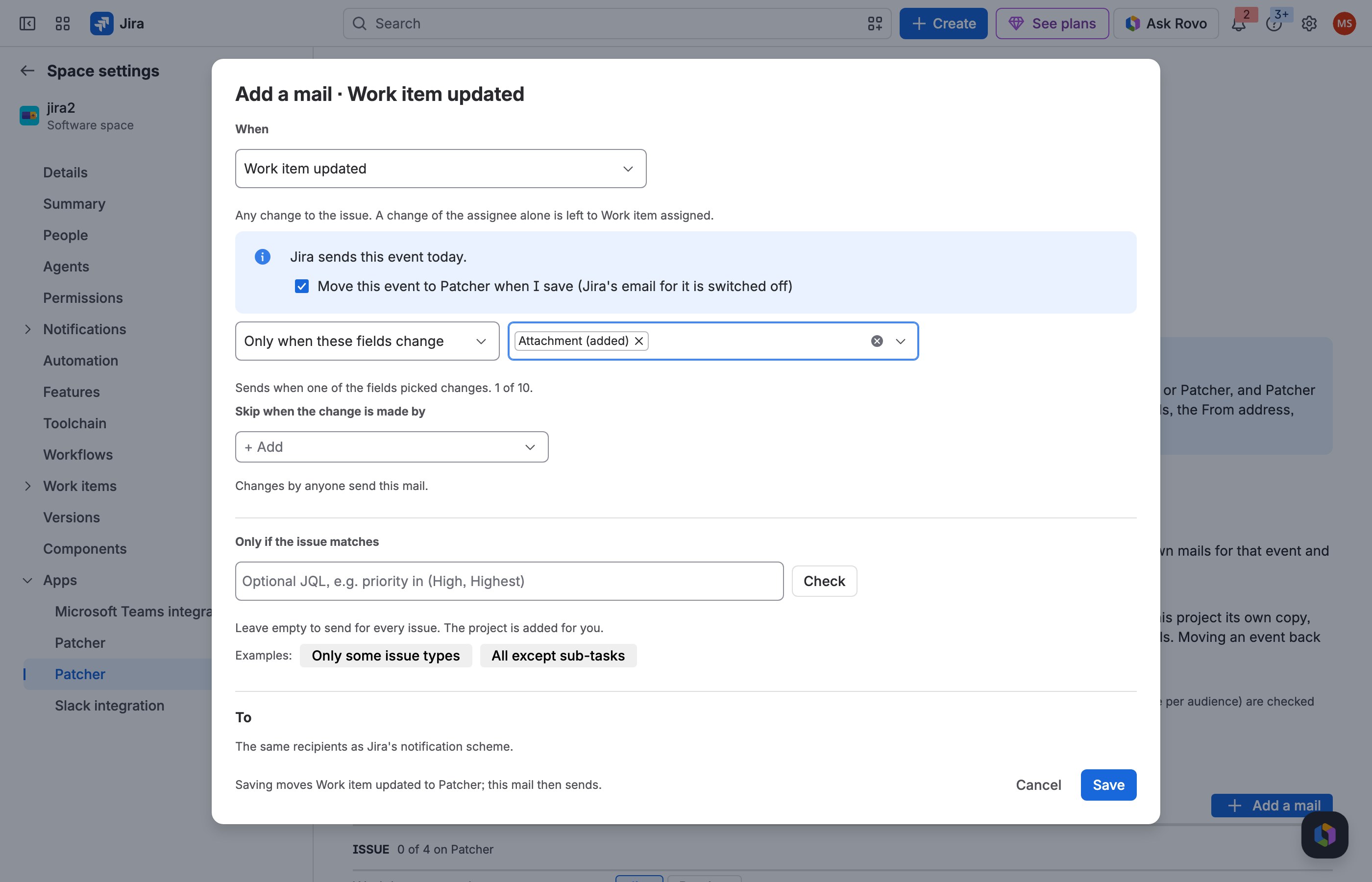
3 Save: the line says when the mail sends.
JRACLOUD-2565 Rule-based notifications
What people asked
Notify a particular group on a particular event based on the issue's data, such as a component or a custom field value.
What the fix does
Each mail combines an event, optional field or status conditions, a JQL condition on the issue's data and its own recipients.
Where you find it
The mail editor → When, Only if the issue matches and To.
How to do it
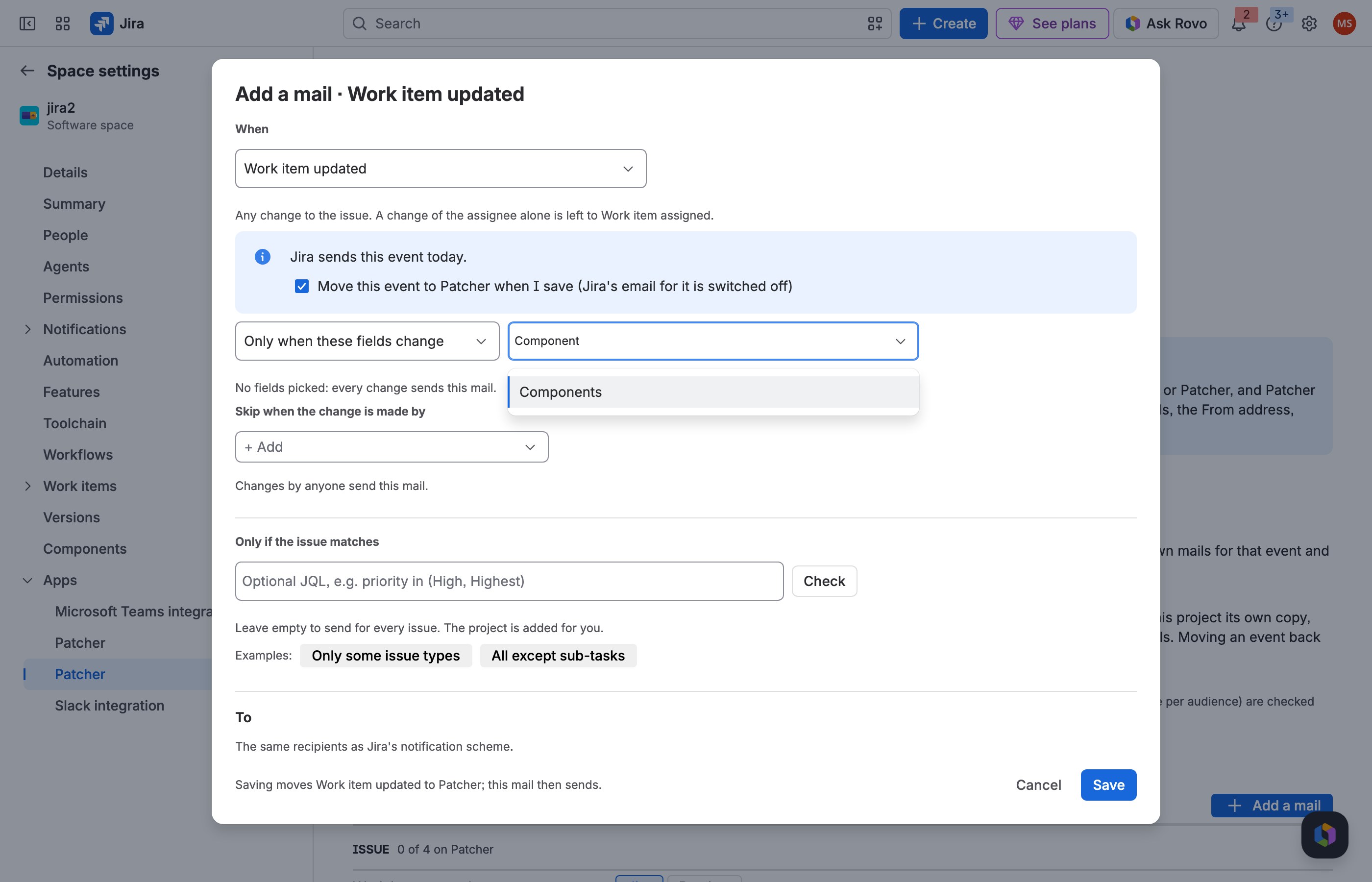
1 Narrow the event: only when these fields change.
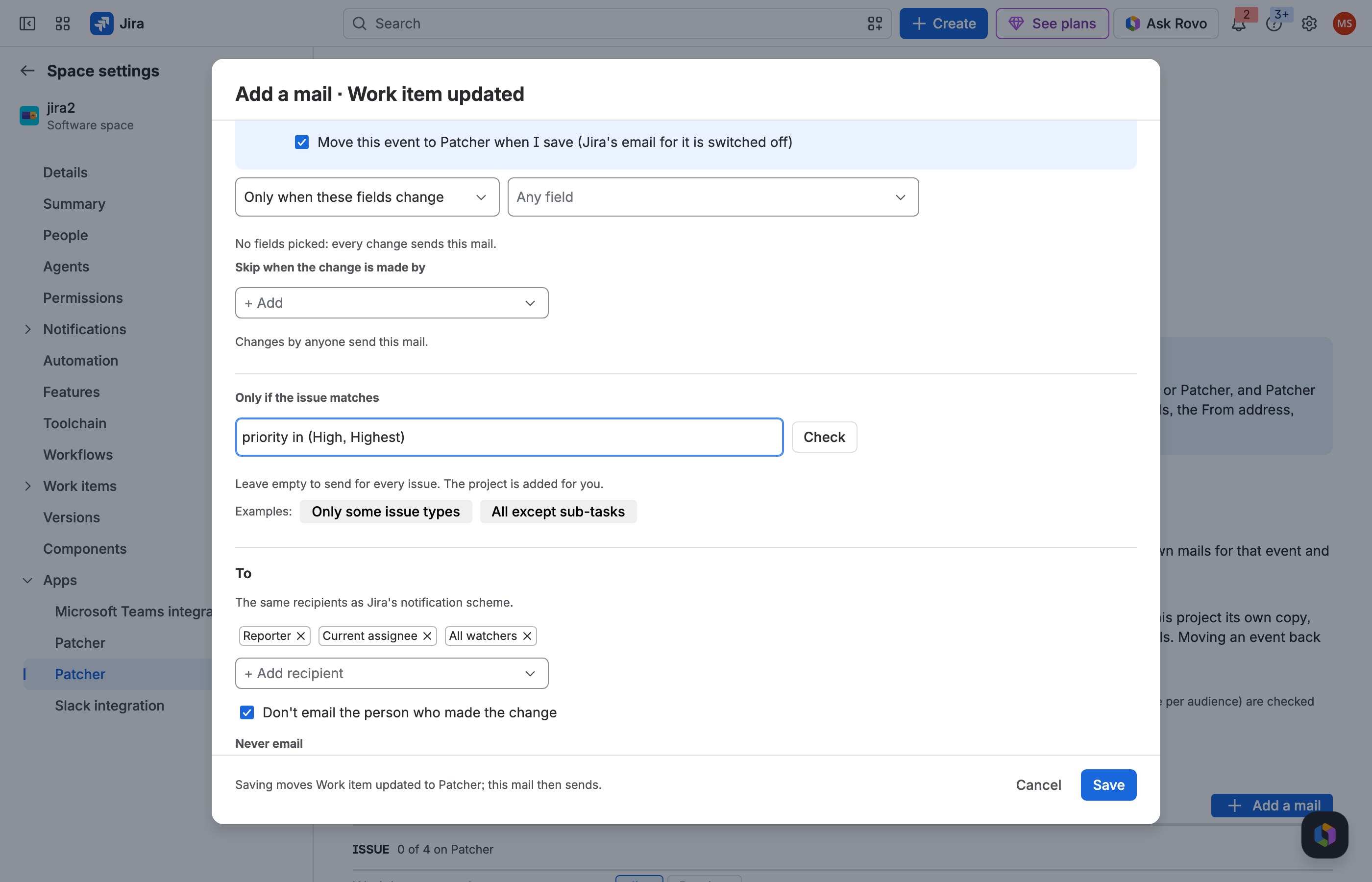
2 Add a condition on the issue's data.
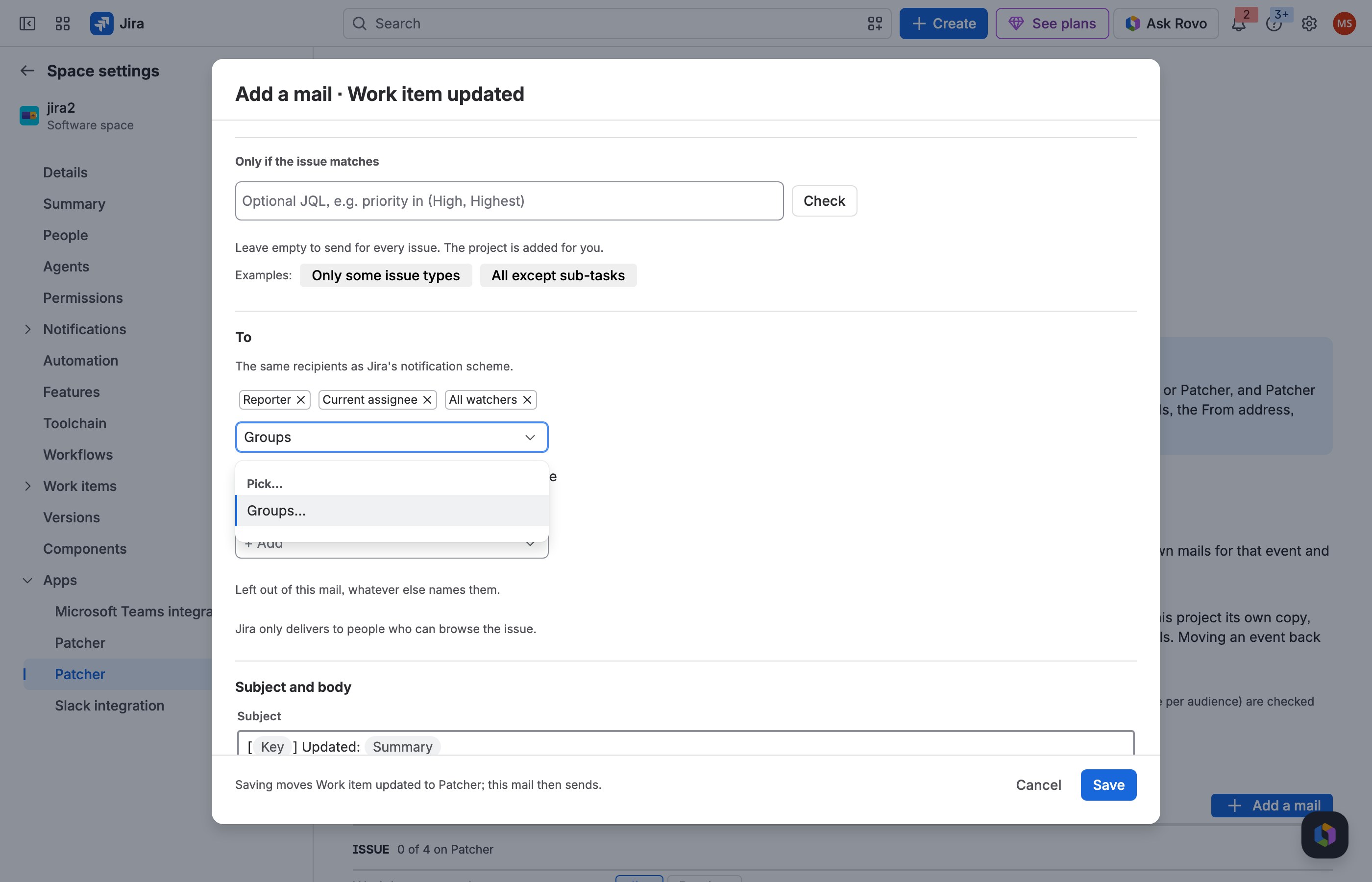
3 Send it to the people that rule is for.
JRACLOUD-9941 Tell the parent's people about new sub-tasks
What people asked
When a sub-task is created, notify the watchers of the parent issue, not only the people on the sub-task.
What the fix does
Parent's watchers, Parent's reporter and Parent's assignee are recipients; combine them with the condition issuetype in subTaskIssueTypes() on a Work item created mail.
Where you find it
The mail editor → To → + Add recipient → Parent issue.
How to do it
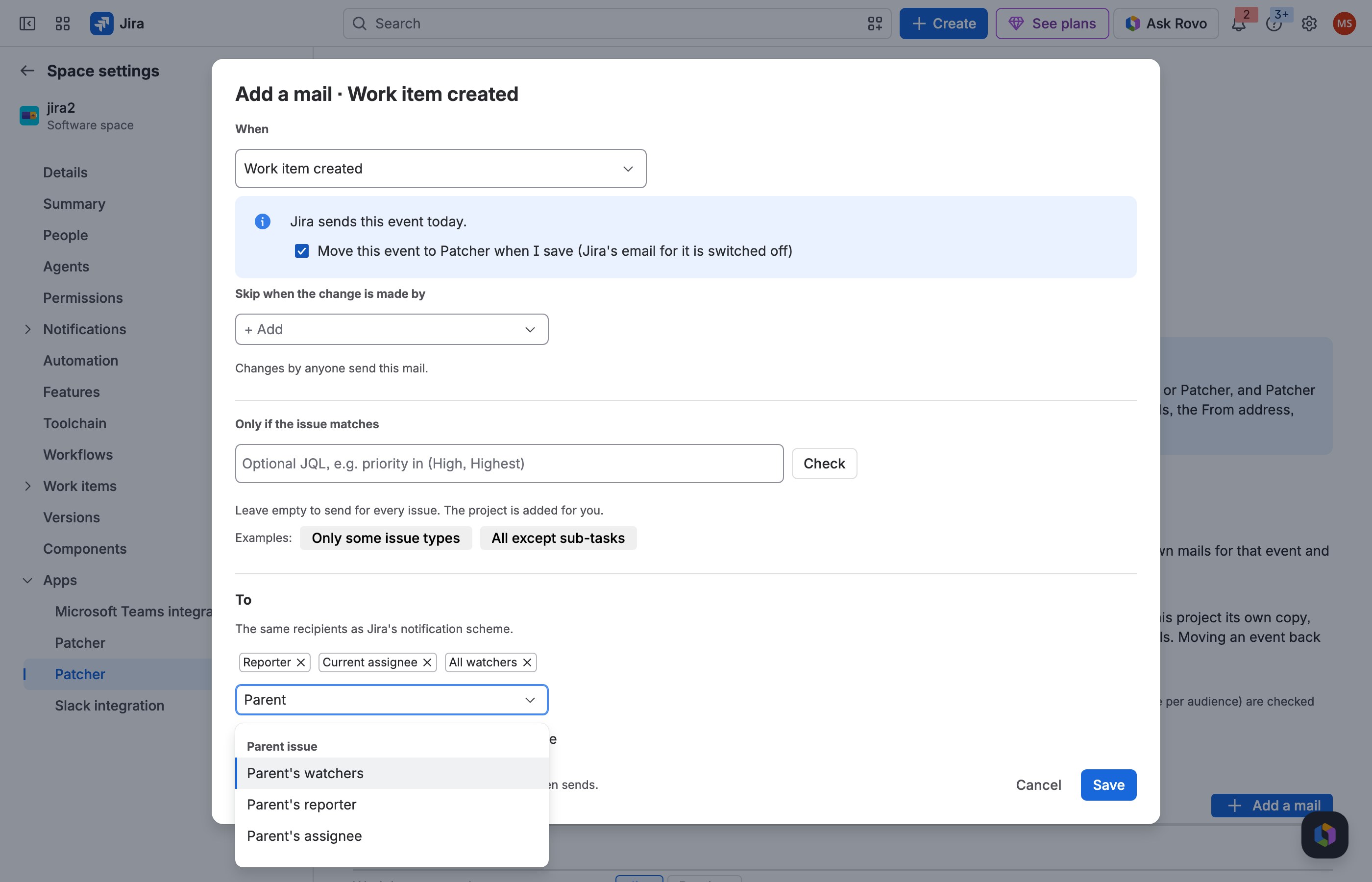
1 Add a mail on Work item created and open + Add recipient.
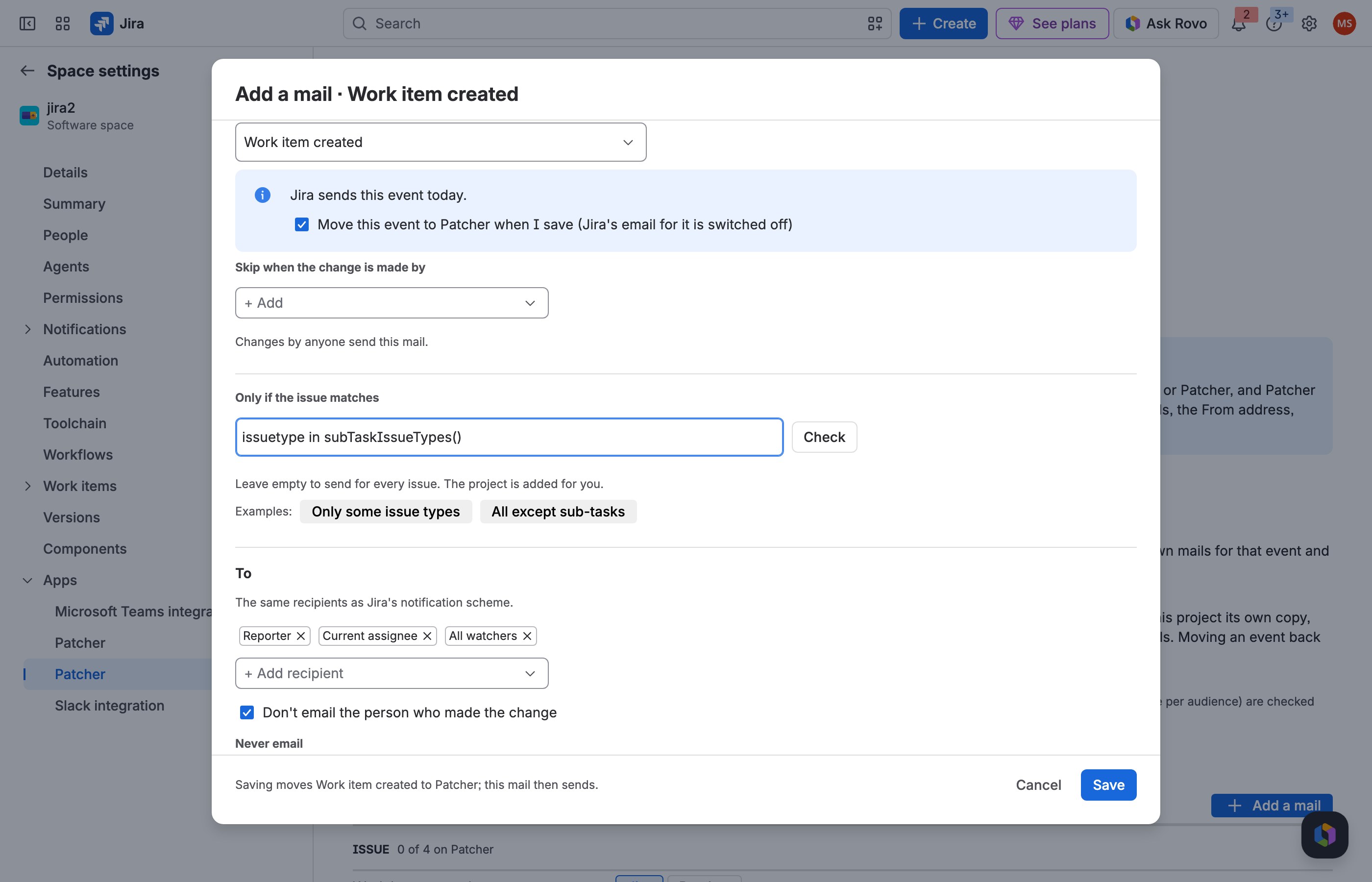
2 Limit it to sub-tasks.
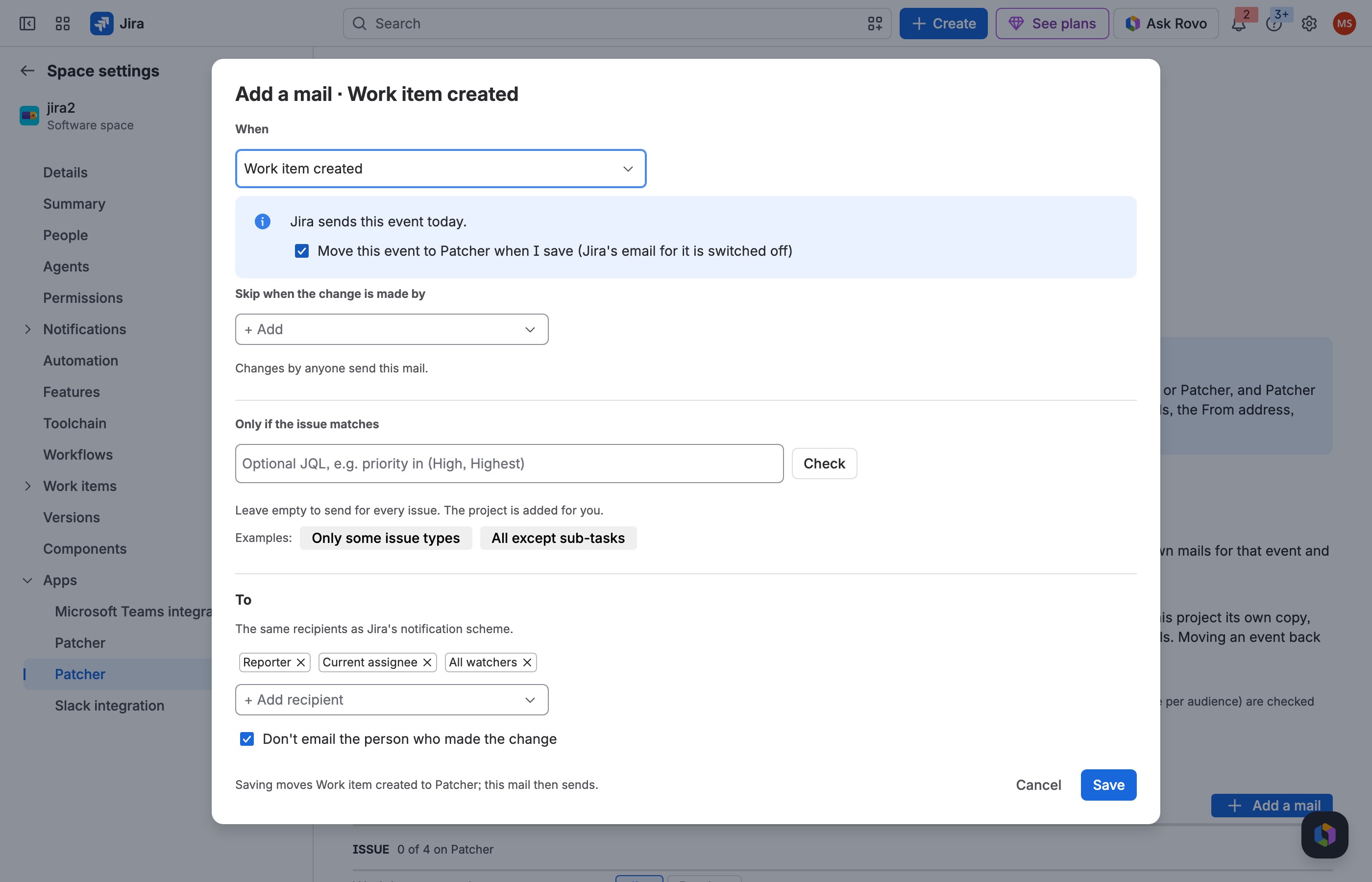
3 Save: the parent's watchers get the mail.
JRACLOUD-70569 Customised emails in Jira, as in Jira Service Management
What people asked
Customised notification emails in Jira Software and Jira Work Management projects, with extra information per event.
What the fix does
Everything in this guide: per project, per event, with your text, fields and design.
Where you find it
Project settings → Apps → Patcher.
How to do it
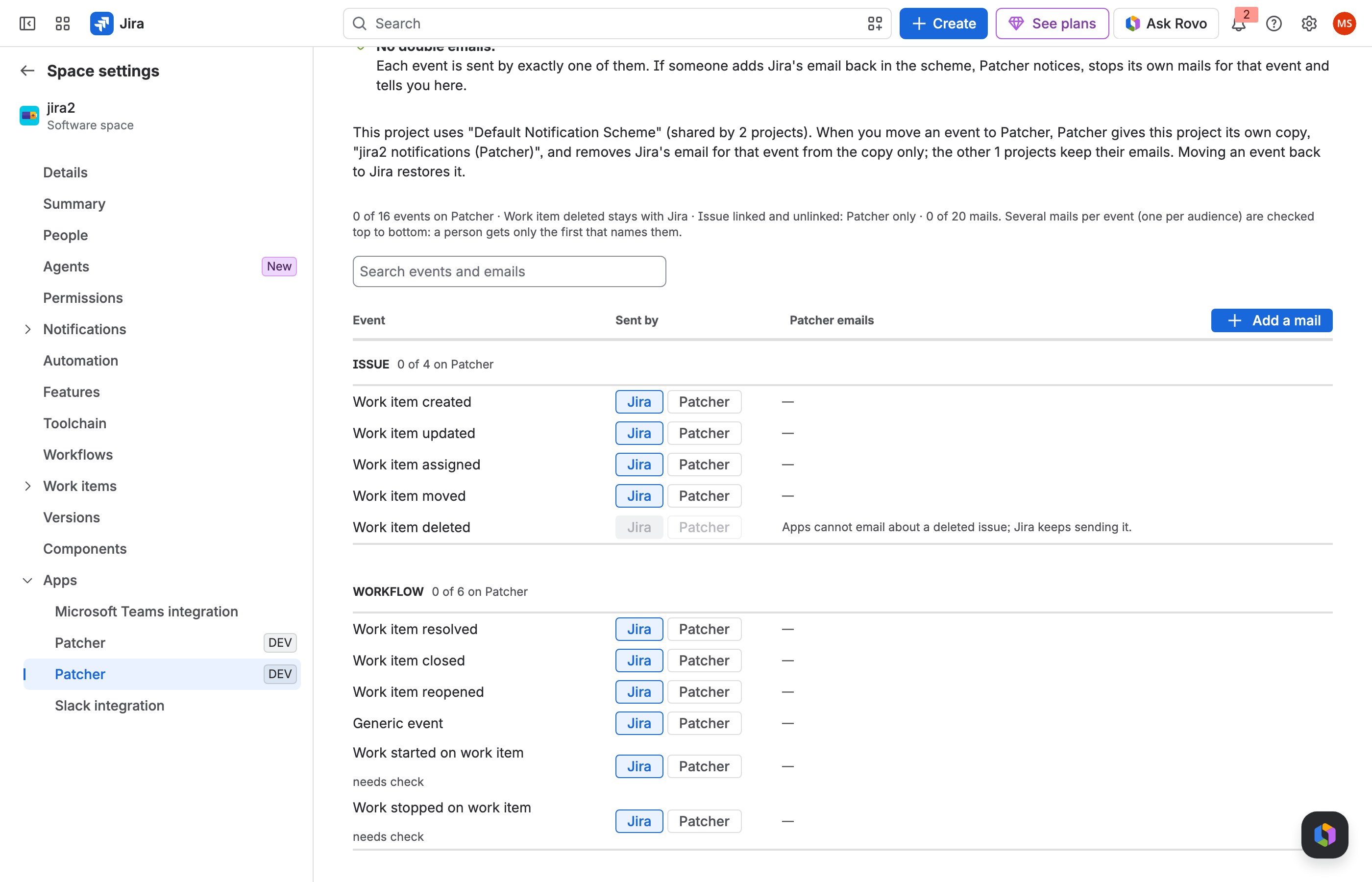
1 On the event's row, choose Patcher.
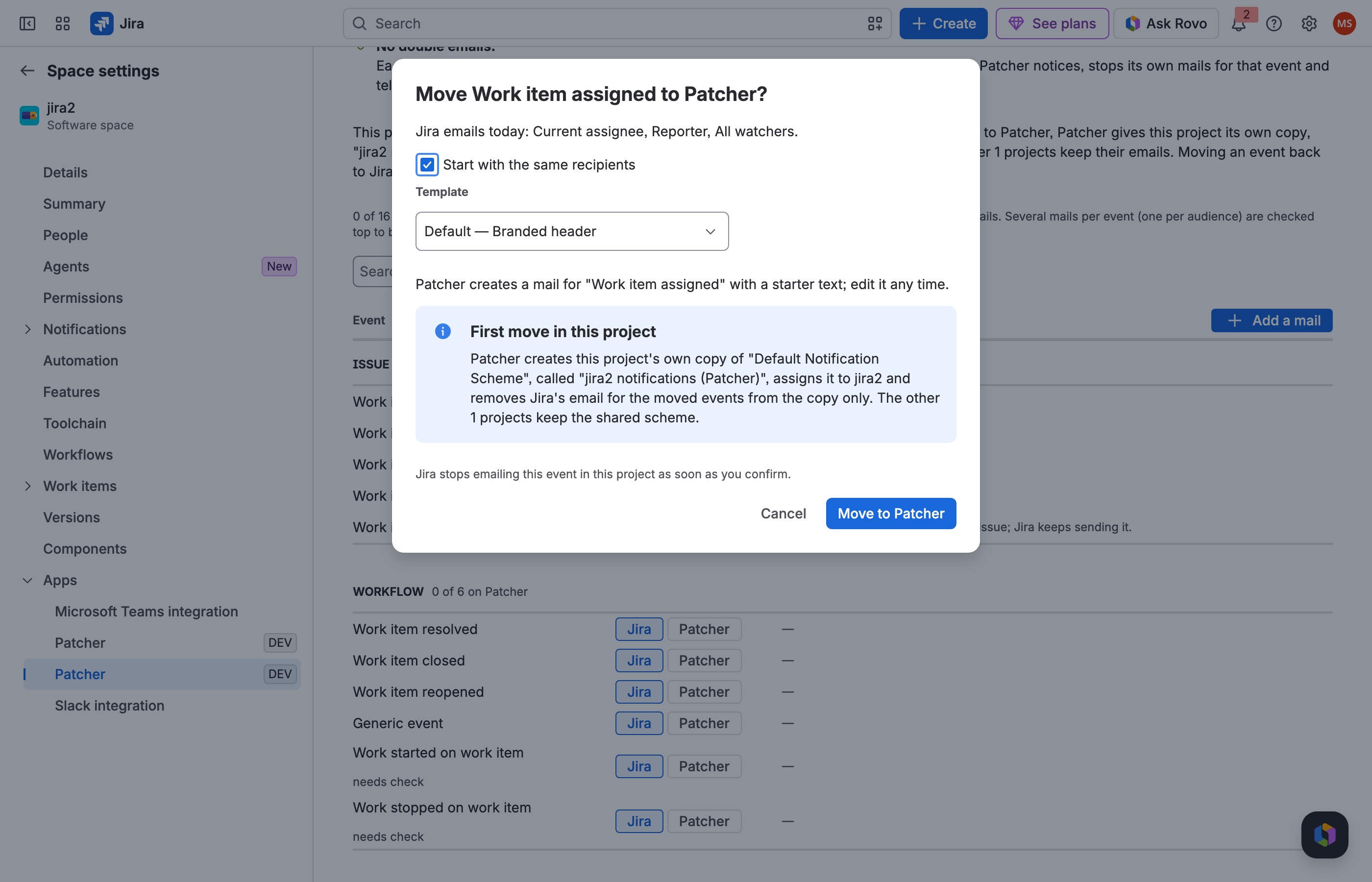
2 Confirm: Patcher starts a mail with Jira's recipients.
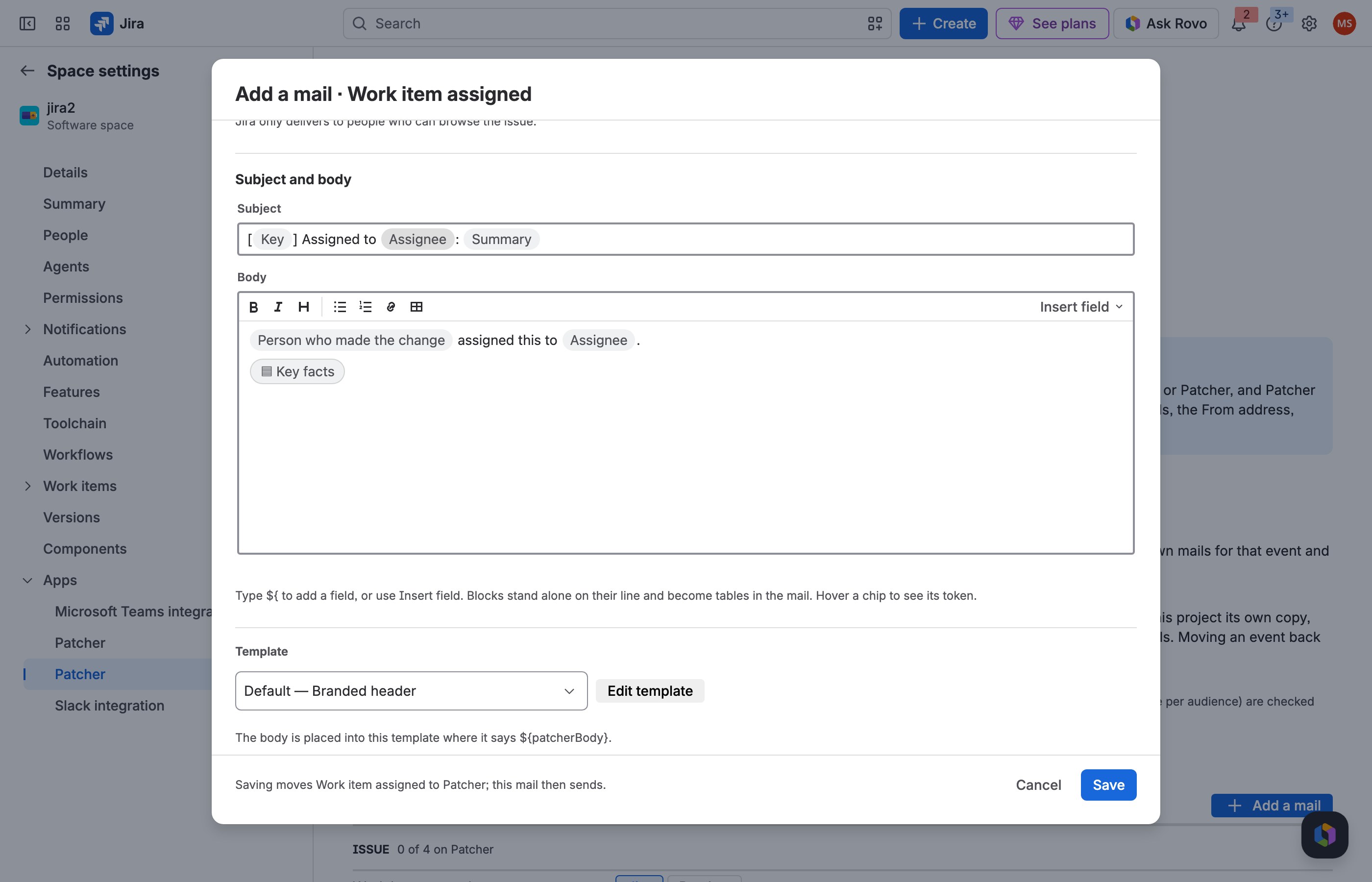
3 Edit the mail's text, recipients and template.
JRACLOUD-69109 Mail when a particular field changes, or not
What people asked
Notify when a given custom field changes, or stop notifications when only that field changes.
What the fix does
Only when these fields change and Unless only these fields change on Work item updated, with up to 10 fields.
Where you find it
Add a mail → Work item updated → When.
How to do it
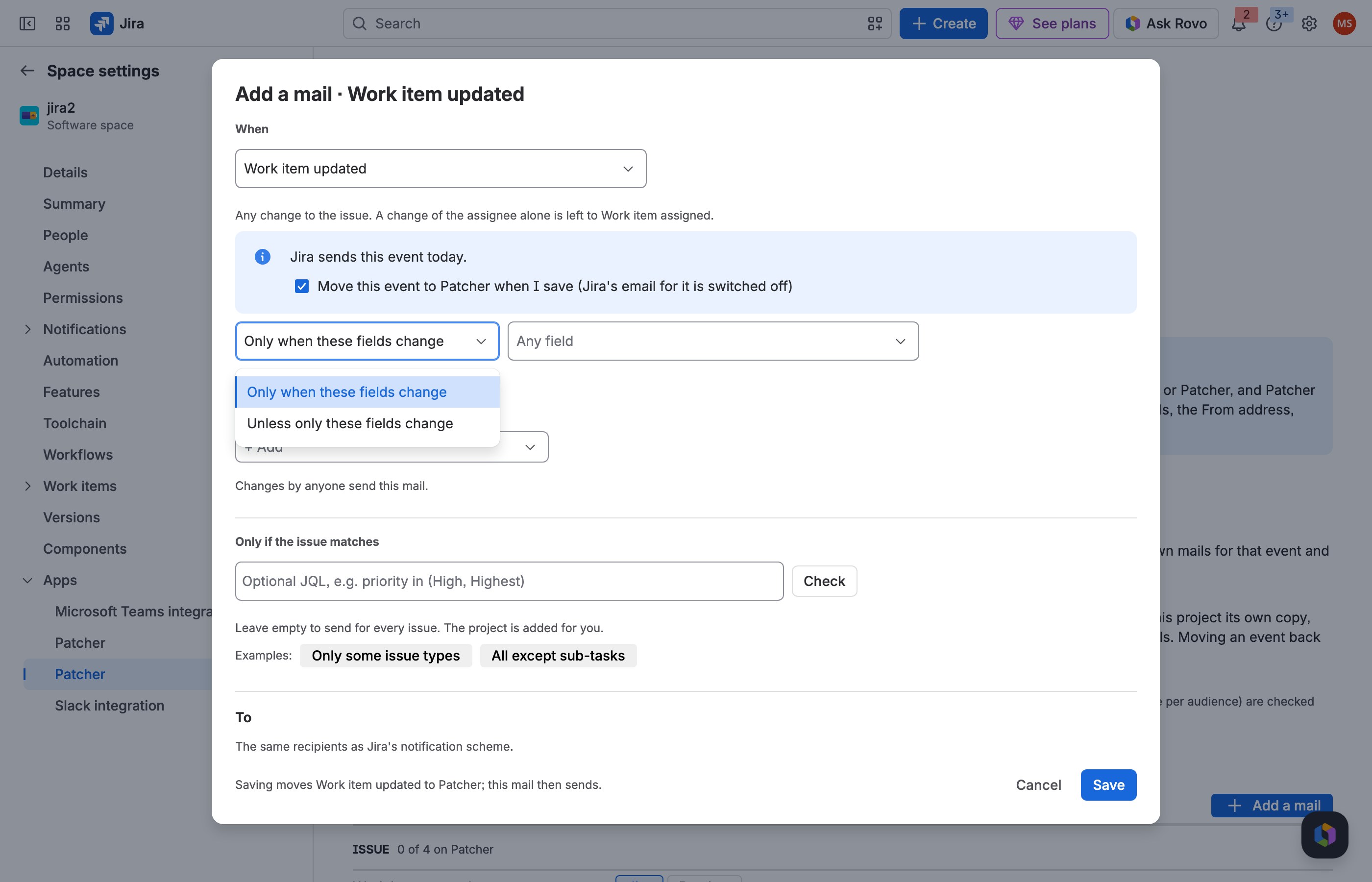
1 On Work item updated, choose the mode.
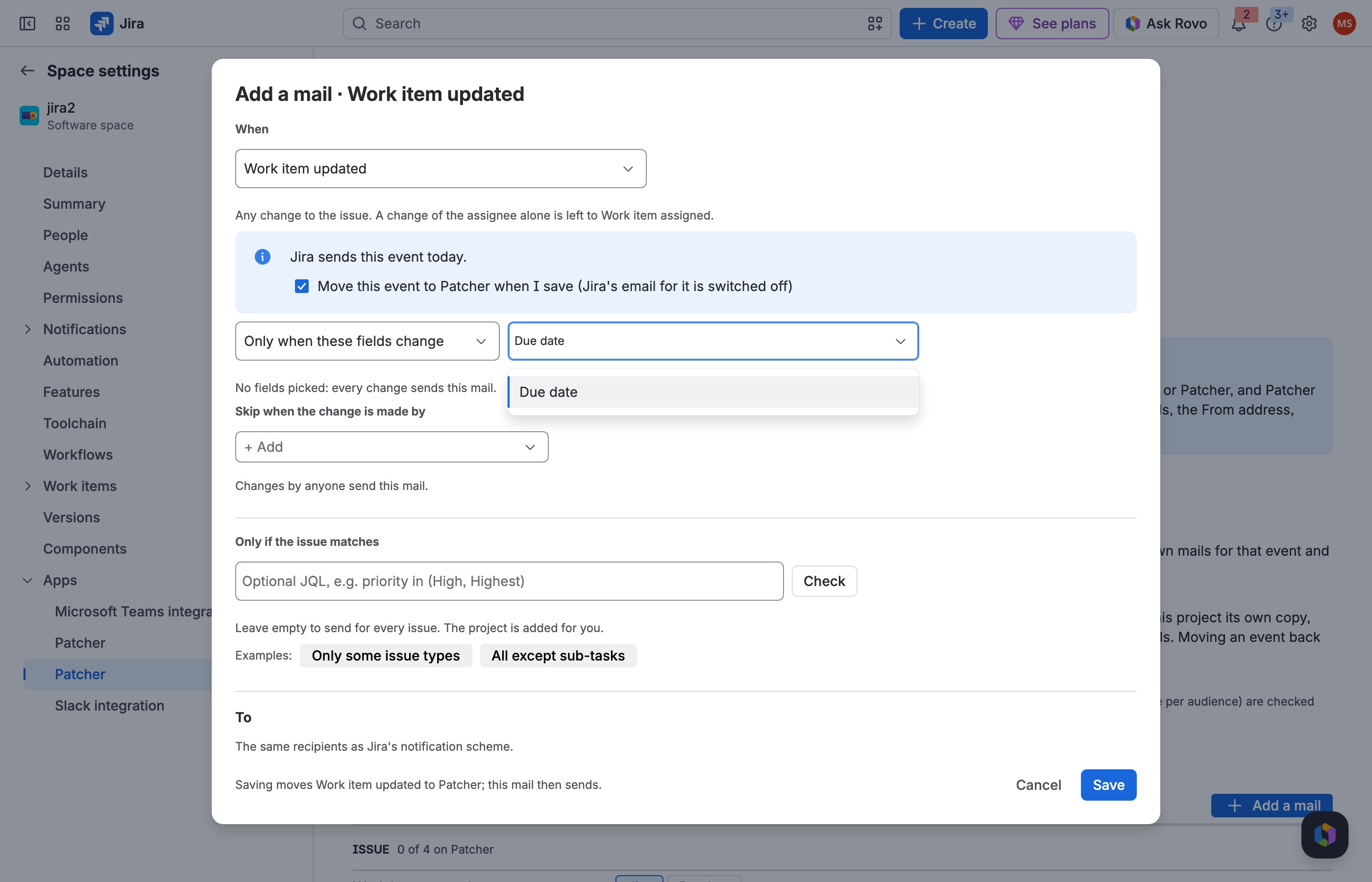
2 Pick the field.
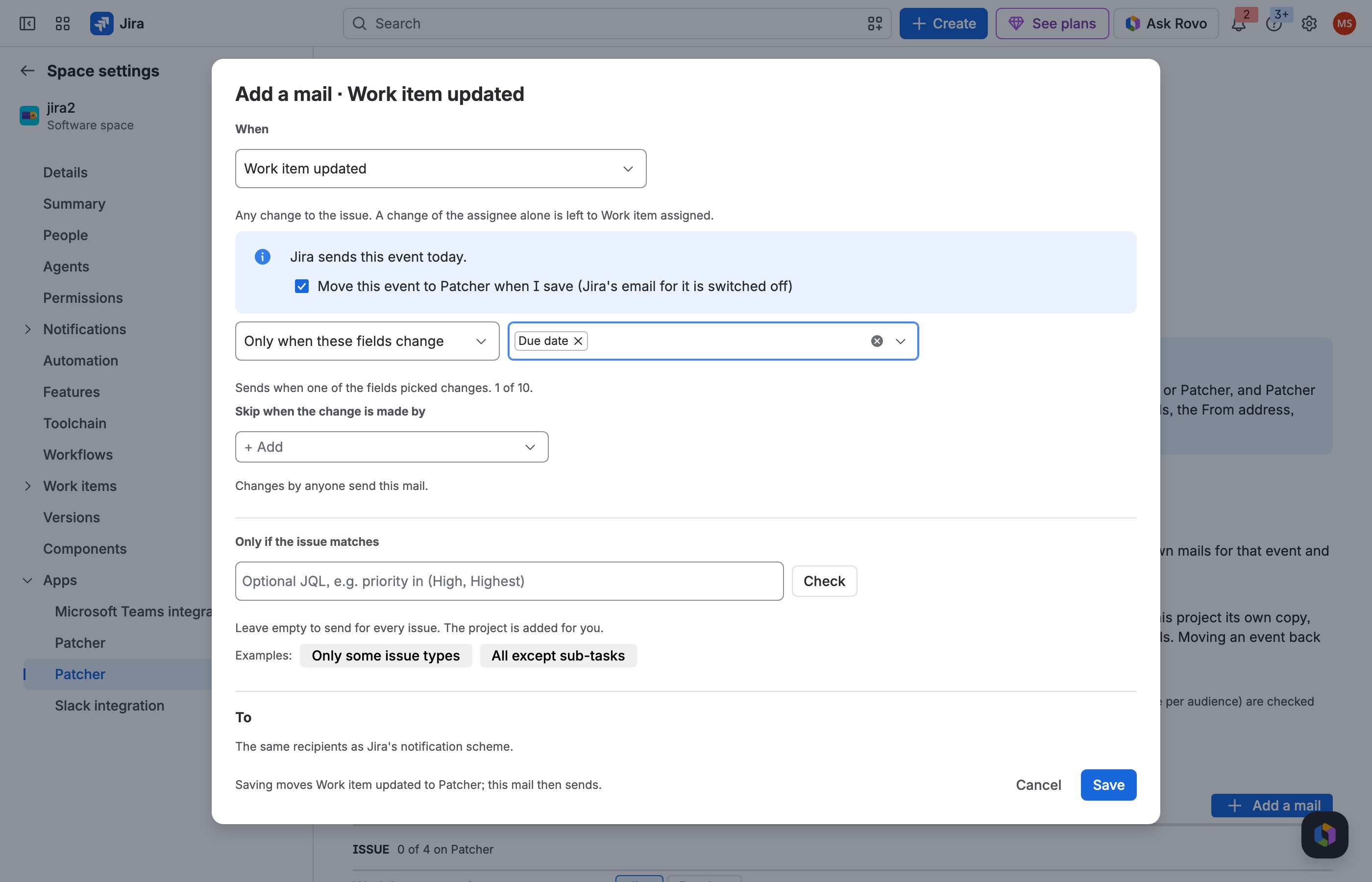
3 Save: the mail sends only for that field.
JRACLOUD-93989 Links without tracking parameters
What people asked
Remove linkSource=email and other parameters from the links in notification mails.
What the fix does
Patcher's links are plain issue links (https://<site>/browse/<KEY>), with nothing appended.
Where you find it
Any Patcher mail; check the links in Preview.
How to do it
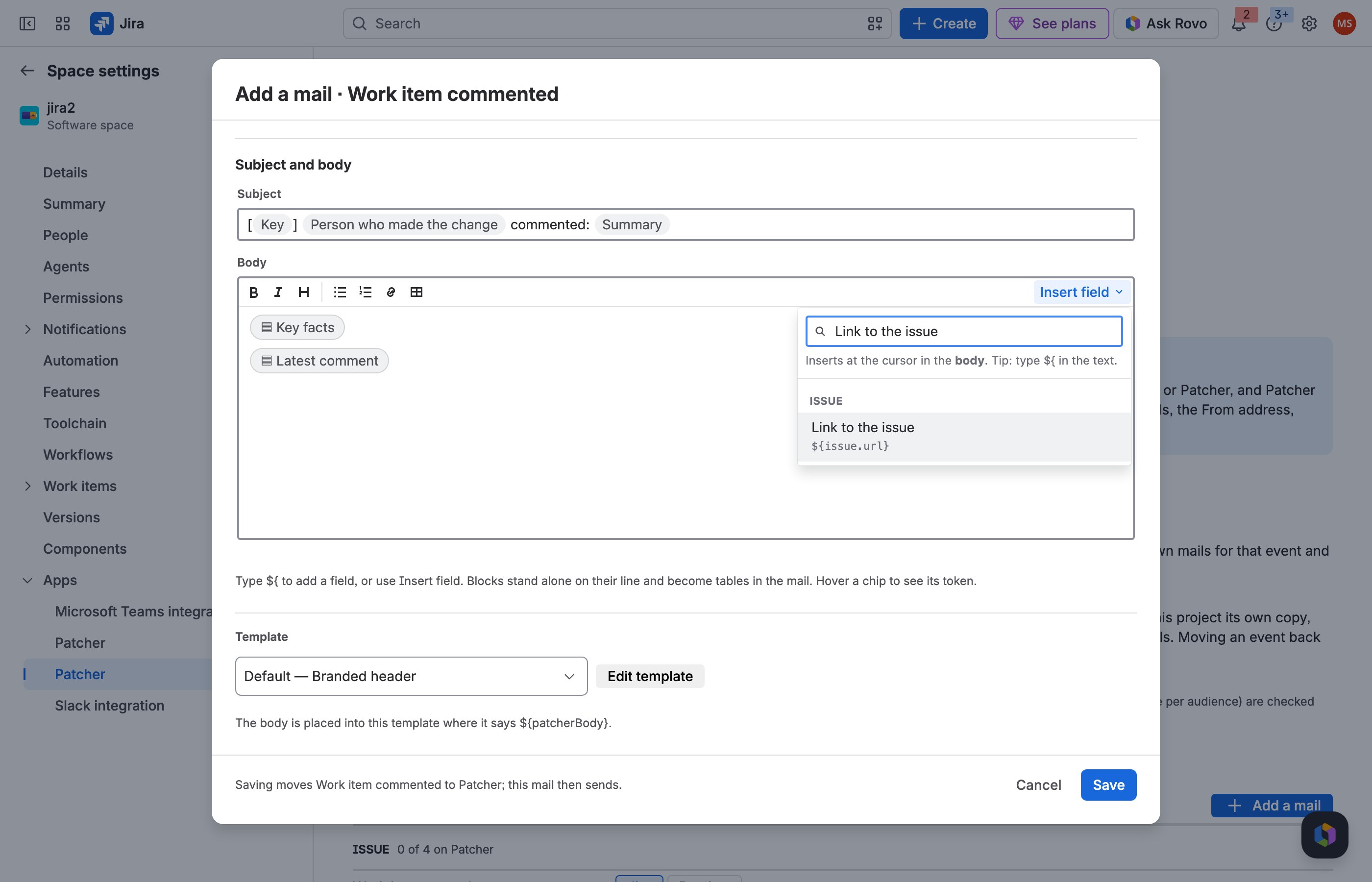
1 Insert the issue link where it should go.
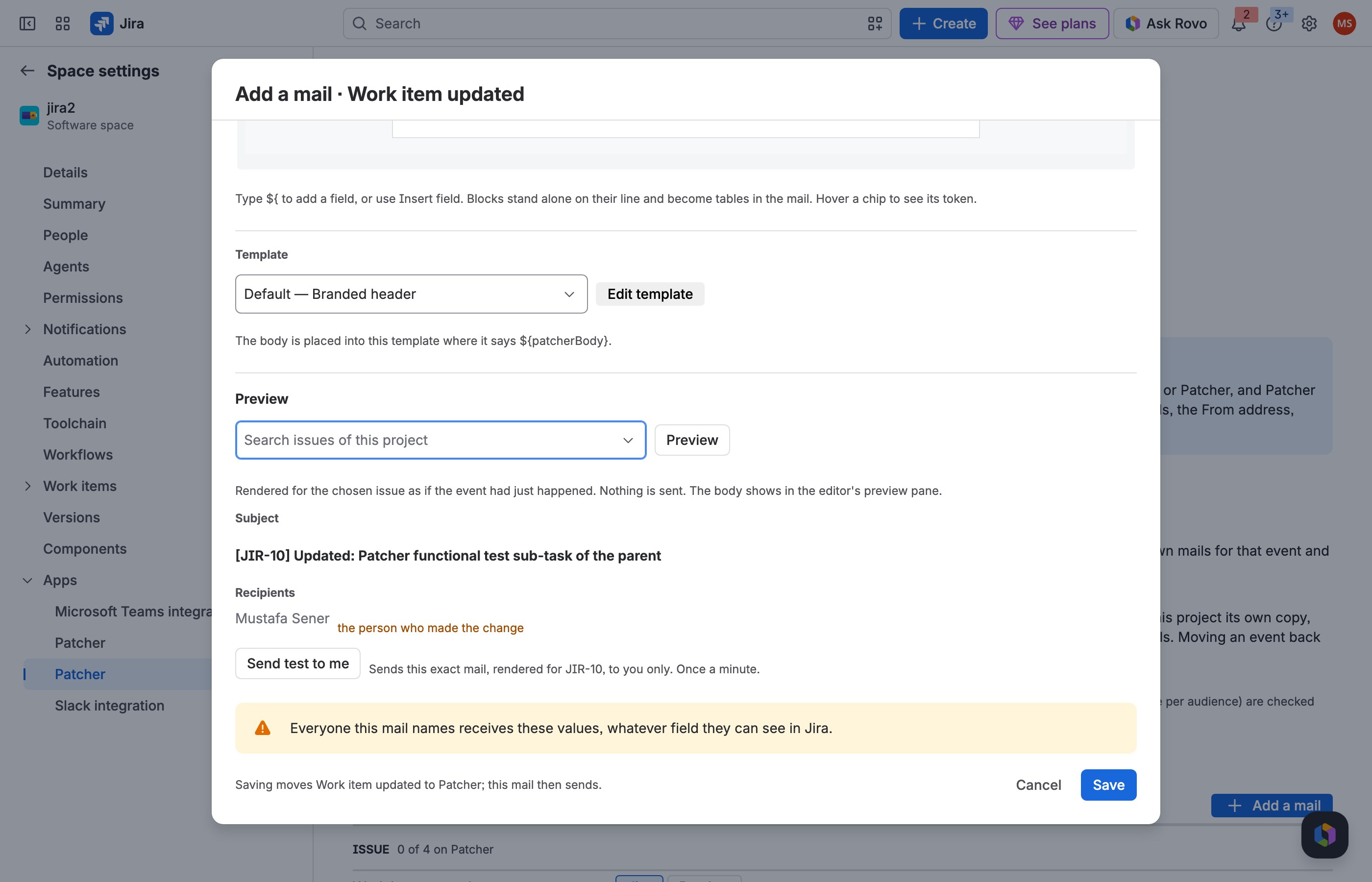
2 Preview the mail.
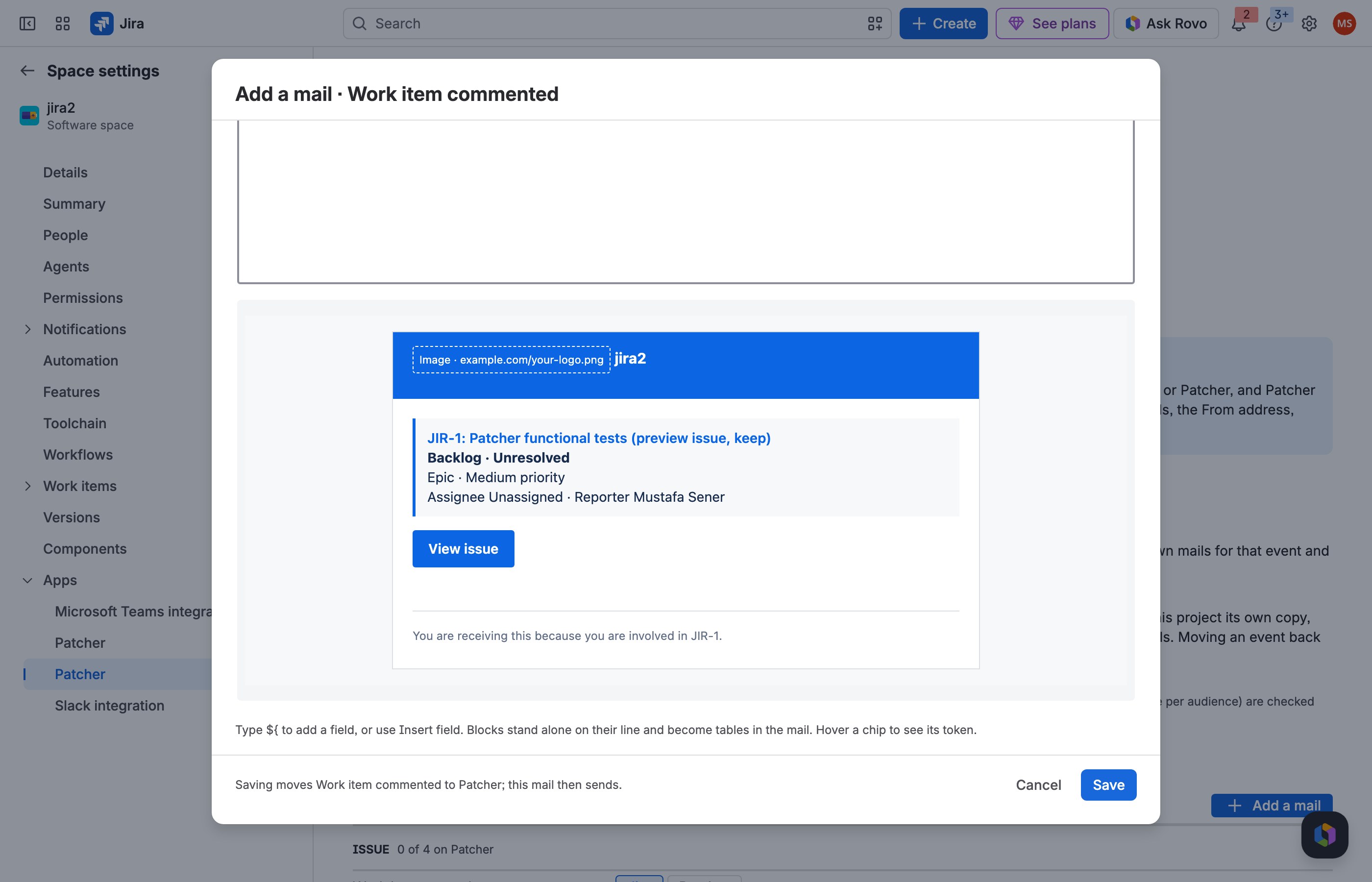
3 The View issue button opens the issue, with nothing appended.
JRACLOUD-5722 The parent in a sub-task mail
What people asked
Mails about a sub-task should show its parent issue, since a sub-task's summary often means little on its own.
What the fix does
The Key facts block shows a Parent line on every sub-task mail, and the parent's key, summary, status and link are fields you can add anywhere.
Where you find it
The mail editor → Subject and body → ${parent.
How to do it
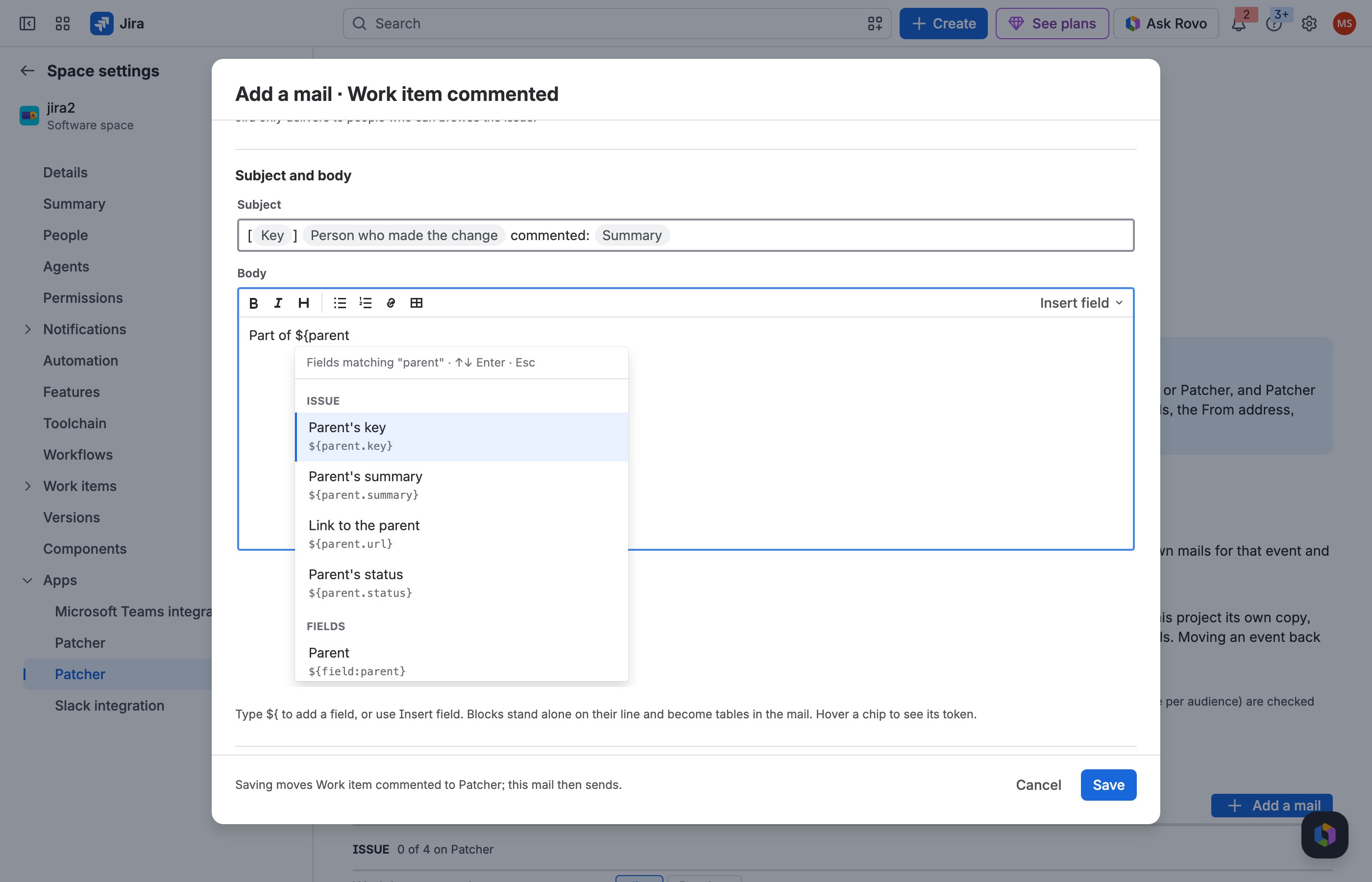
1 Type ${parent in the body.
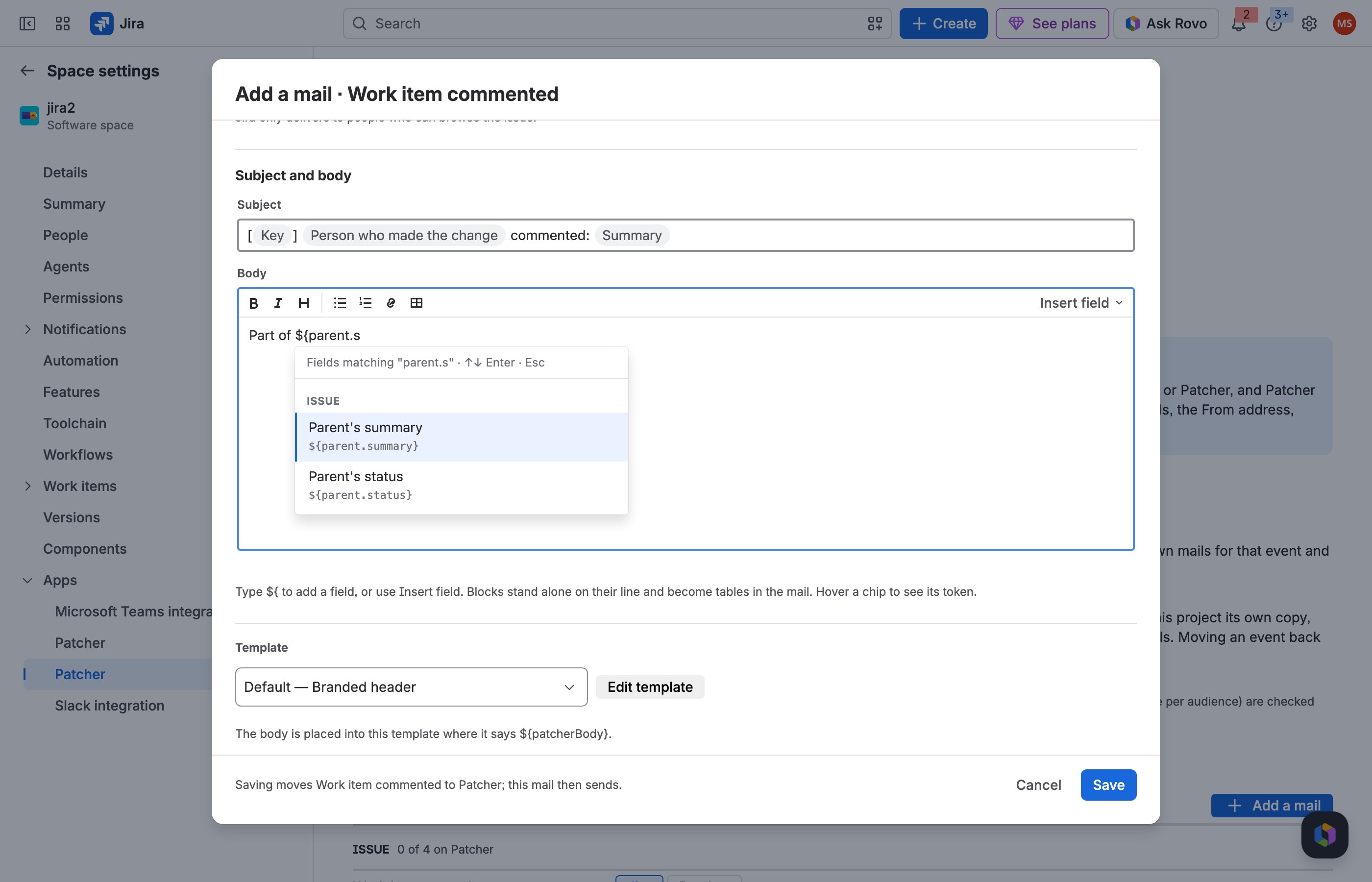
2 Pick the parent's key, summary or status.
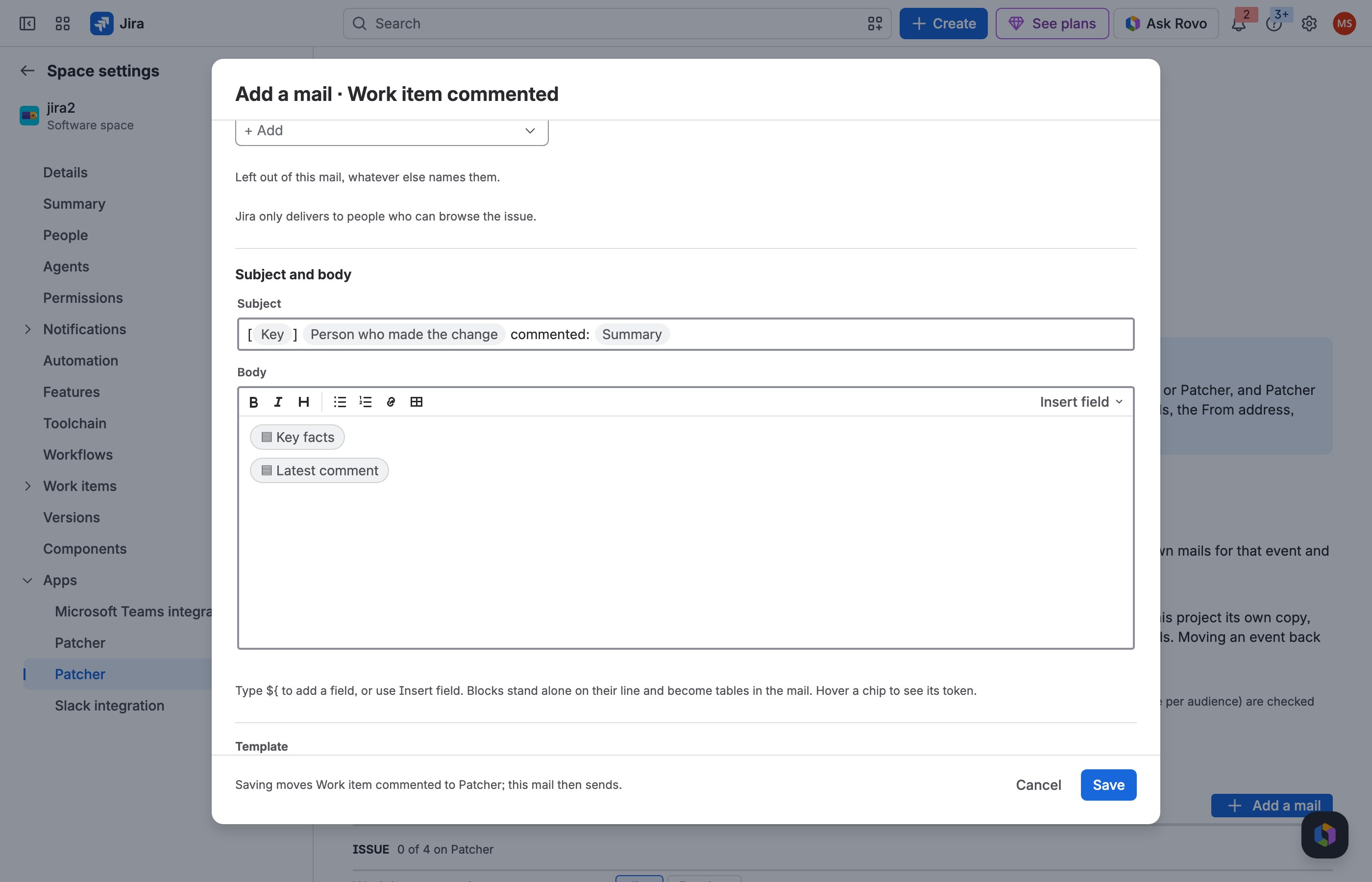
3 The key facts show a Parent line on every sub-task mail.
JRACLOUD-78811 A mail when an issue is linked
What people asked
An issue linked event in the notification scheme.
What the fix does
Issue linked and Issue unlinked are rows of their own, sent by Patcher only, and a mail can be limited to some link types such as Blocks.
Where you find it
Notifications → Links; Add a mail → Issue linked.
How to do it
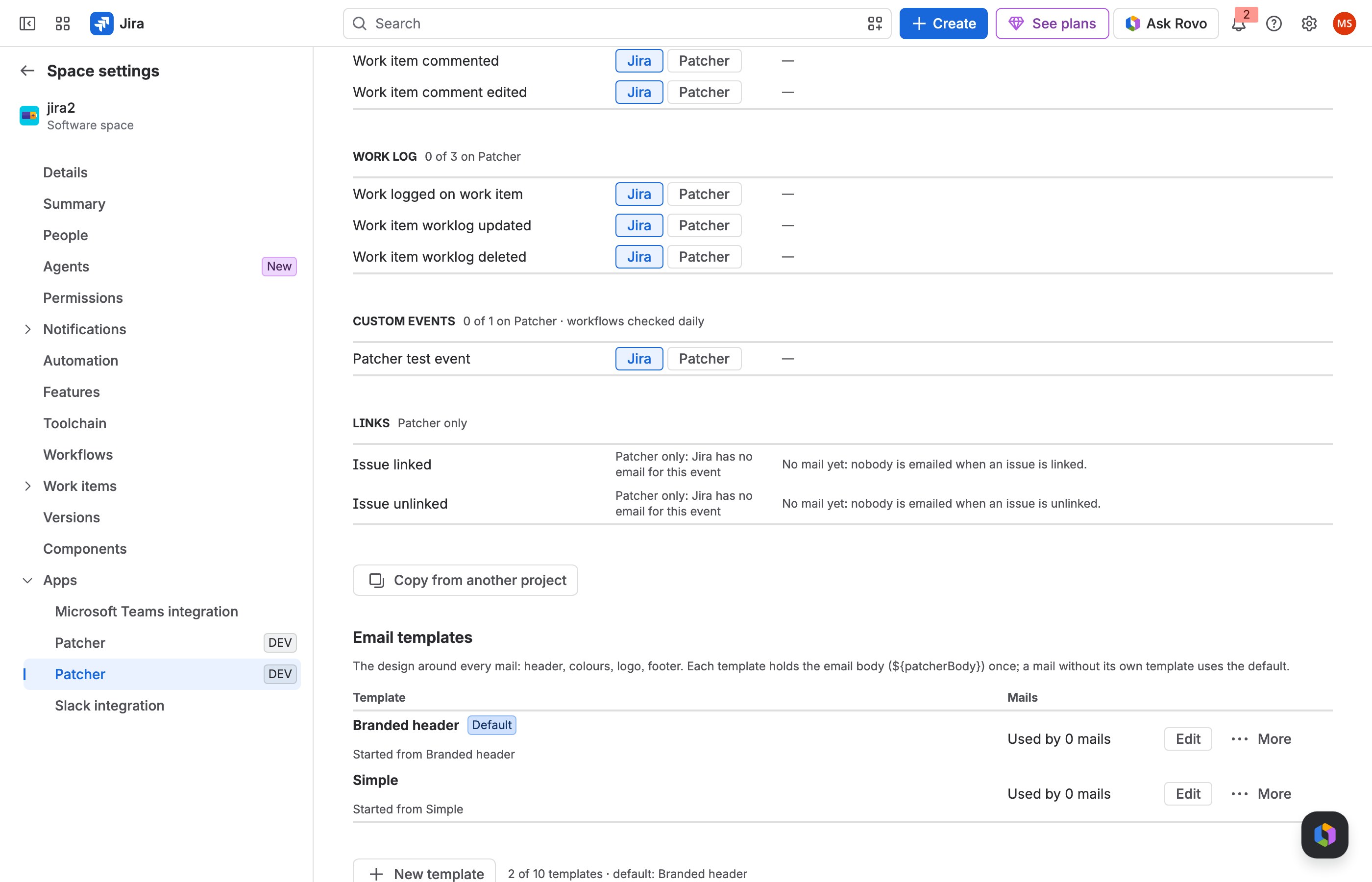
1 Issue linked has its own row in Links.
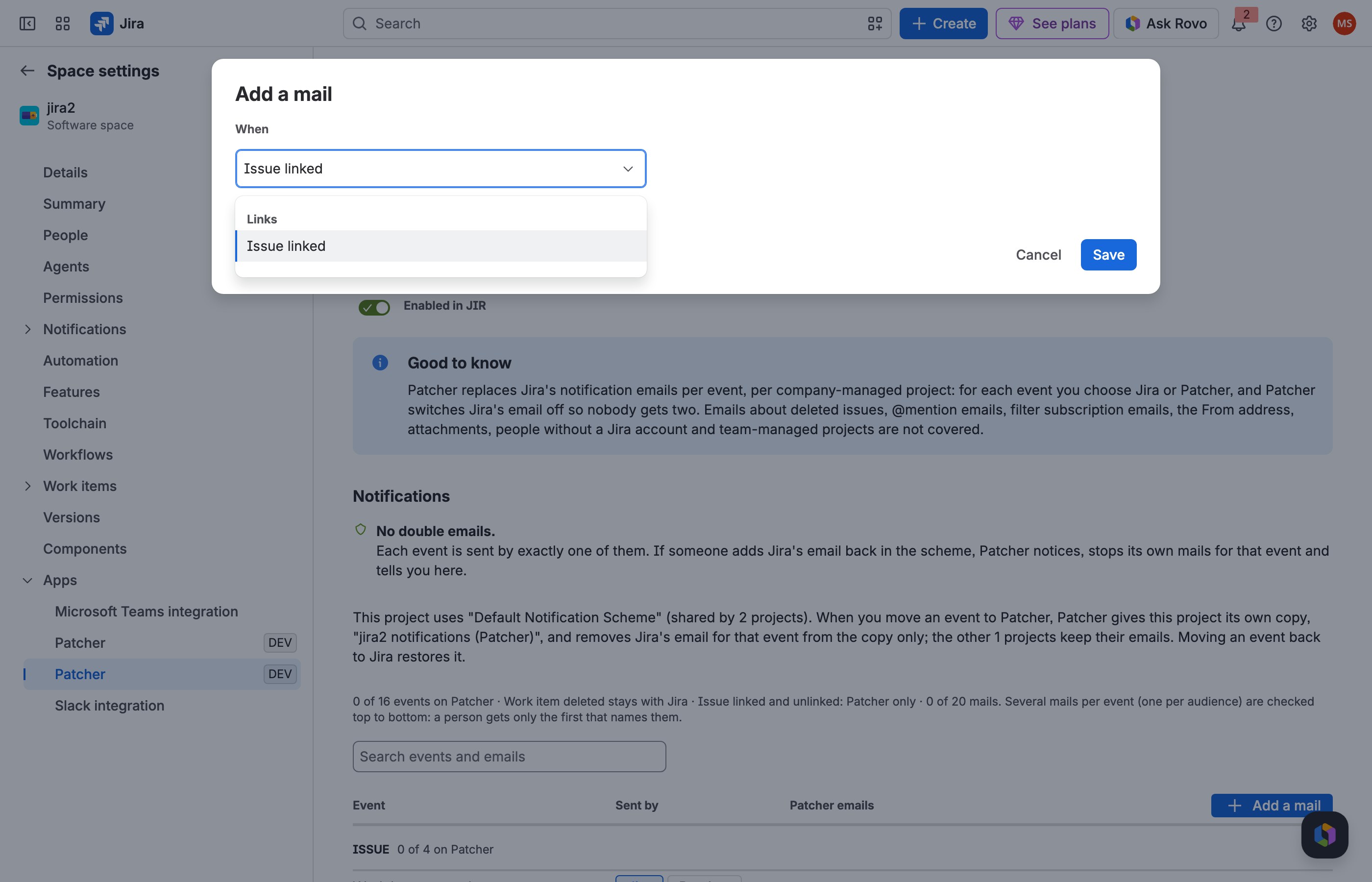
2 Add a mail and pick Issue linked.
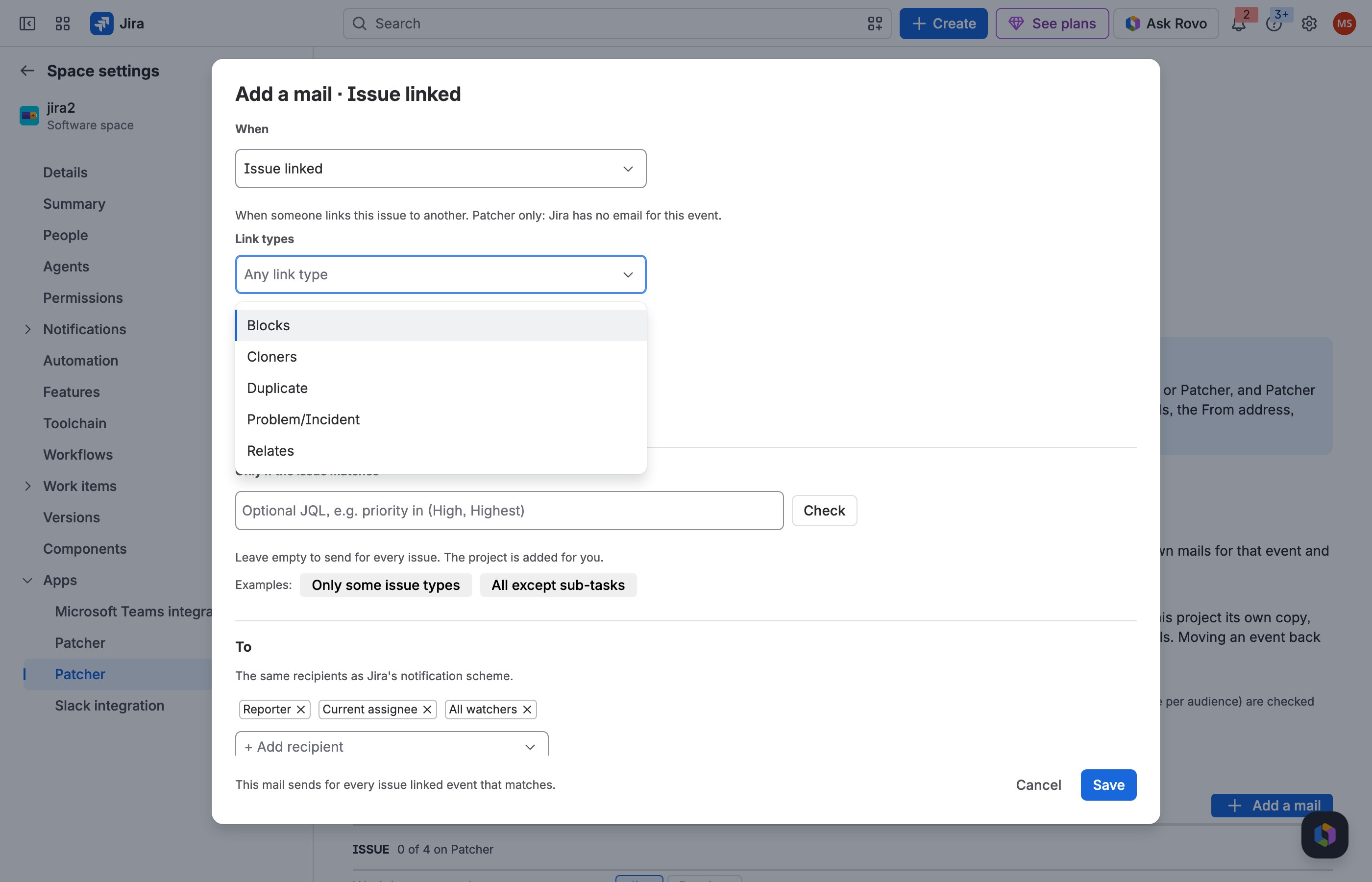
3 Limit it to some link types, then Save.
JRACLOUD-77371 No updated mail for sprint moves
What people asked
Moving an issue to another sprint should not send an Issue updated mail.
What the fix does
Unless only these fields change: Sprint (add Rank for re-ranking) keeps the Work item updated mail quiet for sprint moves and still sends it for real changes.
Where you find it
Add a mail → Work item updated → When.
How to do it
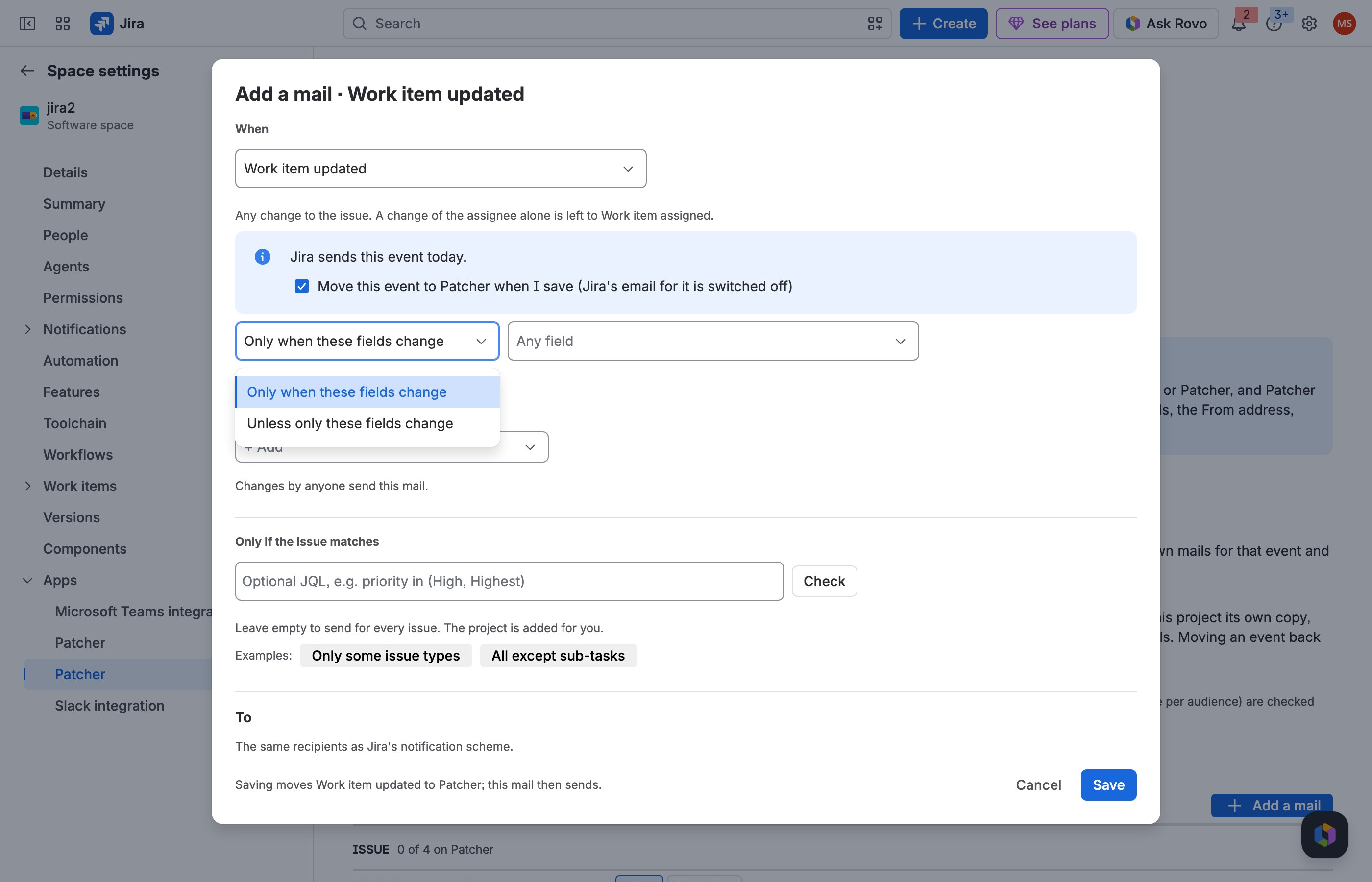
1 On Work item updated, choose Unless only these fields change.
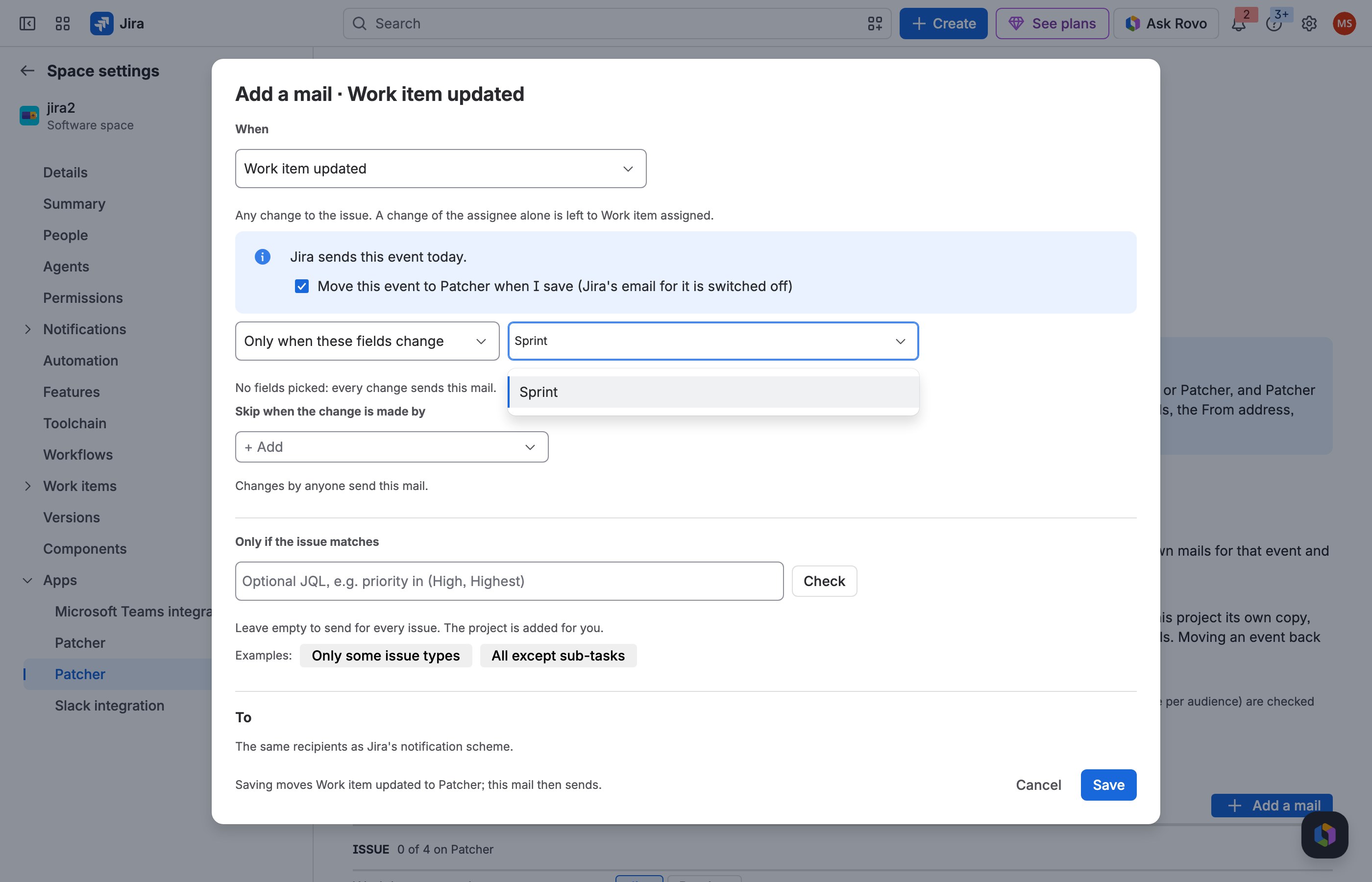
2 Pick Sprint (and Rank).
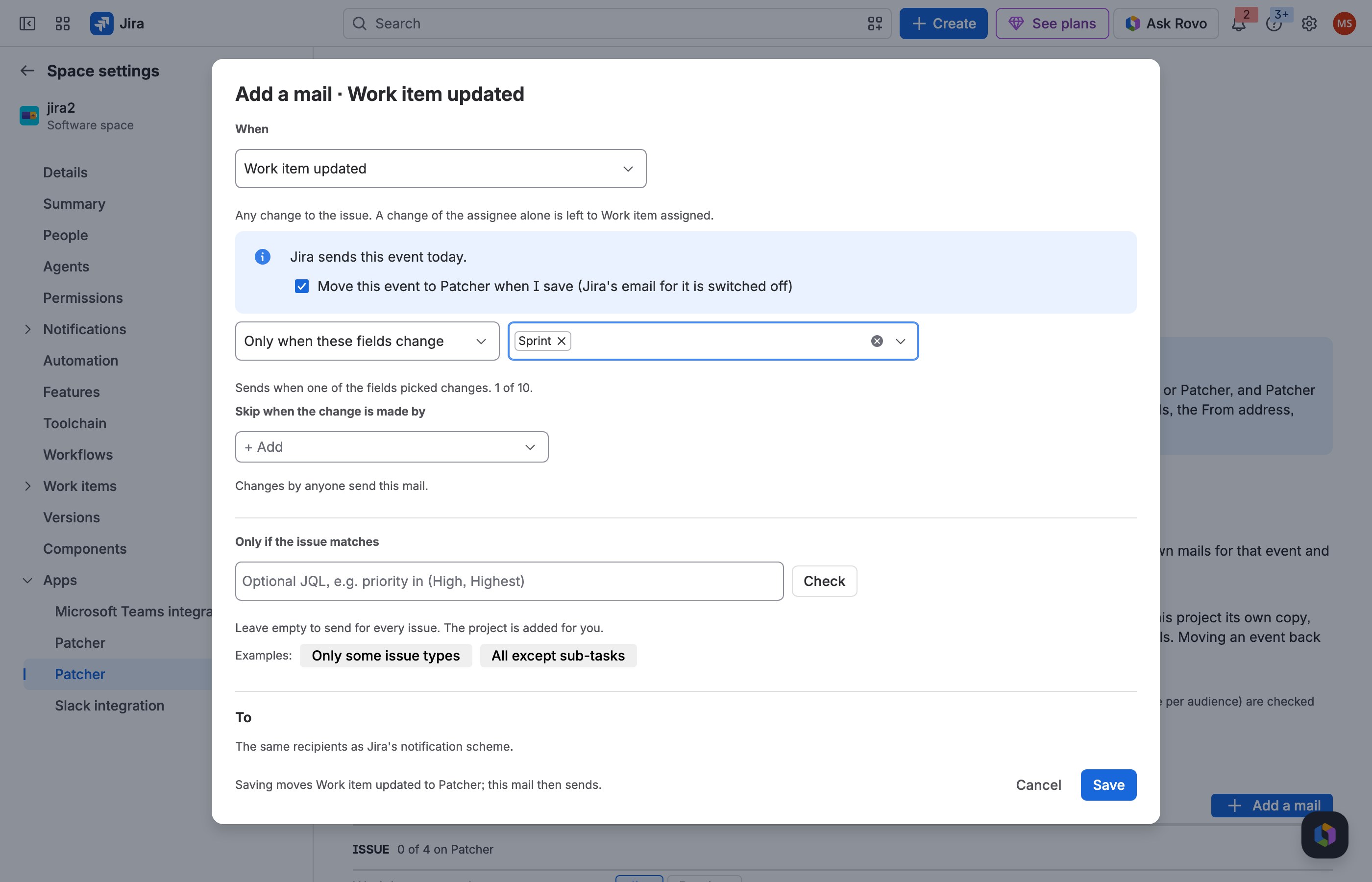
3 Save: sprint moves send nothing, real changes still do.
JRACLOUD-27384 The event type in the subject
What people asked
Show the event type, such as Created or Resolved, in the subject so mails can be filtered.
What the fix does
${event} writes the event's name; the ready-made subjects already contain it.
Where you find it
The mail editor → Subject → ${event}.
How to do it
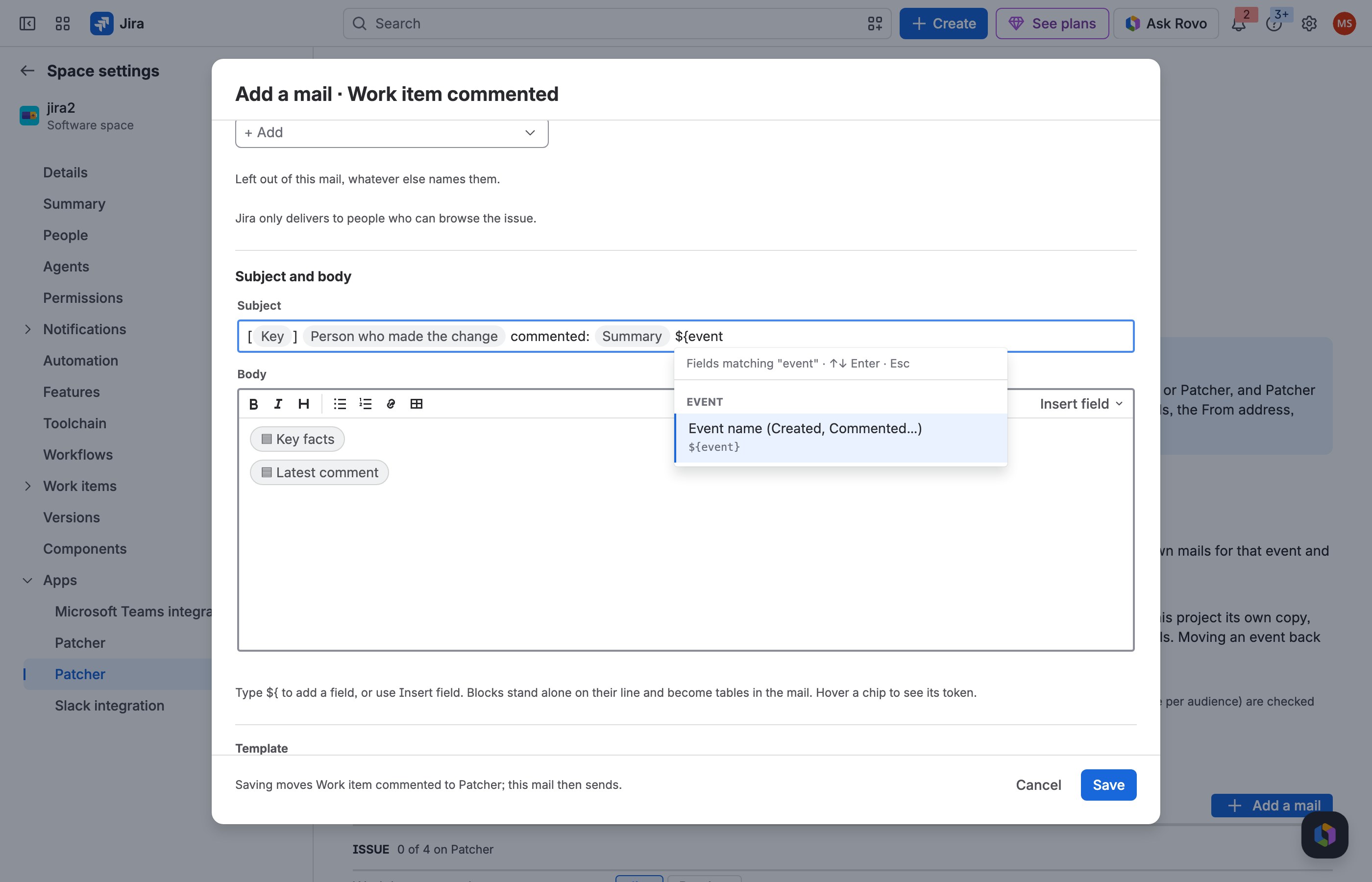
1 In the Subject, type ${event.
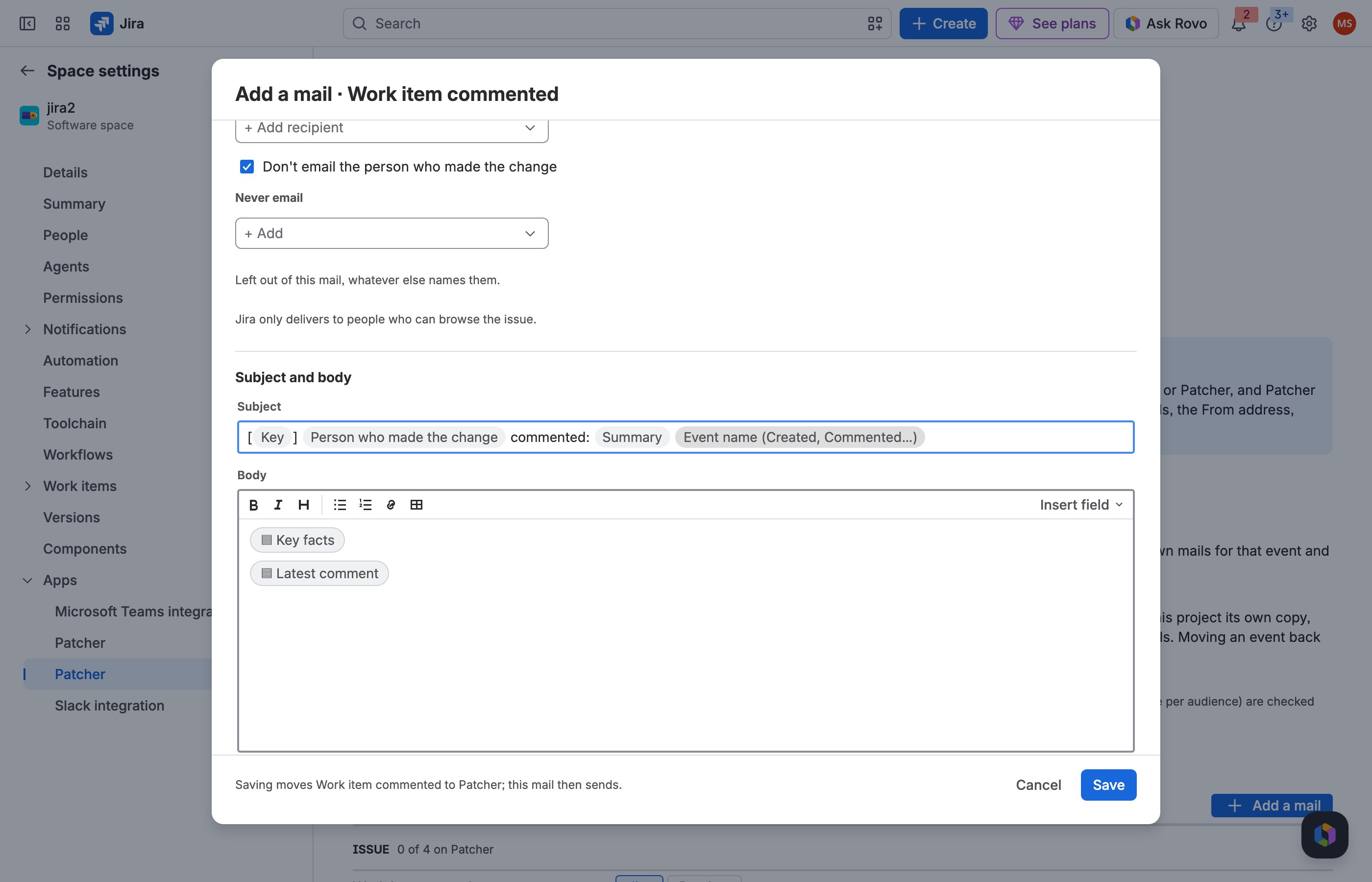
2 Pick Event name.
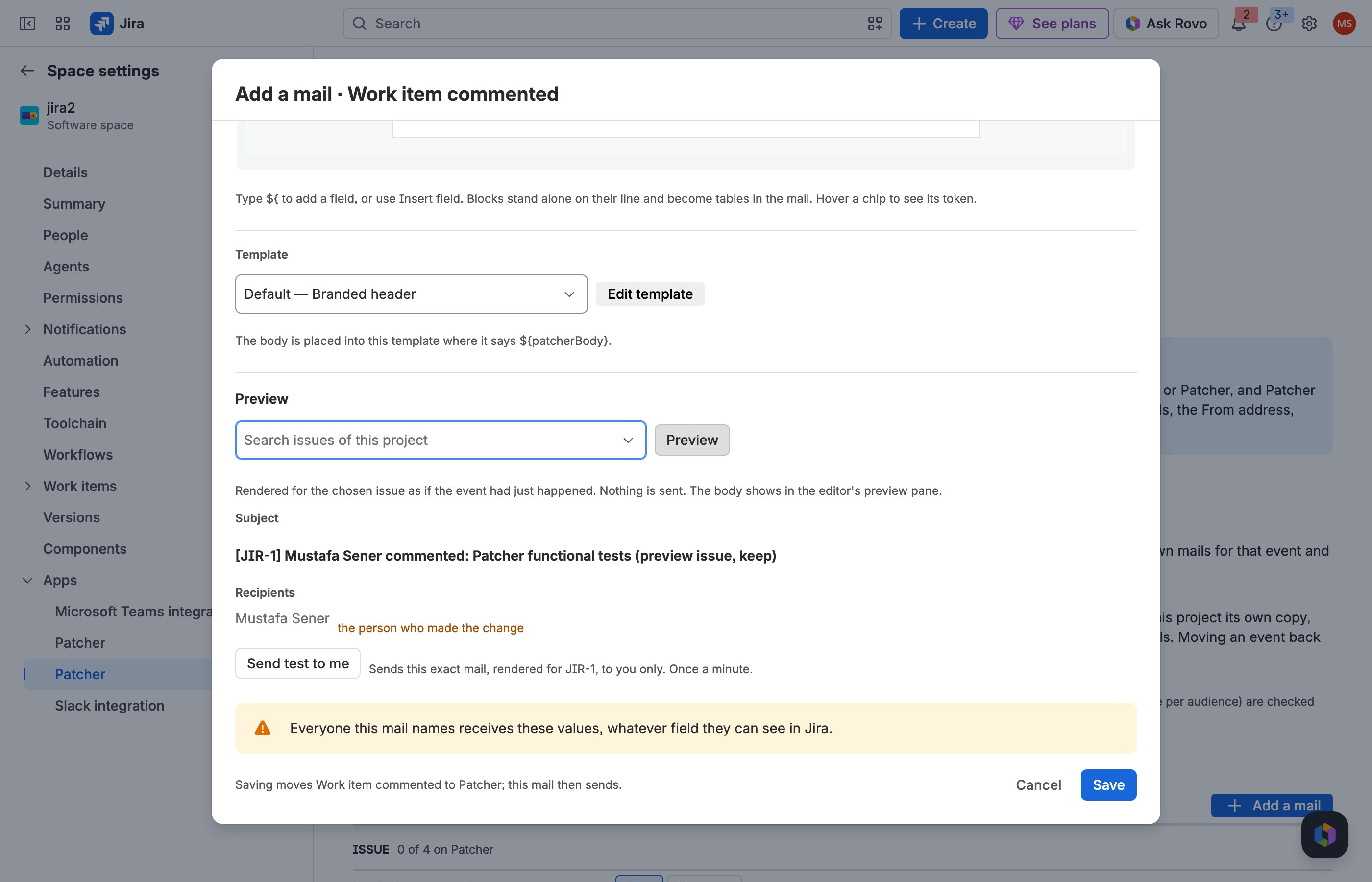
3 Preview: the subject says Commented, Created, Resolved….
JRACLOUD-80026 Custom events in the current design
What people asked
Emails sent for workflow custom events still use Jira's old template; they should look like the others.
What the fix does
Each custom event of your notification scheme gets its own row. Move it to Patcher and add your mail: Patcher finds the transitions that fire the event in your workflows, and from then on each of them sends your mail, in your template, instead of Jira's old-style email. You pick nothing else. Patcher reads the workflows when you save the mail and then once a day, and the row tells you when a workflow change means the event no longer fires.
Where you find it
Notifications → Custom events; Add a mail → the custom event.
How to do it
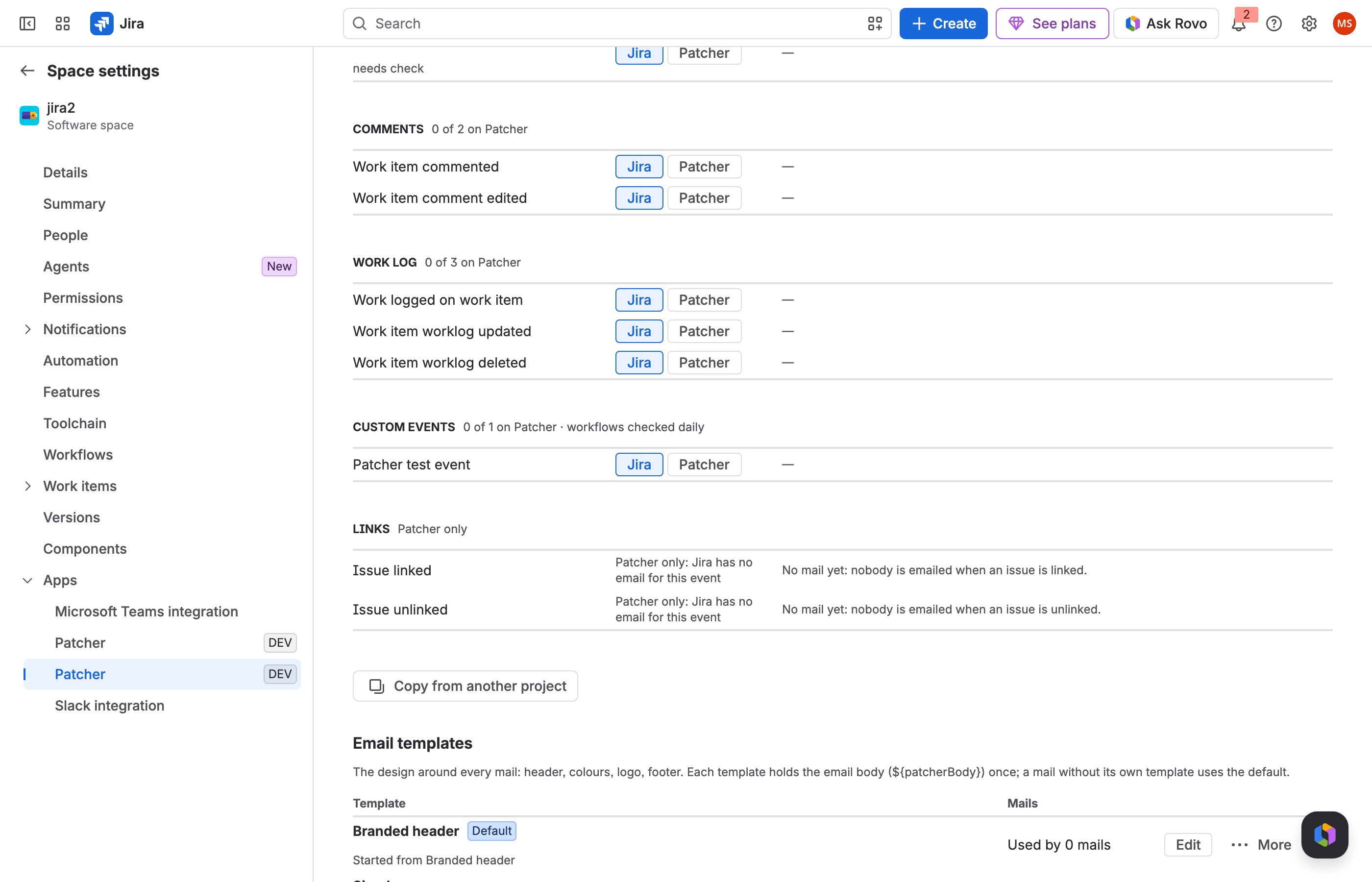
1 Your scheme's custom events are rows of their own.
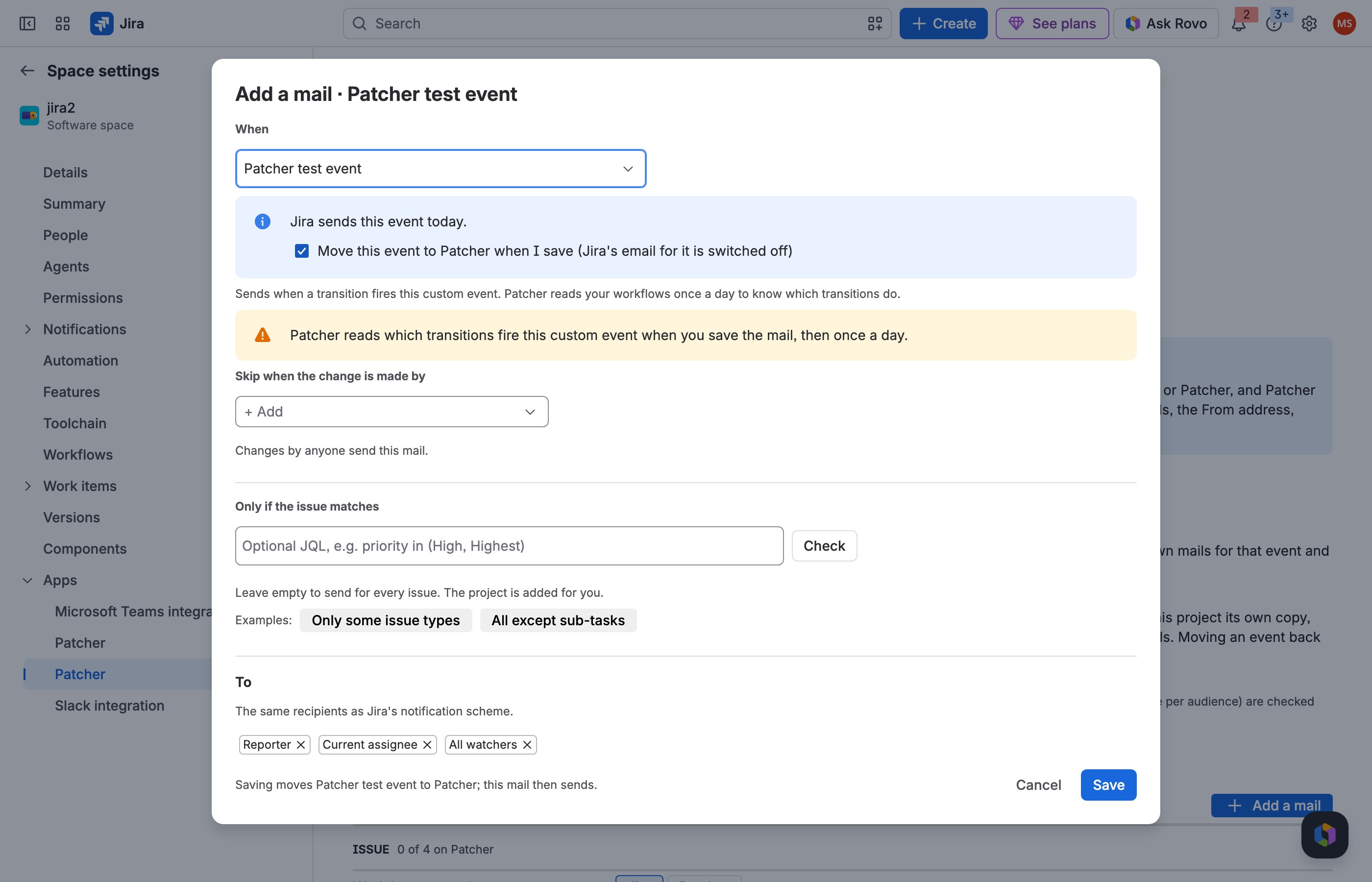
2 Add a mail for it: Patcher finds the transitions that fire it when you save.
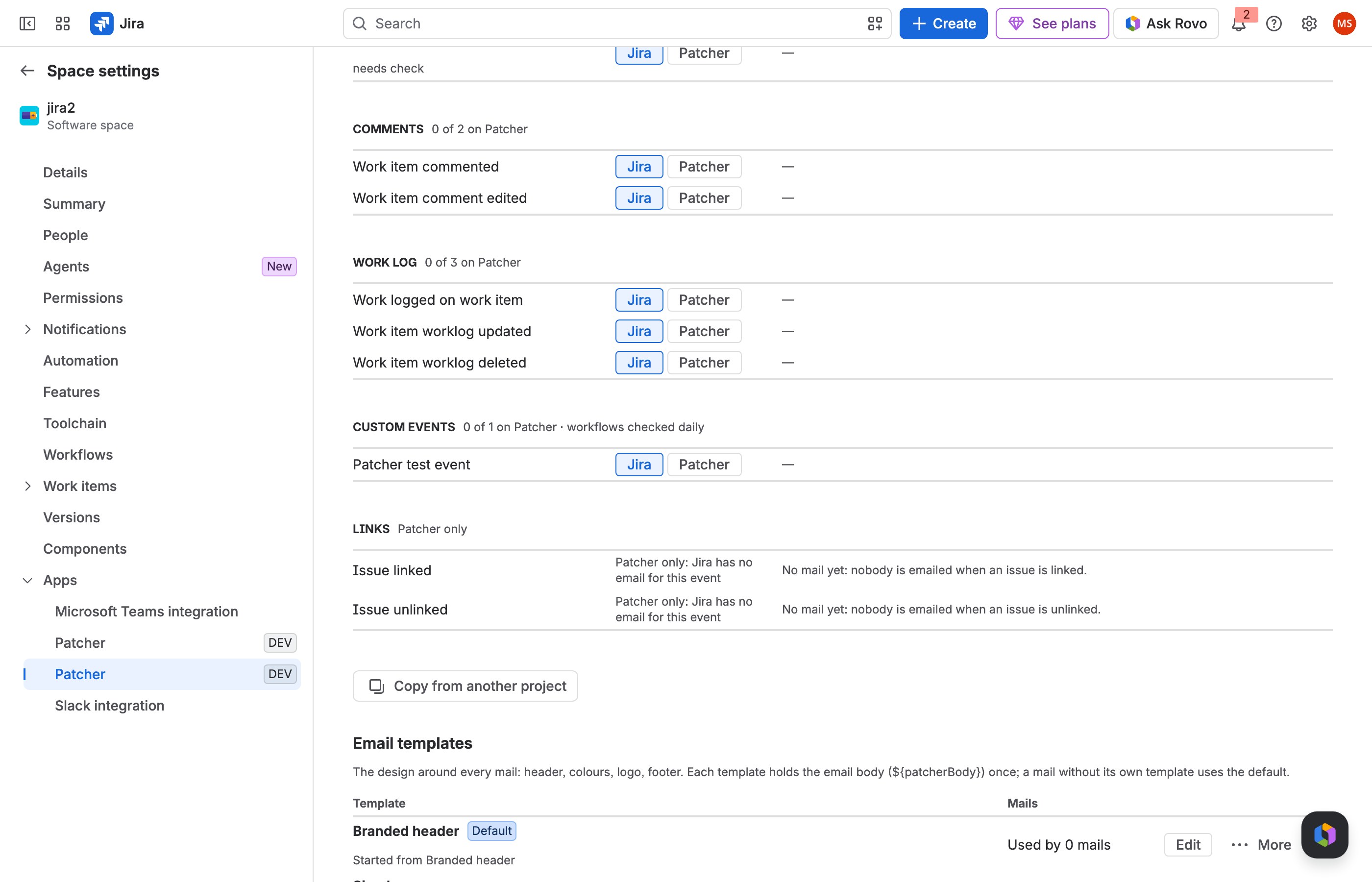
3 Choose Patcher on its row: Jira's old-style email stops.
What your users see
- People a mail names: an email from your site's Jira address with your subject, your text and fields, in the mail's template. There is no Patcher branding in it.
- People who cannot browse the issue get nothing, even if a mail names them: Jira checks it for every send.
- The person who made the change gets nothing from mails with Don't email the person who made the change on.
- Events left on Jira, projects without the fix: Jira's own emails, unchanged.
Questions people asked
Can I edit the emails Jira itself sends?
No app can: Jira Cloud does not open its built-in templates. Patcher sends your mail instead and switches Jira's email for that event off.
Will anyone get two emails?
No. Each event is sent by Jira or by Patcher. If Jira's email comes back in the scheme, Patcher stops its own for that event and tells you.
Does it change the notification scheme of other projects?
No. The project gets its own copy, and only the copy changes. When no event is on Patcher any more, the project is back on its original scheme.
Can each project have its own mails?
Yes, that is how it works; projects without the fix keep Jira's mails.
Can I send one text to the reporter and another to the team?
Yes: two mails for the same event, the reporter's first. Each person gets only the first mail that names them.
Can I put custom fields in the subject?
Yes, any field, in the subject and in the body.
Can I preview a mail without sending it?
Yes, Preview renders it for any issue of the project; Send test to me sends it only to you.
Can I remove "[JIRA]" from the subject?
Patcher's subjects have no prefix. Jira's own emails keep theirs.
Can I stop mails for sprint moves, re-ranking or attachment uploads?
Yes, with Unless only these fields change.
Can I mail a group only for one issue type?
Yes, with a JQL condition on the mail.
Can I leave a person or an automation account out?
Yes: Never email and Skip when the change is made by.
Do links carry tracking parameters?
No.
Can I change the From address or send through our own mail server?
No. Mails come from your site's Jira address; anything else would mean an outside mail service and your data leaving Atlassian.
Can I email people without a Jira account or a mailing list address?
No, only Jira users, groups and roles. Put the people in a Jira group instead.
Does it change filter subscription or @mention emails?
No. Jira gives apps no access to them.
Can I attach the issue's files?
No; the Attachments block links to them.
Why does my mail have a line from Jira above it?
Jira frames every mail an app sends with a "has a message for you about a work item" line and the issue's link and Add Comment below. No app can remove it; your subject, text and design are inside it.
Can I write HTML or Velocity?
No code is needed or accepted: the editors build email-safe HTML and a plain-text version for you.
Does it work in team-managed projects?
No. Jira gives apps no way to switch its emails off there, so the fix does not send in them.
What happens when I turn it off or uninstall Patcher?
Every event goes back to Jira and the project returns to its original scheme; your mails and templates are kept for when you turn it on again.
If a mail does not arrive
- Is the fix enabled in the project, and is the event Sent by: Patcher? A mail on an event left on Jira is kept, not sending.
- Does the change match the mail's conditions (fields, statuses, link types, JQL)? Preview says when an issue does not match.
- Look at the Sent log: Skipped and Failed rows give the reason.
- Was the recipient the person who made the change, or someone under Never email?
- Can the recipient browse the issue? Jira drops people who cannot.
- Did a mail higher in the list already go to that person for the same event?
- Wait a few minutes: Jira can take up to about three minutes to tell apps about a change. Check the spam folder.
- Use Send test to me to check that your mail program receives Patcher's mails.
Limits
- Company-managed projects only.
- Every event of the notification scheme except Work item deleted, which stays with Jira.
- Custom events: Patcher reads which transitions fire them once a day (and when you save the mail), so a workflow change reaches the mails at the next check, up to a day later. A custom event fired on a transition that keeps the status cannot be told apart, and neither can two transitions between the same two statuses that fire different events; the row says so and those mails are paused.
- Not covered: filter subscriptions, @mention emails, the From address, mail headers, files attached to the mail, people without a Jira account, raw email addresses.
- Up to 20 mails and 10 email templates per project; up to 10 fields in a field condition; up to 20 named people and 5 groups per mail.
- One text for everyone a mail names: no per-reader language, time zone or field visibility. Dates use your site's default format and time zone.
- Restricted comments and work logs never send a mail and never appear in one.
- Mails arrive within seconds, at most about three minutes after the change. A mail Jira refuses is retried three times over about 20 minutes, then shown as Failed. A mail too long for Jira's limit is shortened with a link to the issue.
- Images in templates are added by https address; the editor and the preview show a box with the address instead.
- What a mail looks like next to the editor: rounded corners arrive square, links in the text take Jira's link colour (buttons keep theirs), and Jira's own frame (the "has a message for you" line, the issue link, Add Comment) sits around every mail; an app cannot remove it.
- Send test to me works once a minute. The Sent log keeps 30 days (up to 2,000 rows per project).